

Setting up a Sandbox Store
In this guide we'll set up a Developer Sandbox store on Shopify. We'll set up a developer Shopify store, install Ordergroove, and run through the subscription lifecycle by creating a customer, subscription, and order.
Watch a Video
The following video covers everything in this article:
Timestamps:
- Create a Shopify Dev Store - 00:27
- Install Ordergroove - 02:08
- Create a new Customer, Subscription, and Order - 07:14
1. Create a Shopify Dev Store
First up we need a new Shopify Developer Store:
- Open up the Shopify dev dashboard
- Click Add dev store
- Give your new store a Name
- Select Plus for Shopify Plan
- Check Generate test data for store
- Click Create Store
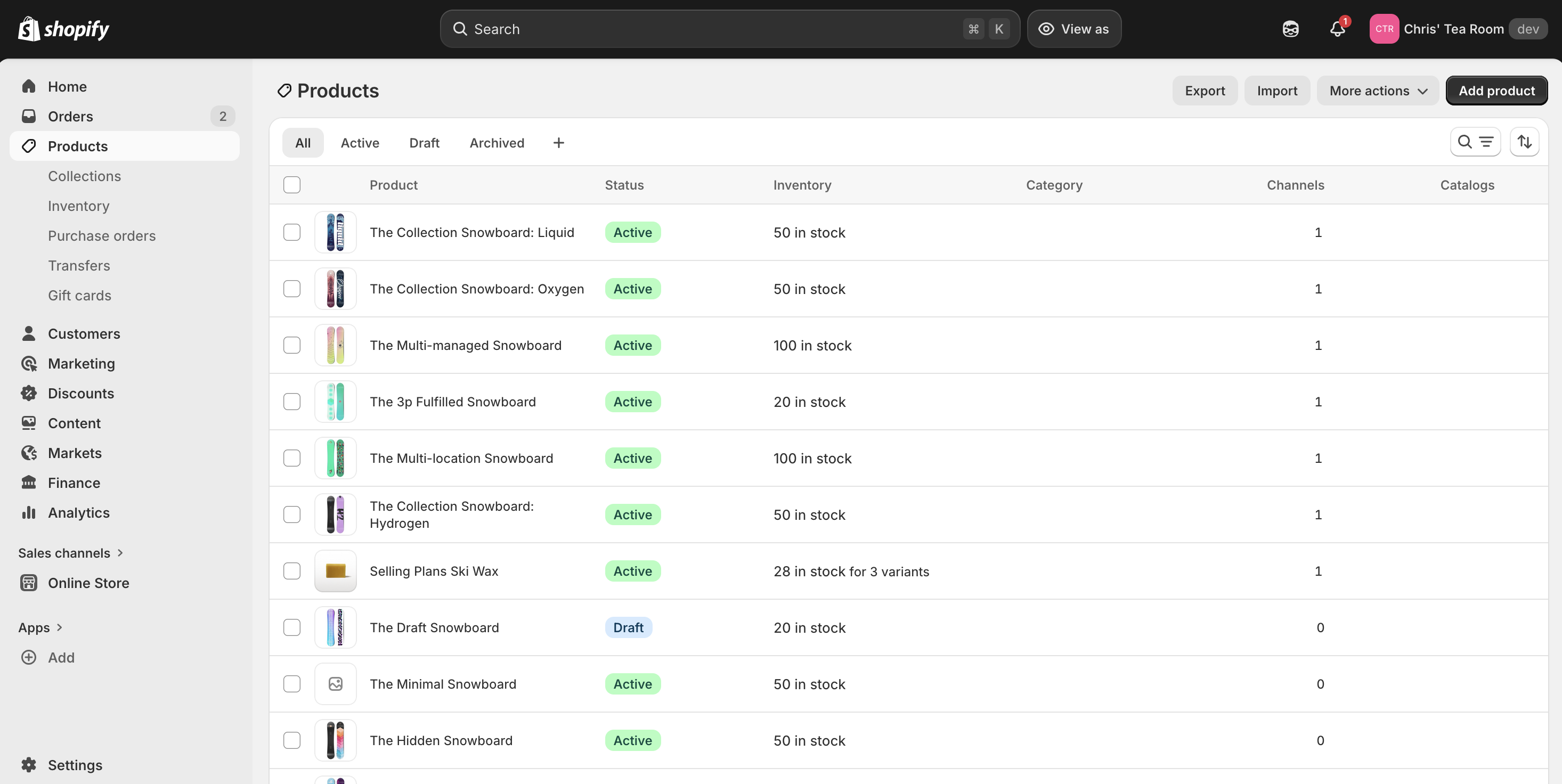
With the new store created, go to Products and double check that the test products have loaded in. It just takes a few seconds, so if you don't see any products yet refresh the page.
Change the Store Theme
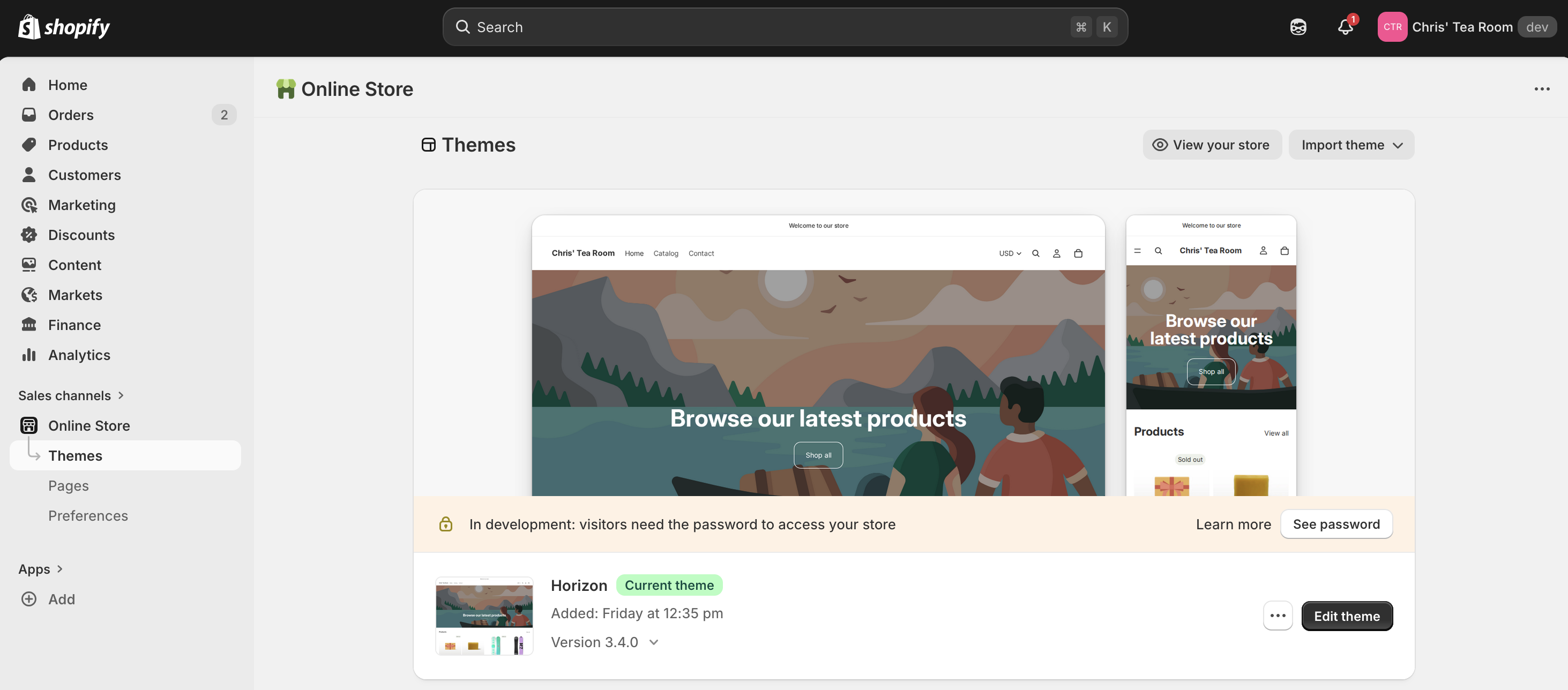
When you create a store with test data, Shopify creates a new test data theme. We want the original Horizon theme, so let's change it back:
- Back in Shopify, click Online Store
- The Current Theme will be test-data. Scroll down and locate Horizon.
- Click Publish next to Horizon, and Publish again on the pop-up.
- This will change the Current Theme to Horizon.
2. Install Ordergroove
With the Shopify store setup, let's add Ordergroove:
-
Click Apps on the bottom left. Type in Ordergroove, and Search in the Shopify App Store.
-
Locate Ordergroove, and click Install.

-
Shopify will take you to a details page, click Install again.
-
You'll be redirected to a shortened Ordergroove on-boarding experience. Select I'm a dev looking to explore Ordergroove, and fill out your First Name, Last Name, and Email.
-
When you Submit the form, it'll ping Ordergroove. You'll need a unique code, please reach out to your Ordergroove Contact.
-
With code in hand, click Enter your unique code, paste it in, and click Submit.
-
Once Ordergroove loads, click Get Started.
-
Select a few in-stock Shopify sample products to make subscription eligible. We'll need at least one to go through checkout in a minute. Click Next when you're finished.
-
Ordergroove will explain what a subscription offer is, click Next to pass through.
-
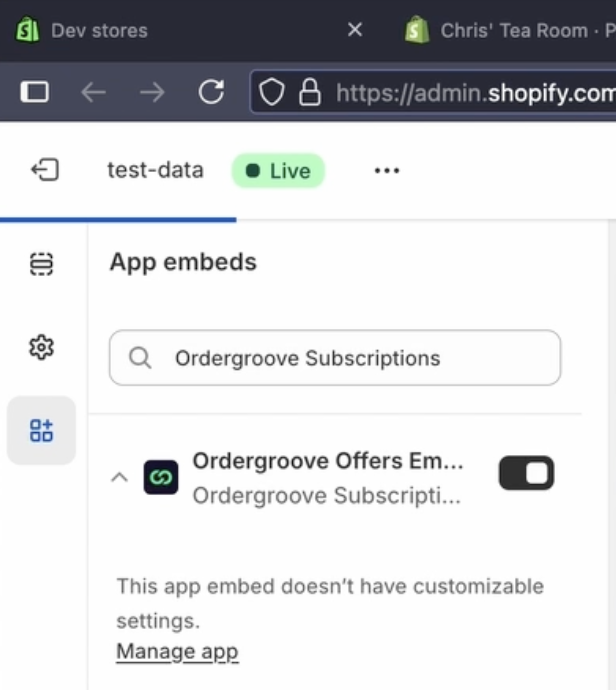
On the App Embed page, click Configure. It'll open a new tab redirecting you back to your Shopify Store. Make sure Ordergroove Offers Embed is checked on. Then hit Save and close the tab.
-
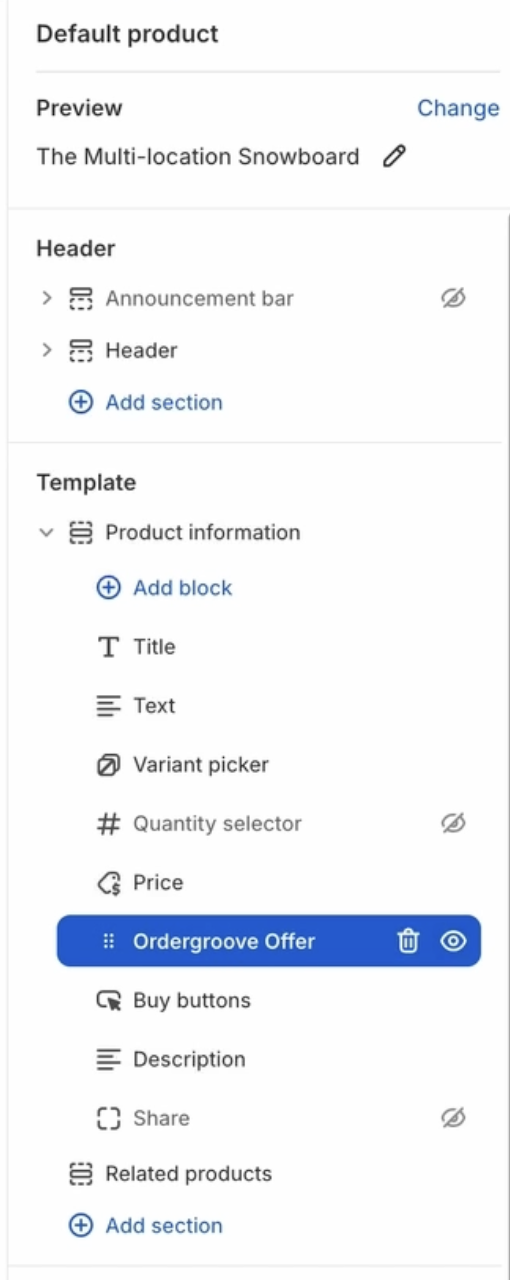
Back in Ordergroove, click Next to go to the Customize page. Click Customize. This will take you back to Shopify. Under Template > Product Information, click and drag Ordergroove Offer beneath Price. Click Save and close the tab.
-
Back in Ordergroove, click Next, and Go Live.
Additional Steps for Sandbox Environments
This wraps up on-boarding for standard merchants. But for a complete sandbox experience we still need to verify data and add a test payment gateway.
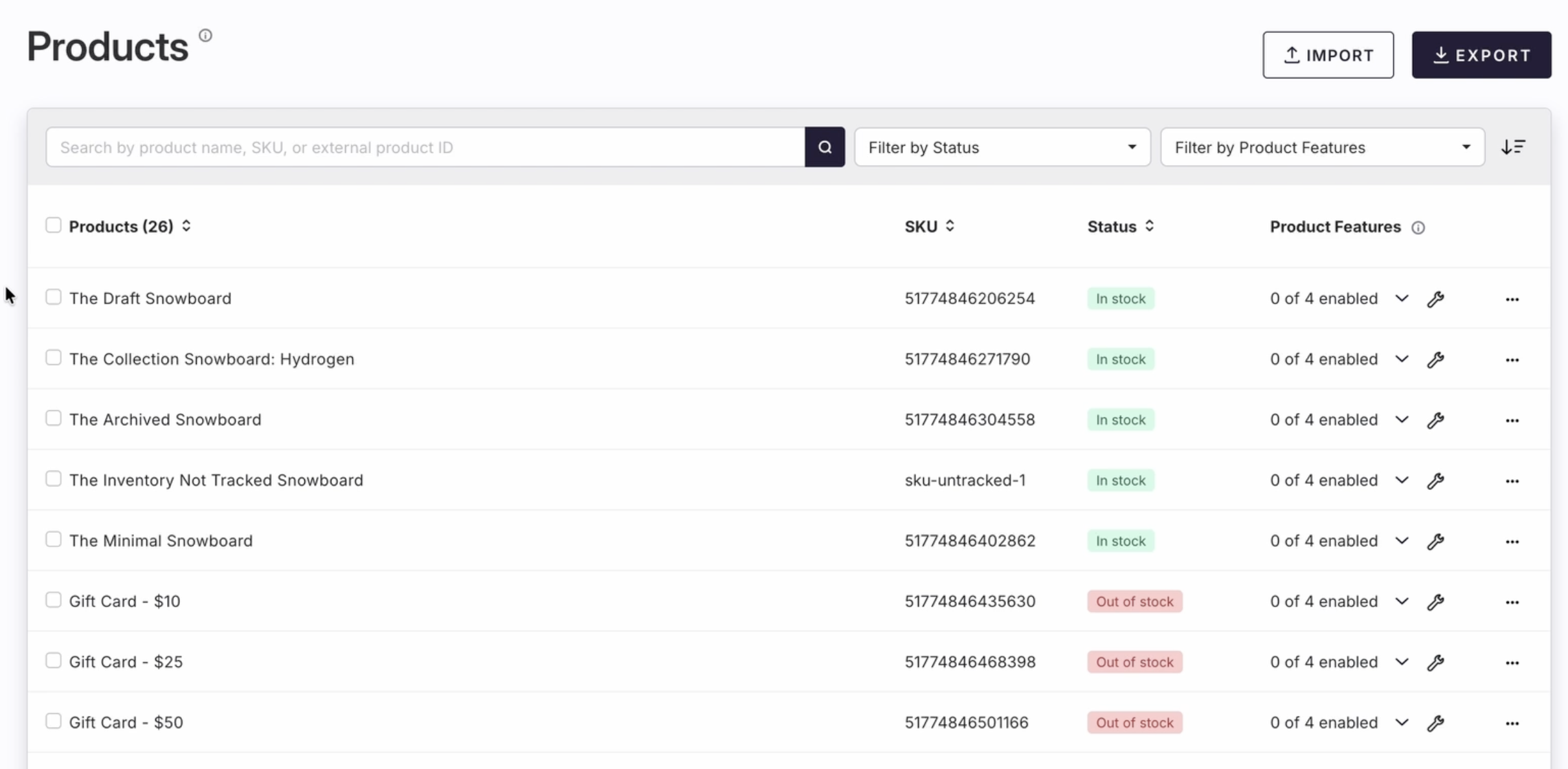
Before we head back to Shopify, first let's make sure Ordergroove has all of the sample Shopify products available. In Ordergroove, go to Data > Products. You should see the list of Shopify sample products. If you don't see any products yet, give it 5-10 minutes and refresh the page. The speed can vary depending on how fast Shopify responds to us.
Here's what it should look like:
Set up Shopify Payments
Last but not least is Shopify Payments:
-
Open up your new Shopify Developer Store.
-
Go to Settings > Payments.
-
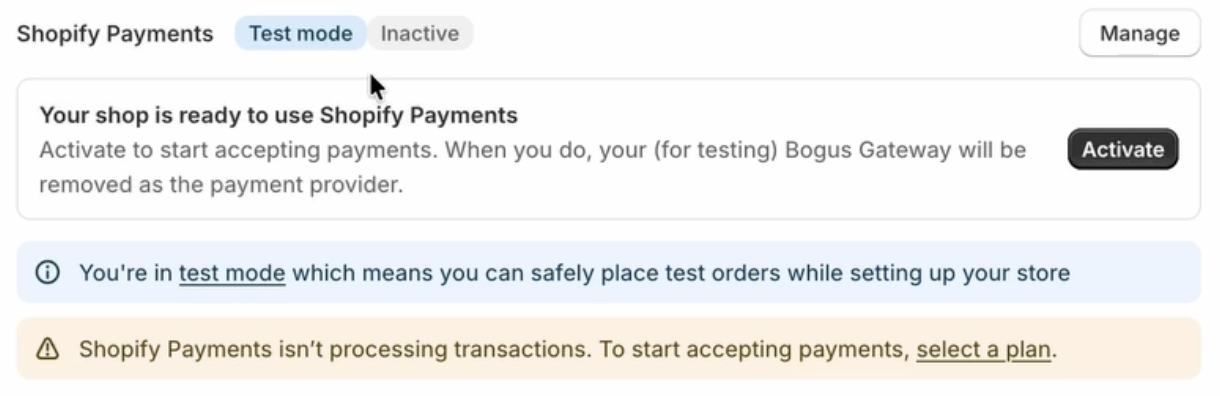
Shopify enables a Bogus Gateway by default. This gateway can't place orders, so let's change that. Click Switch to Shopify Payments, and fill out the form.
- Note: You do NOT need to fill in your actual social security number for a test gateway. Shopify requires the number to be in the proper format XXX-XX-XXXX, such as 111-22-3344, but not your actual number. Do not use any personal information for any of these fields. This is safe and expected for a test environment, not for production.
-
Once you submit the form, refresh the page and make sure Test Mode is on. You should see:
-
Click Activate.
At this point all of the backend settings are correct. You're ready to put in a test customer and run through checkout.
3. Test Customer, Subscription, Order
With Shopify and Ordergroove properly set up, we're ready to run through checkout - the end user customer experience. Let's give it a shot:
-
Open up the Shopify admin, and next to Online Store, click the Eye. This will open a new tab, and show you the sample storefront.
-
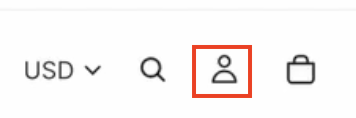
Click on the Account icon on the top right. This will create a customer, enter an email you have access to. Shopify will send you a verification code, we'll need it in the next step.
-
Once you have the code, paste it in and click Submit.
-
Locate one of the test products you marked as subscription eligible, and click on it to open up the PDP.
-
On the product page, select Subscribe to save, and add the product to cart.
If the Subscription widget isn't displaying, reset the product in Ordergroove:
- Open up Ordergroove and go to Data > Products
- Locate the product you want to test, and click on the Product Name.
- Subscription Eligible should be toggled on, toggle it off. Give it a few seconds, then toggle it back on.
- Click View on your site at the top of the page to be redirected back to Shopify. The product page should have the Ordergroove widget with Subscribe to Save.
- The product will be added as a subscription to the cart, you should see the discount in cart. Click Check out.
- Go through checkout. Use fake information for the customer. And when you get to the credit card, use the mock card number 4242 4242 4242 4242. This is Shopify payments default success card.
- When you're finished, click Pay Now to complete the order. This will create the Customer, Subscription, and Order for you to view.
View the test Customer, Subscription, and Order
When you go through checkout, Ordergroove creates the customer and attaches subscription(s) to them and their orders. We can view and modify them in Ordergroove:
-
Open up Ordergroove, and go to Data > Customers.
-
Search for the test customer you created, and click on their name.
-
This opens up the Customer Service view, the CSA. You can view customer Orders and Subscriptions here. Let's send an order for placement now to see what that looks like.
-
Next to Orders, click View All and click on the upcoming order.
-
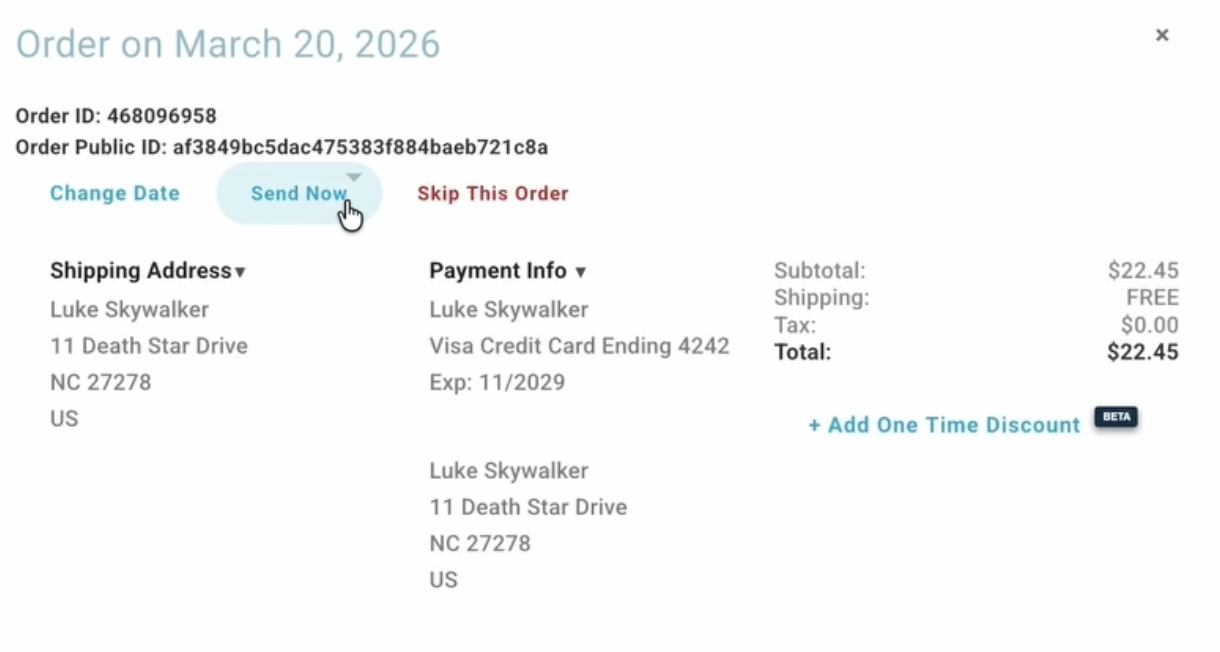
Ordergroove will display the Order Details, and you'll see a few options including Send Now. Click Send Now to send the order to Shopify for placement.
-
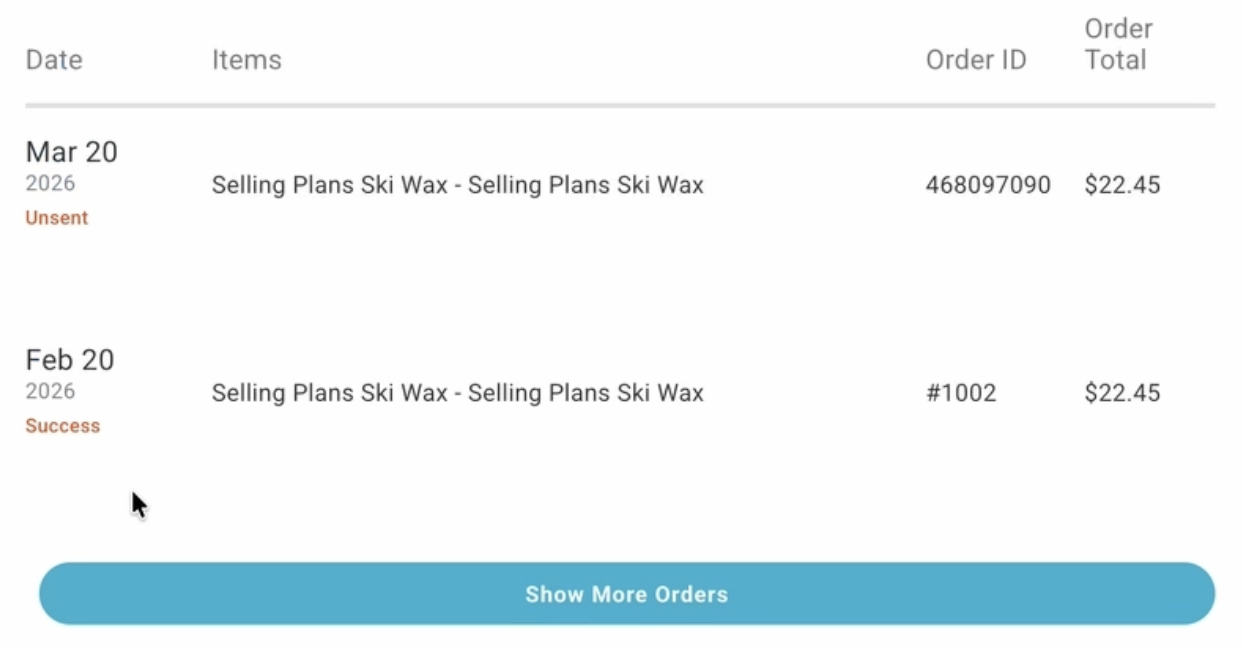
Ordergroove will send the order for placement, and queue up the next Order:
-
You can also view this order in the placement logs. Go to Data > Order Logs to see the successful order placement.
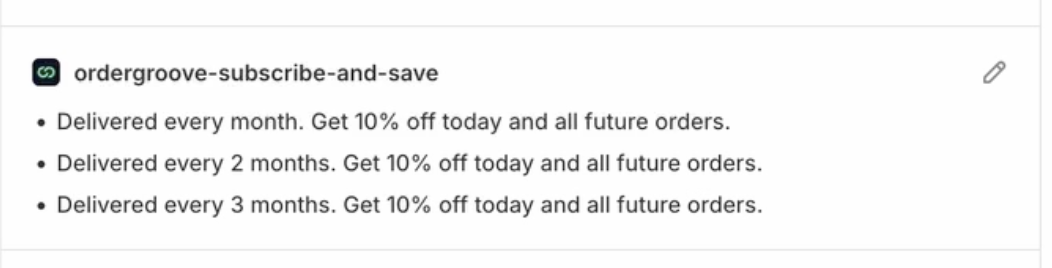
You can also see the subscription contract on the customer in Shopify:
-
Open up the Shopify Admin.
-
Click on Customers, and open up the test customer from earlier.
-
The test customer will have the order we sent for placement, and a Subscription tied to their account.
-
Click on the subscription product and scroll down. You can find the subscription contract in the Purchase Options section.
Updated 7 months ago