Subscription Manager Theme Editor Overview
This document provides an overview of the Subscription Manager (SM) Theme Editor, explaining how to navigate both the landing page and theme editor, and offering guidance on available customization modes.
SM Theme Editor: Landing Page Overview
When you access the SM Theme Editor, you will first see the landing page. This page provides key details about your themes and allows you to manage them. On the left you will see your live theme, and on the right a list of any draft themes. Only one theme can be live at a time, and this live theme is the one visible to your customers on your site.
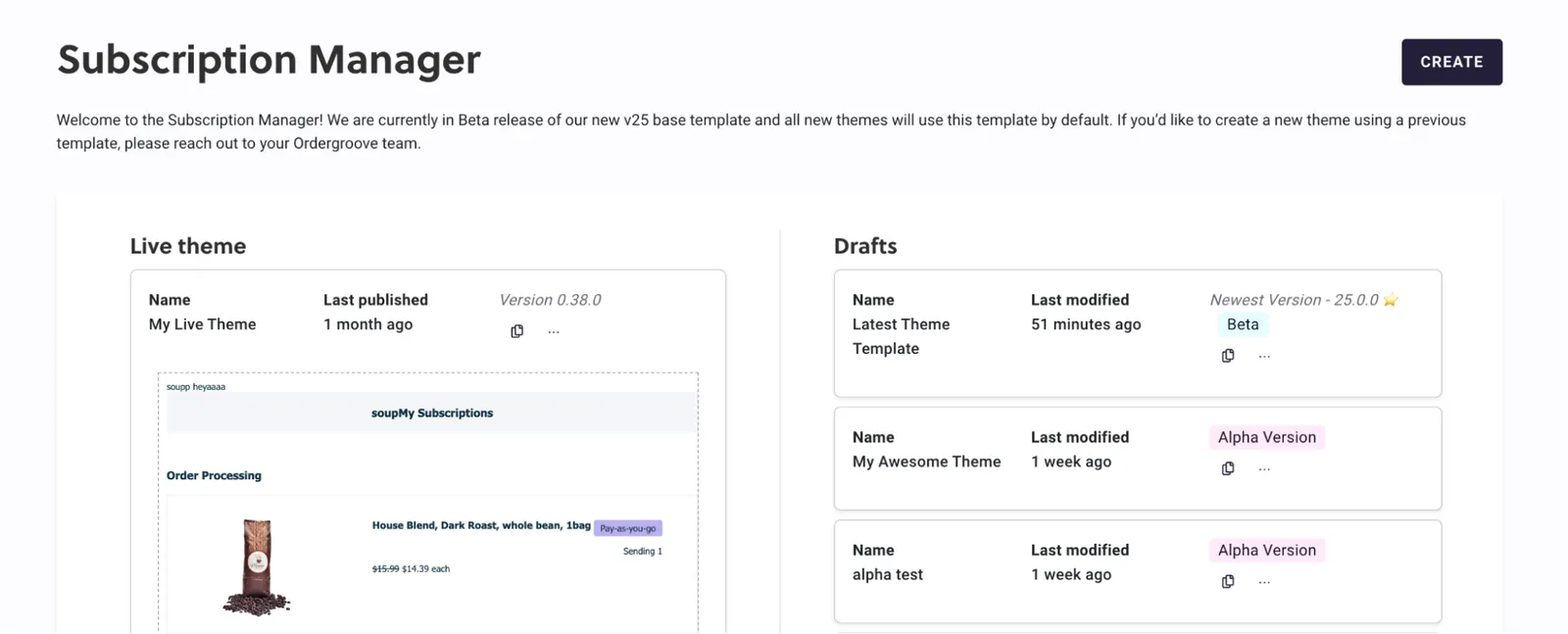
From the landing page, you can manage your themes by performing several actions:
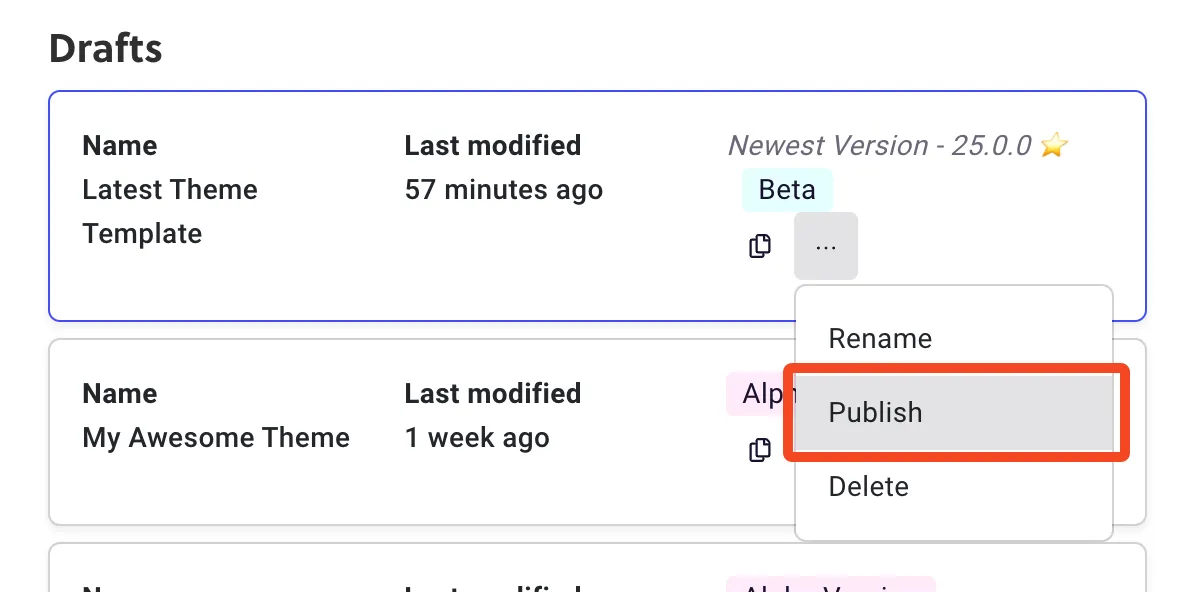
- Publish a draft theme to make it live — this automatically converts the current live theme into a draft.
- Rename your themes for internal reference.
- Duplicate an existing theme to create a new version.
- Delete a theme you no longer need.
The theme version is displayed both on the landing page and in the theme editor to help you keep track of the version you’re working on.
SM Theme Editor: Theme Customization Overview
After selecting a theme, you will enter the theme editor, where you can choose between two customization modes: Basic Mode and Advanced Mode. These modes offer different levels of control depending on your technical expertise. For more information, see the Knowledge Center.
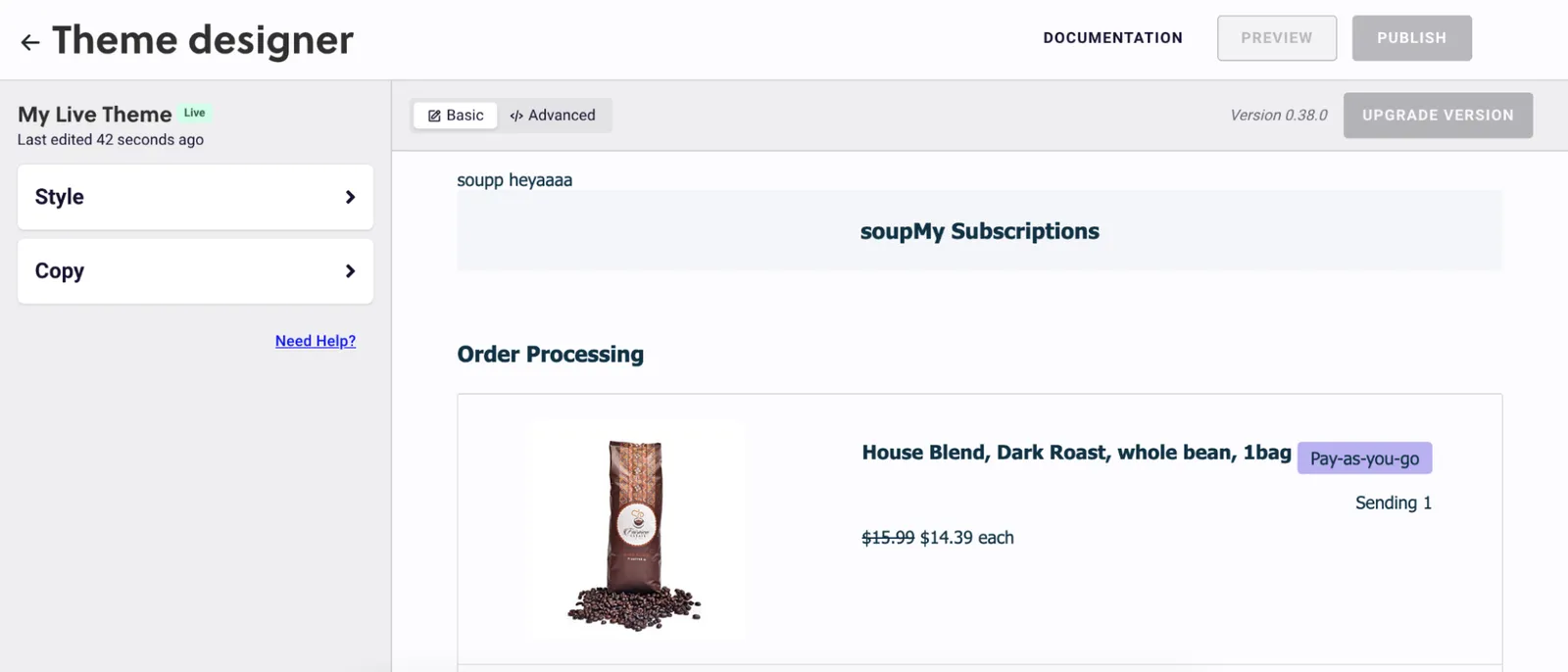
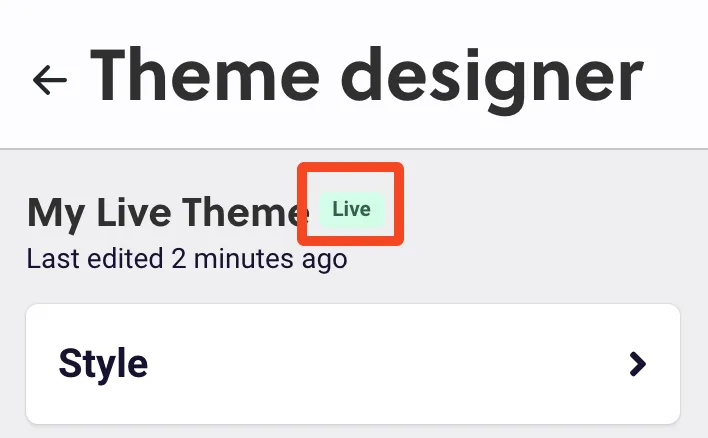
You can see if you’re working on a draft or your live theme via the tag next to your theme name.
Additional Theme Editor Features
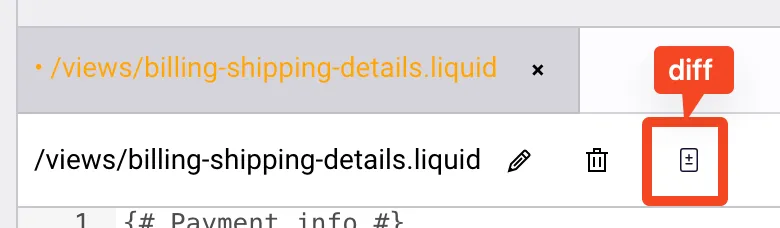
The SM Theme Editor offers several additional features to help you manage your themes. If you need to reset your theme back to its default settings, you can either create a new theme from scratch or use the diff button in Advanced Mode to revert changes to individual files. This gives you the flexibility to restore specific parts of your theme without having to start over entirely.
The base theme is mobile-compatible by default, with built-in media queries in the .less files. To preview how your theme looks on a mobile device, simply resize your browser window. Note that there are no specific tools provided for cross-browser or device testing, so you will need to manually check the preview across different browsers and devices.
If the theme you’re working on is not published (live), there is also an option to preview how the Subscription Manager will appear on your site. Click the Preview button in the top right of your screen, then follow the instructions that appear.

To apply custom fonts, edit the design-tokens.less file or other relevant .less files in Advanced Mode. There is no limit to the amount of customization you can apply, giving you full control over how your Subscription Manager looks and functions.
For more information on advanced customization, see Edit Code with the Advanced Editor.
Always keep track of the theme version you’re working on — the version is displayed on both the landing page and the theme editor, making it easy to identify the current draft or live theme.

Remember, only one theme can be live at a time. You can publish a theme to make it live directly from the landing page.