Skip to navigation

Edit Code with the Advanced Editor

Navigate files, edit templates and scripts, and work with syntax highlighting in the Ordergroove advanced editor
View as Markdown

We have created a powerful editor to work right within Ordergroove. The advanced editor allows you to modify the files that make up the Subscription Manager — CSS styles, Liquid HTML templates, locale files, and even custom scripts.
The advanced editor in RC3, with Download, Upload and Save buttons at the top, a file tree on the left (locales, styles and views folders, script.js and settings.json), and views/main.liquid open in a tab with line-numbered Liquid code.

File Navigation

A full list of files is displayed using a standard file tree navigation on the left-hand side of the screen. You can click on a folder to hide the files contained within it. Clicking a collapsed folder reveals its contents again — useful when navigating a folder structure with many files.
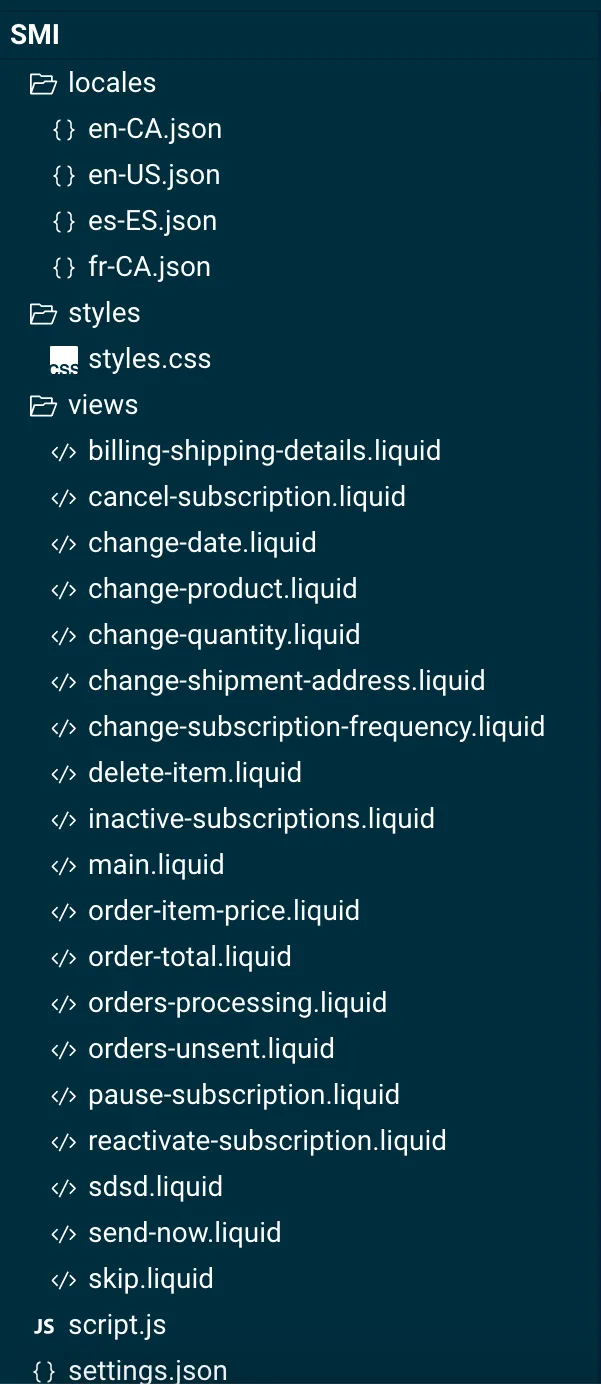
The advanced editor's file tree, headed SMI, with the locales, styles and views folders all expanded: locale JSON files such as en-US.json, styles.css, Liquid templates such as main.liquid and skip.liquid, then script.js and settings.json.

Clicking on a file opens it in the editor window to the right of the file navigation area.


Advanced Editor Window

The advanced editor window provides maximum horizontal and vertical space. Each file opens as a new tab. You can close an open tab by clicking the X button within that tab.
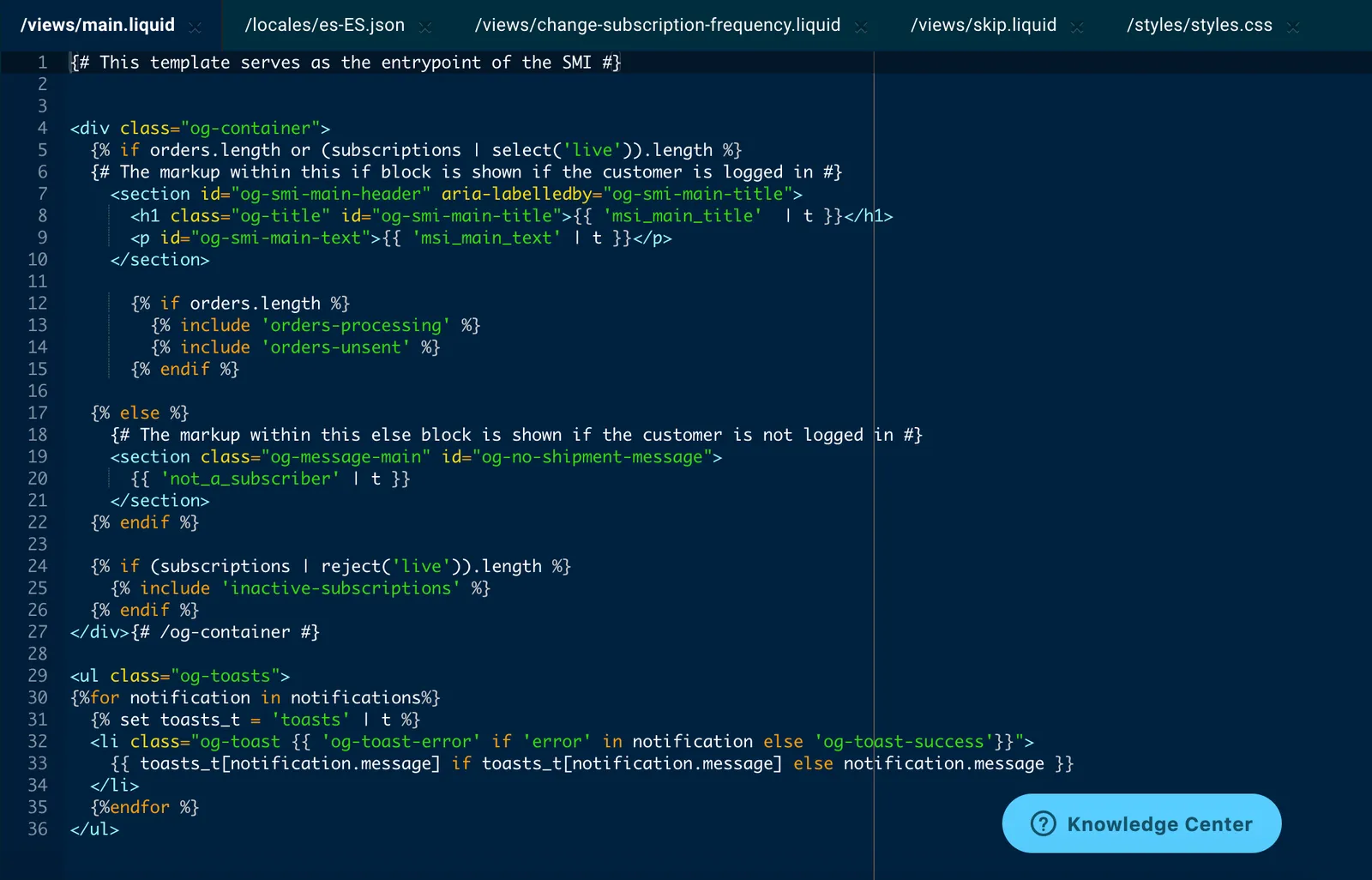
The advanced editor window with five file tabs across the top: main.liquid (active), es-ES.json, change-subscription-frequency.liquid, skip.liquid and styles.css, each with an X close button, above the line-numbered code of main.liquid.

Syntax Highlighting

The advanced editor supports syntax highlighting for all file types supported in Ordergroove.

Liquid (Nunjucks variant)
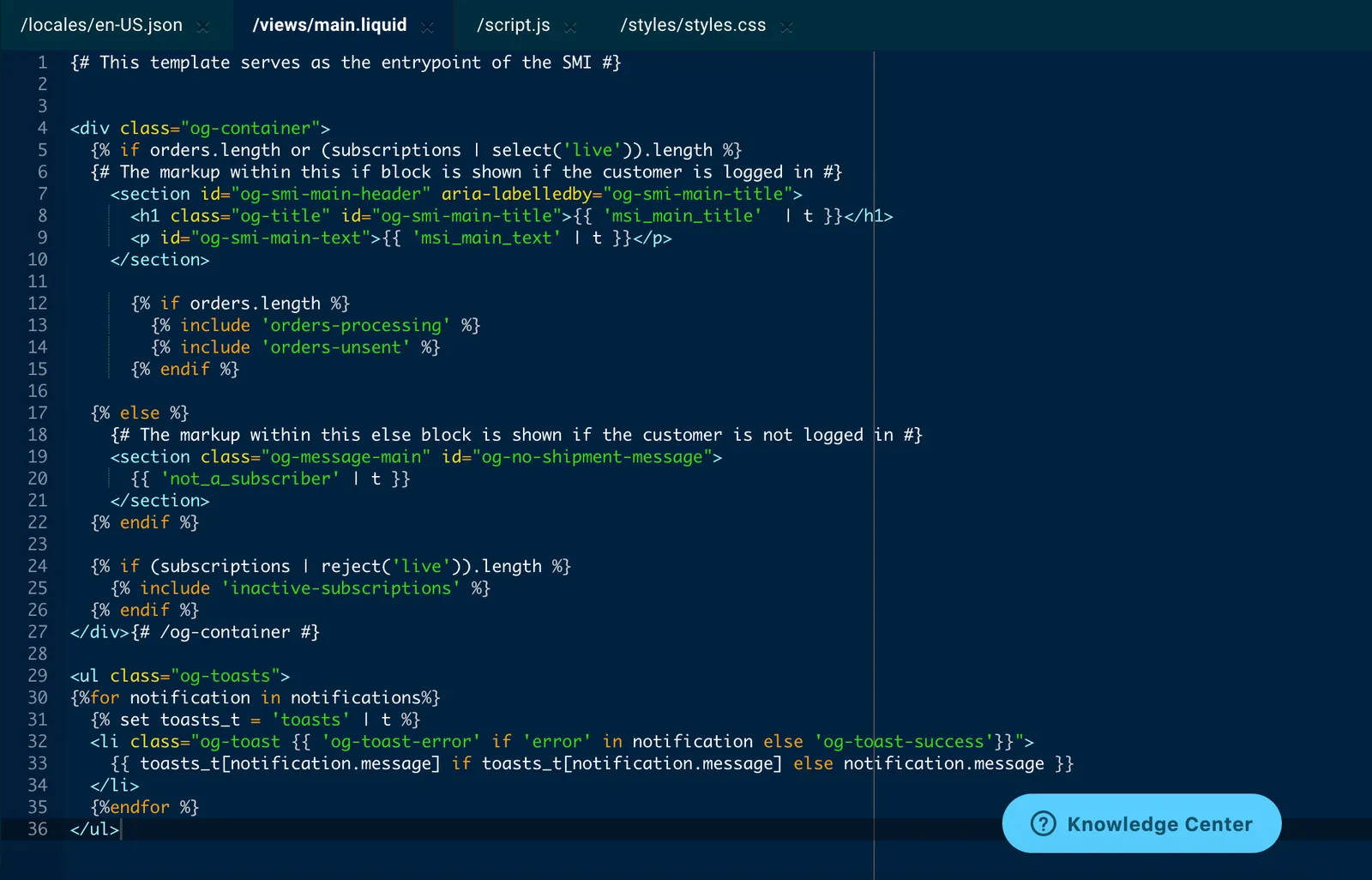
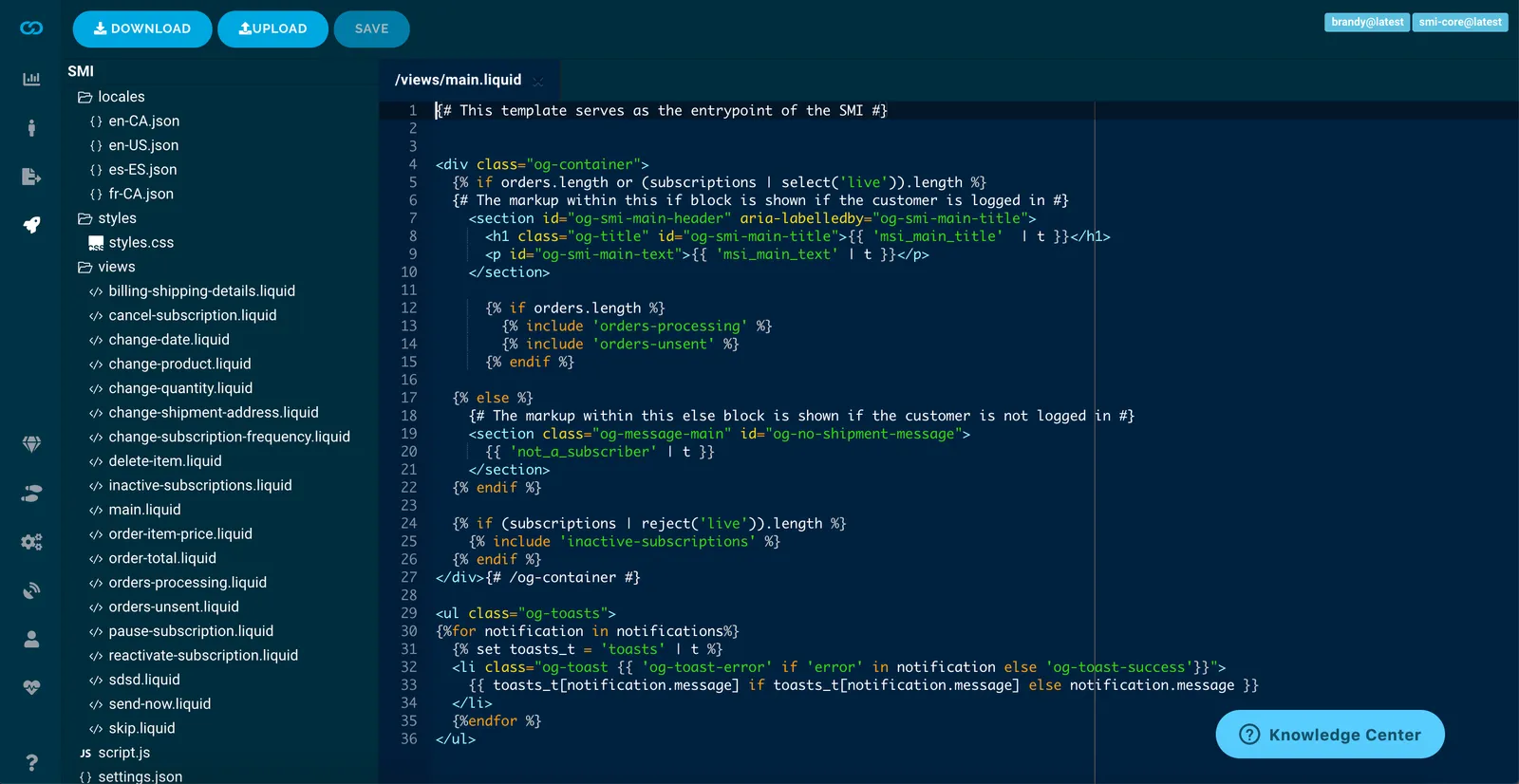
Liquid syntax highlighting in the advanced editor, with views/main.liquid open: HTML tag names in light blue, attribute names in yellow, Liquid keywords such as if, include and endif in orange, and quoted strings in green.

JavaScript

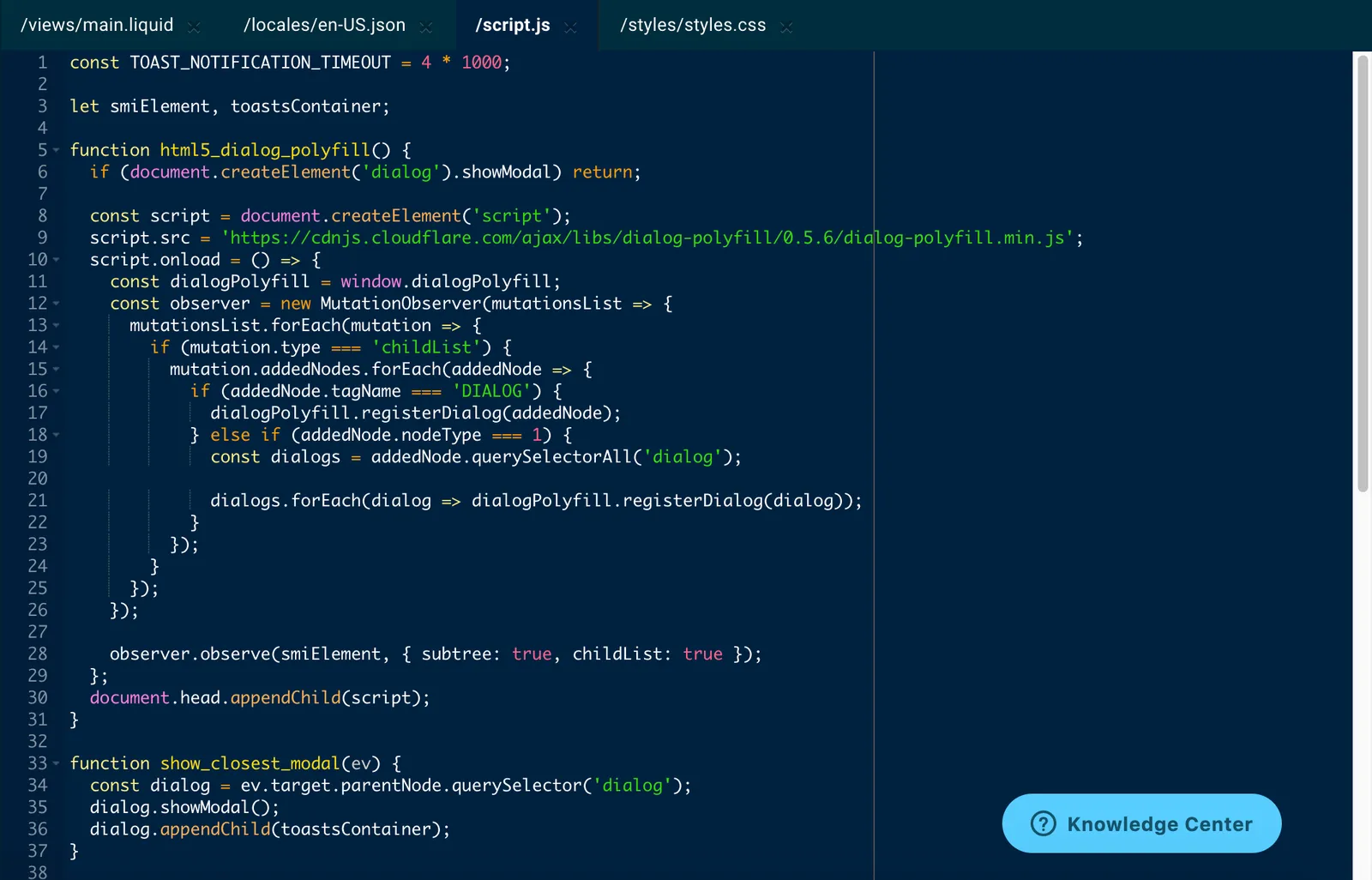
JavaScript syntax highlighting in the advanced editor, with script.js open: keywords such as const, function and if, function names, numbers and quoted strings each shown in a different color, with strings in green and numbers in pink.

CSS

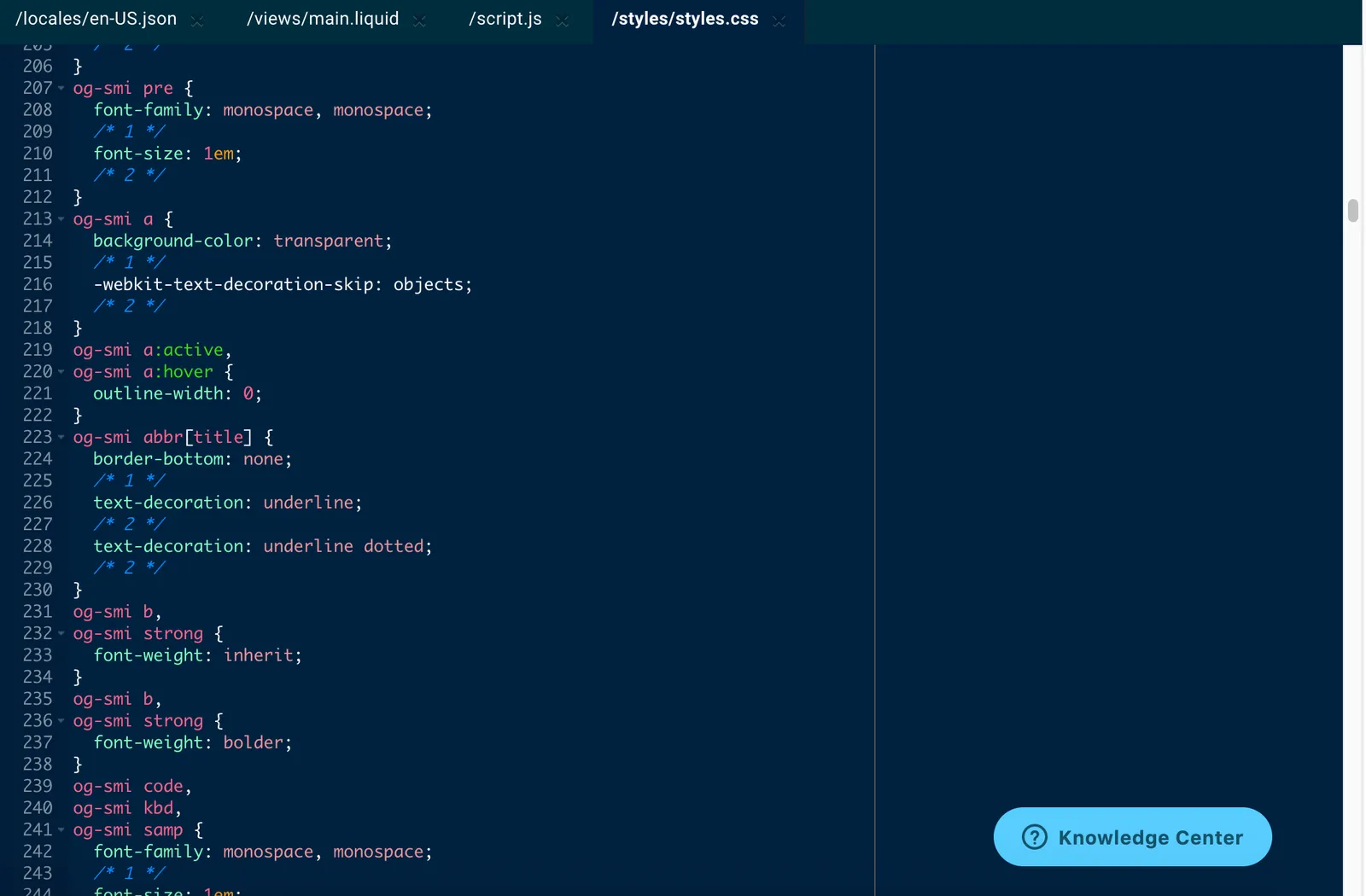
CSS syntax highlighting in the advanced editor, with styles.css open: selectors such as og-smi pre in pink, property names such as font-family in green, values such as monospace in pink, and numbered comments in blue italics.

JSON

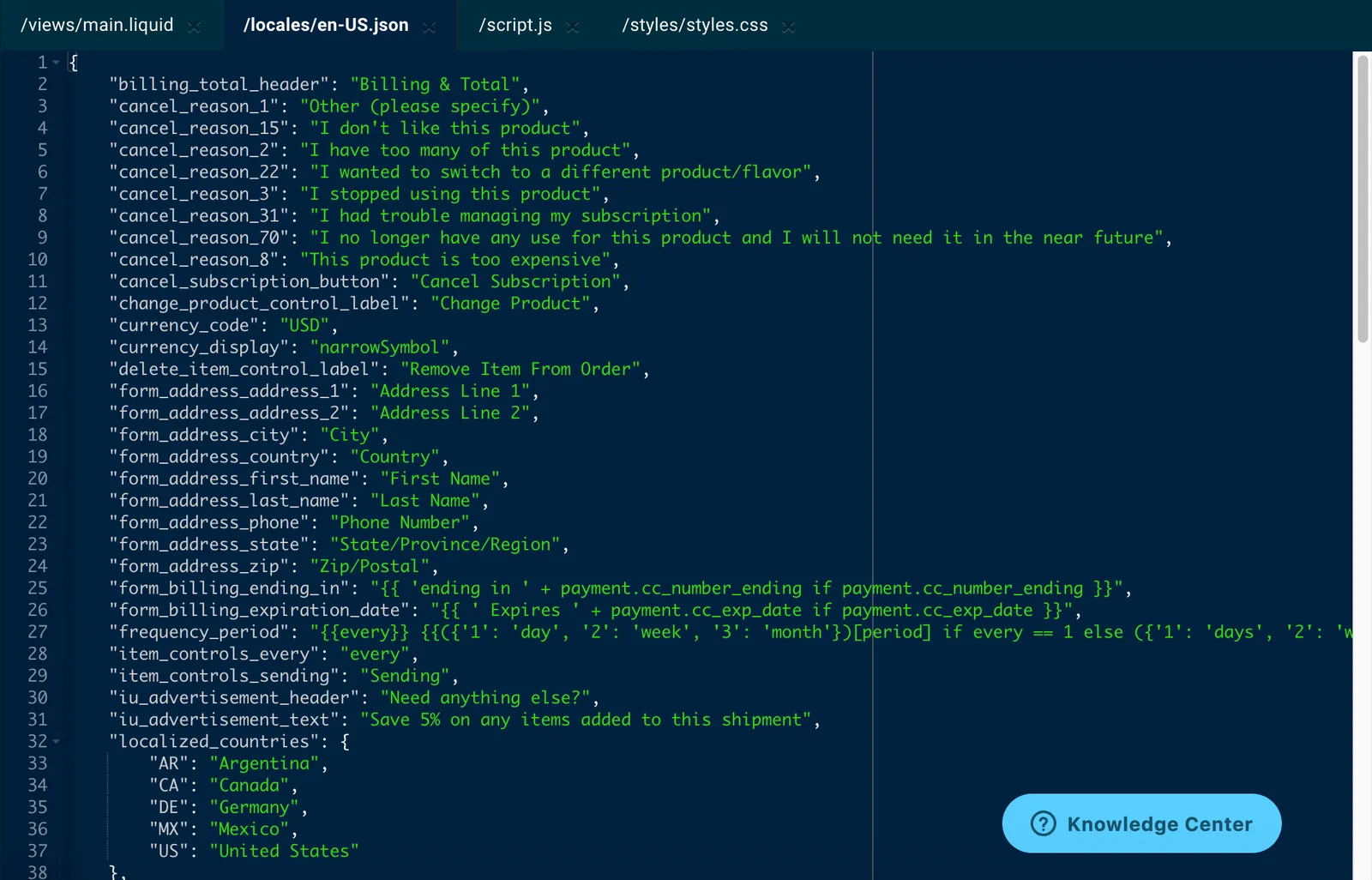
JSON syntax highlighting in the advanced editor, with the locale file locales/en-US.json open: keys such as cancel_subscription_button in white and their quoted string values, such as Cancel Subscription, in green, plus a nested localized_countries object.

Local Development

If you’d prefer to work on your local machine, see Subscription Manager Local Development for setup instructions.