

Updating your Subscription Manager theme to support cancel flows
Cancel flows give your customers a guided, multi-step cancellation experience. The flows themselves are built on the Cancel Flows page, separately from your theme, but your Subscription Manager theme needs a code update before it can show them. In this guide, we’ll walk through that update for both current and legacy theme versions. If your theme is on Subscription Manager 25.21.0 or later, it already has the update and there’s nothing to change.
Update your theme automatically
If your theme is on version 25 and you haven’t customized your cancel subscription buttons, Ordergroove can make these changes for you by creating a draft version of your live theme and updating the draft.
Go to Ordergroove > Subscriptions > Subscription Manager, then open the Cancel Flows tab. If your live theme doesn’t support cancel flows yet, you’ll see a Subscription Manager theme update required banner.
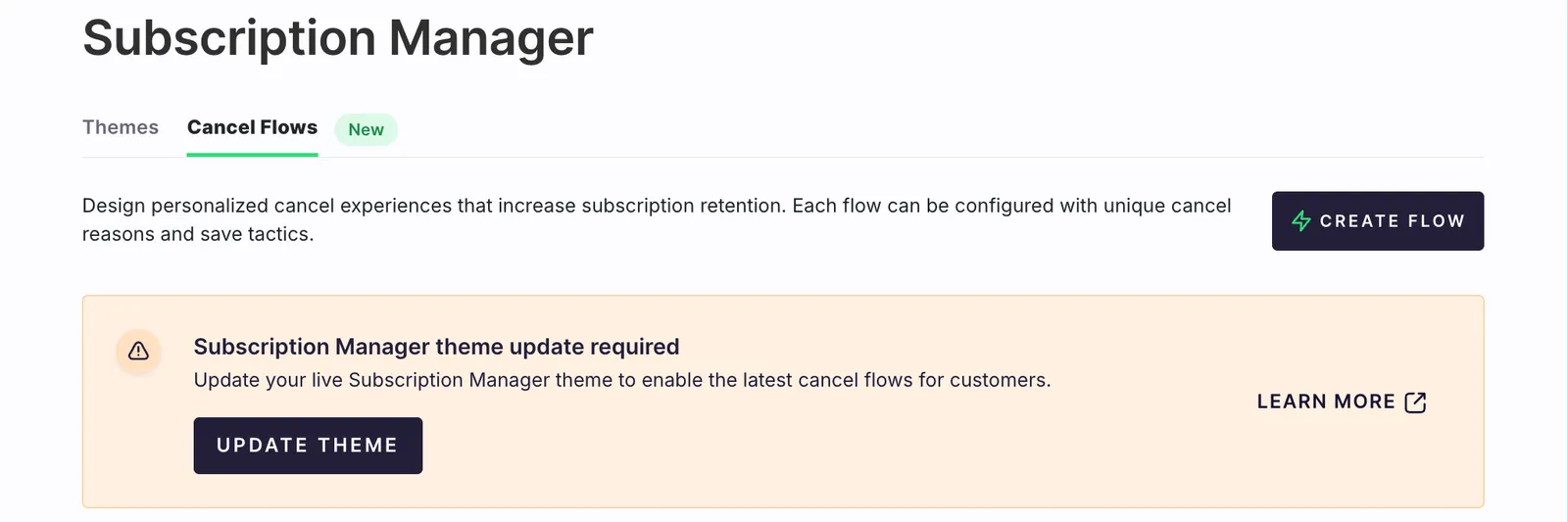
- Click Update Theme, then Create Upgraded Draft. Leave the window open while the draft generates.
- When the confirmation appears, note the name of the new draft — it’s timestamped, like Updated Draft - 7/29/2026, 12:04:43 PM.
- Go to the Themes tab and open the new draft.
- Follow Final steps below to preview it, publish, and turn on your flow.
The banner disappears once your live theme supports cancel flows.
If the automatic update doesn’t work
Theme not eligible for upgrade — your theme is on legacy version 0.x, or has custom code on the cancel subscription buttons, so we can’t safely rewrite it. Use the manual instructions below.
Theme upgrade failed — something went wrong on our end. Click Try Again. If it fails a second time, contact Support for help.
Update your theme manually
You should have basic familiarity with HTML. You’ll make some small changes to your existing Subscription Manager templates in the Advanced Editor.
Subscription Manager version
Updating your theme with cancel flows support depends on your theme version. We recommend making a copy of your live theme to test the changes before publishing the live theme updates:
-
Locate your live theme in Ordergroove > Subscriptions > Subscription Manager and click the Copy button to create a draft theme. You’ll test your changes on the new draft theme.
-
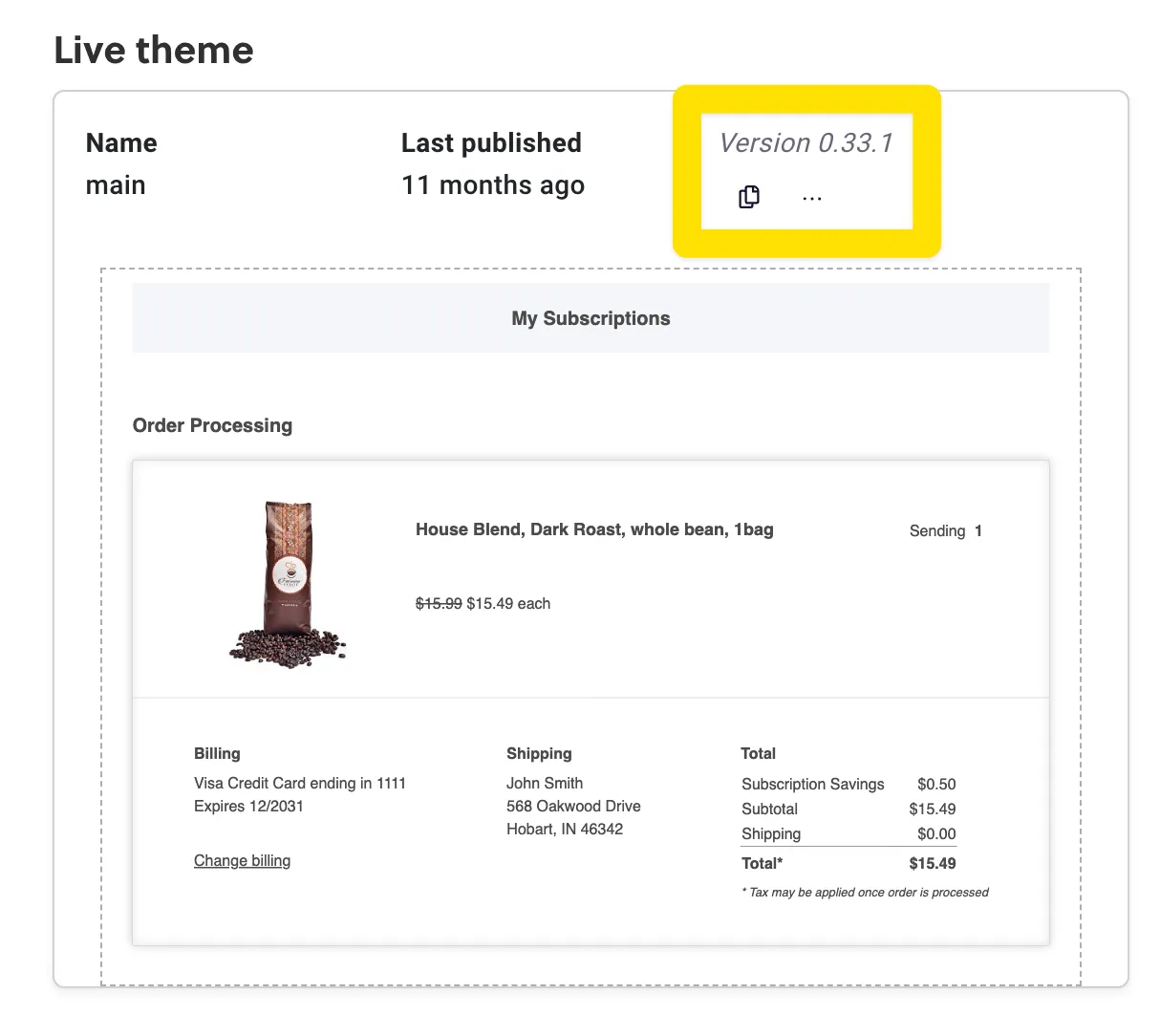
With a new copy made, make a note of which version your Subscription Manager is using, v0 or v25.
Before the September 2024 release of v25, all Subscription Manager installations were on version 0, displayed in the Theme Designer as version 0.X.X. You can check which version you’re on by going to Ordergroove > Subscriptions > Subscription Manager.
-
With the version noted, click the draft theme to open the theme editor. Click the Advanced tab to open the code editor view, and then Views to display the list of template files.
At this point, the required changes depend on your Subscription Manager version.
Current — Subscription Manager 25.0.0+
You need to make changes to two files. If you have made additional customizations to these files, you may need to modify the instructions for your specific theme — see Advanced customizations below.
order-item/more-options-dropdown.liquid
This file contains the code behind the dropdown menu that appears when you click “More Options”.
Find this code block, just under {% if submenu_features.cancel_subscription %}:
Replace it with the following:
order-item/order-item-buttons.liquid
This file contains the code behind the top-level buttons next to the “More Options” dropdown.
Find this block, just under {% if can_cancel and 'cancel_subscription_location' | setting == 'top' %}:
Replace it with:
Legacy — Subscription Manager 0.x
You need to make changes to cancel-subscription.liquid. If you have made additional customizations to this file, you may need to modify the instructions for your specific theme — see Advanced customizations below.
Find this block:
Replace it with:
Advanced customizations
If you have a heavily customized Subscription Manager, these files or exact code blocks may not be present. The core changes that are required to support cancel flows are:
- Add an if block checking
{% if 'cancel_flow_enabled' | setting %}. - The
elsebranch should be your existing cancel button. - The main branch should be a copy of your existing cancel button, with its existing
@clickhandler replaced by@click="{{ '(e) => window.og?.cancelFlow?.openCancelFlow({ subscriptionId: e.currentTarget.dataset.targetSubscription, opener: e.currentTarget })' | js }}", plus adata-target-subscription="{{ subscription.public_id }}"attribute that the handler reads the subscription ID from. - You should also remove any
data-click-targetattributes from the newopenCancelFlowbranch.
Final steps
After you’ve made the changes, use the Subscription Manager’s preview functionality to confirm the cancel button still works and your edits render correctly. You’ll still see your current cancellation experience here (likely the “Suggested Actions” modal) — your theme can now show the new cancel flow, but customers won’t see it until you turn your flow on.
When everything looks right, publish your updated theme, then return to the Cancel Flows page to turn on your first cancel flow. That final step is what switches customers over to the new experience.