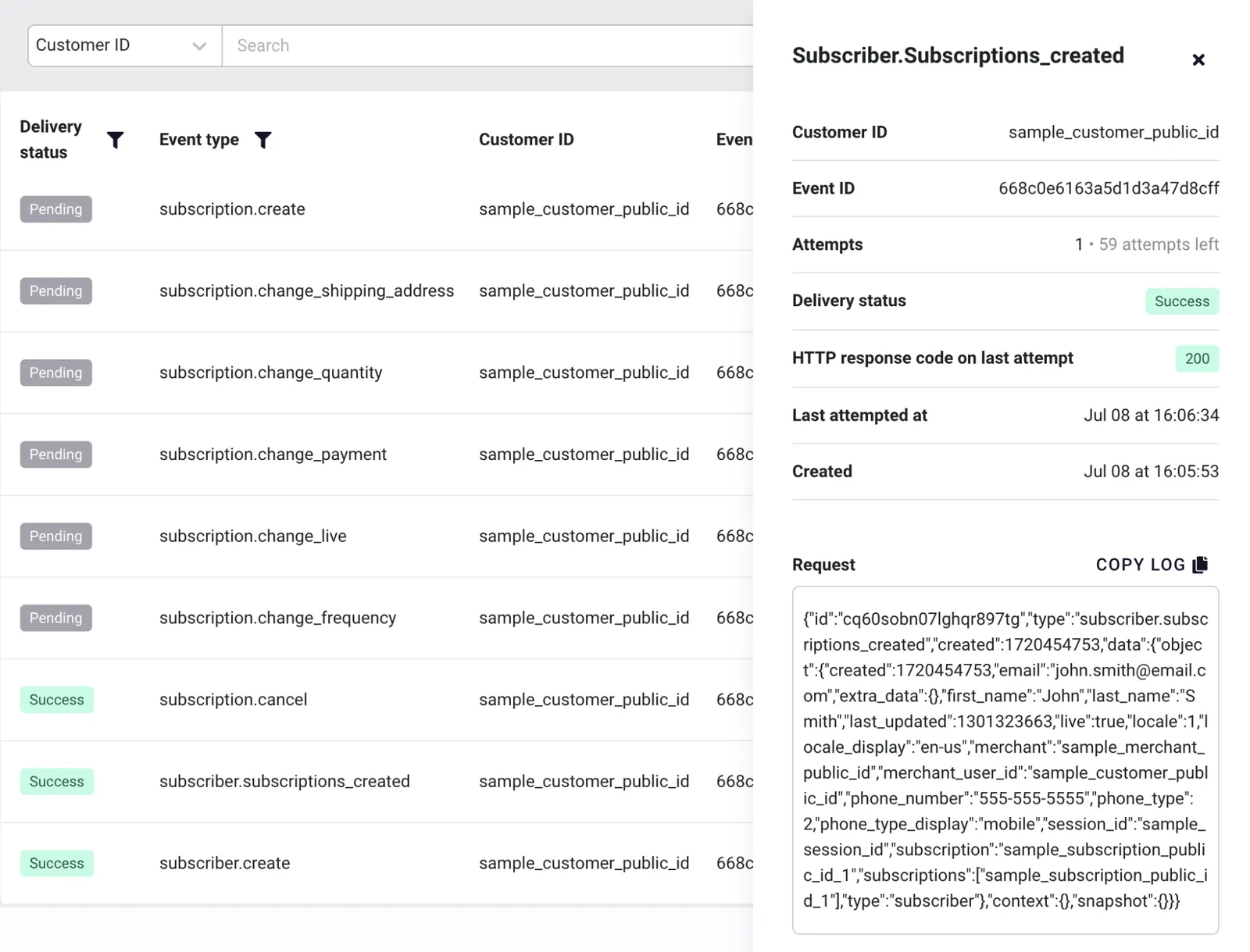
Webhooks Test Events
Generate fake webhook payloads to test your webhook target without needing real customer data
You can now test your webhook events right in Ordergroove without going to your website to make a test customer and manually creating subscriptions with your credit card.
The webhooks test events feature allows you to generate fake payloads for different types of events. This will help you early in the implementation process by making sure your webhook target can receive the data and parse it correctly.
Sending Test Events
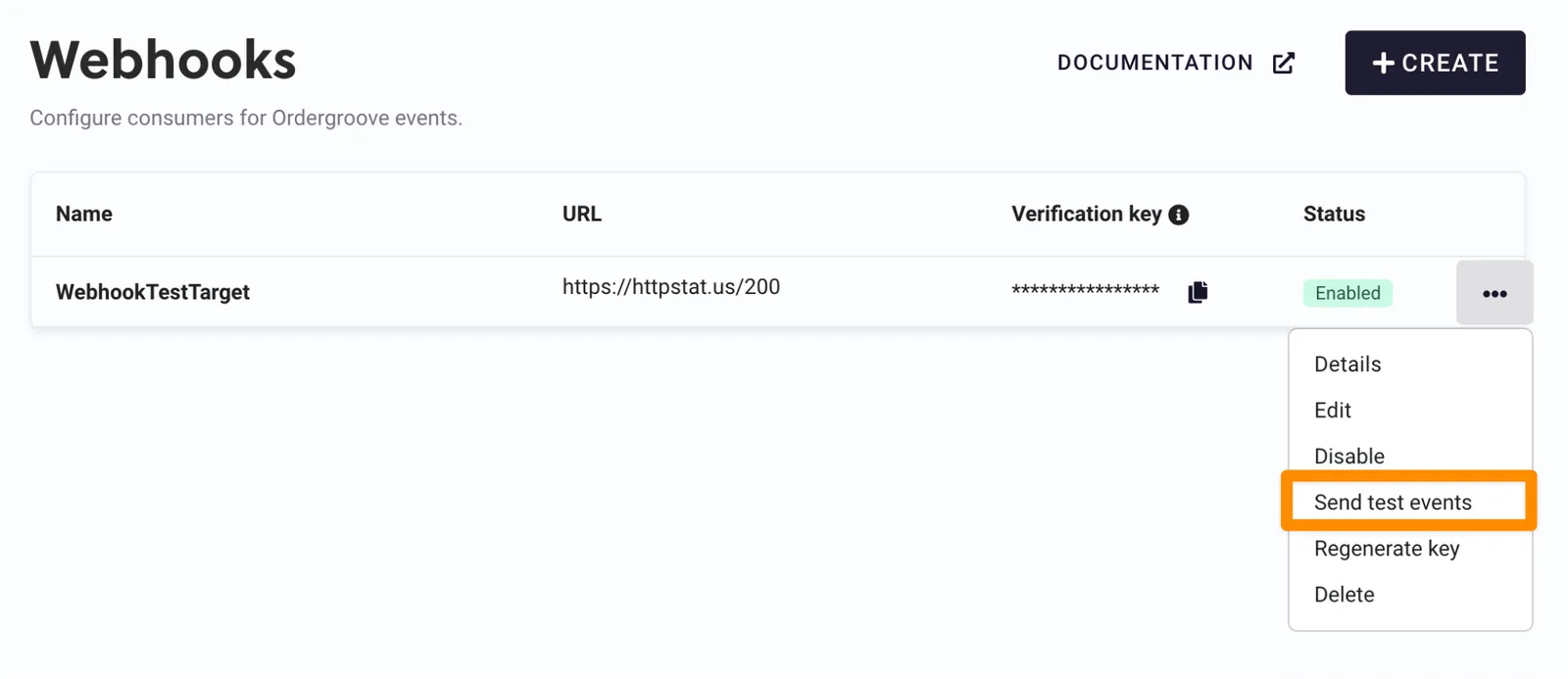
- Log in to Ordergroove, and go to Developers > Webhooks.
- Locate the webhook you want to test, and click the configuration dropdown to the right.
- Select Send test events.
- A pop-up will ask you to Confirm, and the test events are sent.
Results
You can see the delivery result of the test events in the deliveries log page.