Adding a Scrollbar to Inactive Subscriptions in the Subscription Manager
Learn how to add a scrollbar to the Inactive Subscriptions section in Subscription Manager v0 to prevent page scrolling and create a more compact view.
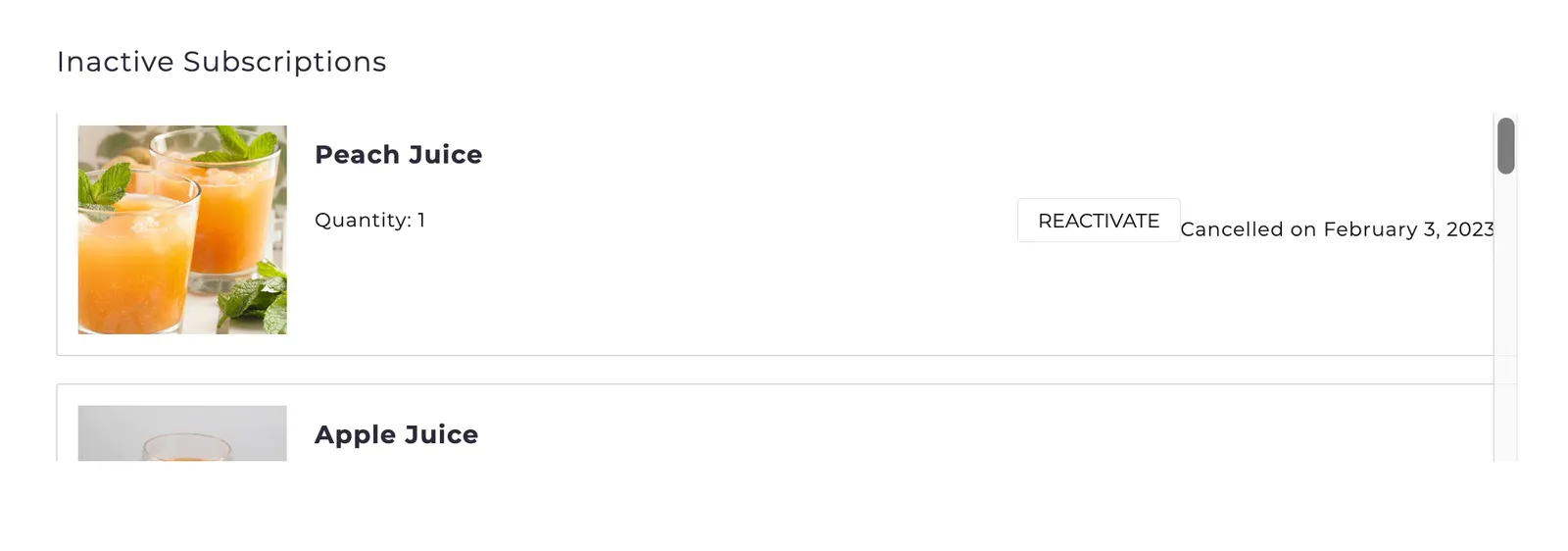
Your subscribers can view and reactivate their inactive subscriptions within the Inactive Subscriptions section of the Subscription Manager. Depending on the customer and the number of inactive subscriptions, this list can be quite long and lead to page scrolling. To prevent this, a scrollbar can be added to make the section more compact and eliminate page scrolling.
Requirements
This article only pertains to v0 versions of the Subscription Manager (versions starting with 0.x). Subscription Manager versions 25.x already include the scrollbar out of the box — no action needed.
How to Tell What Version You’re On
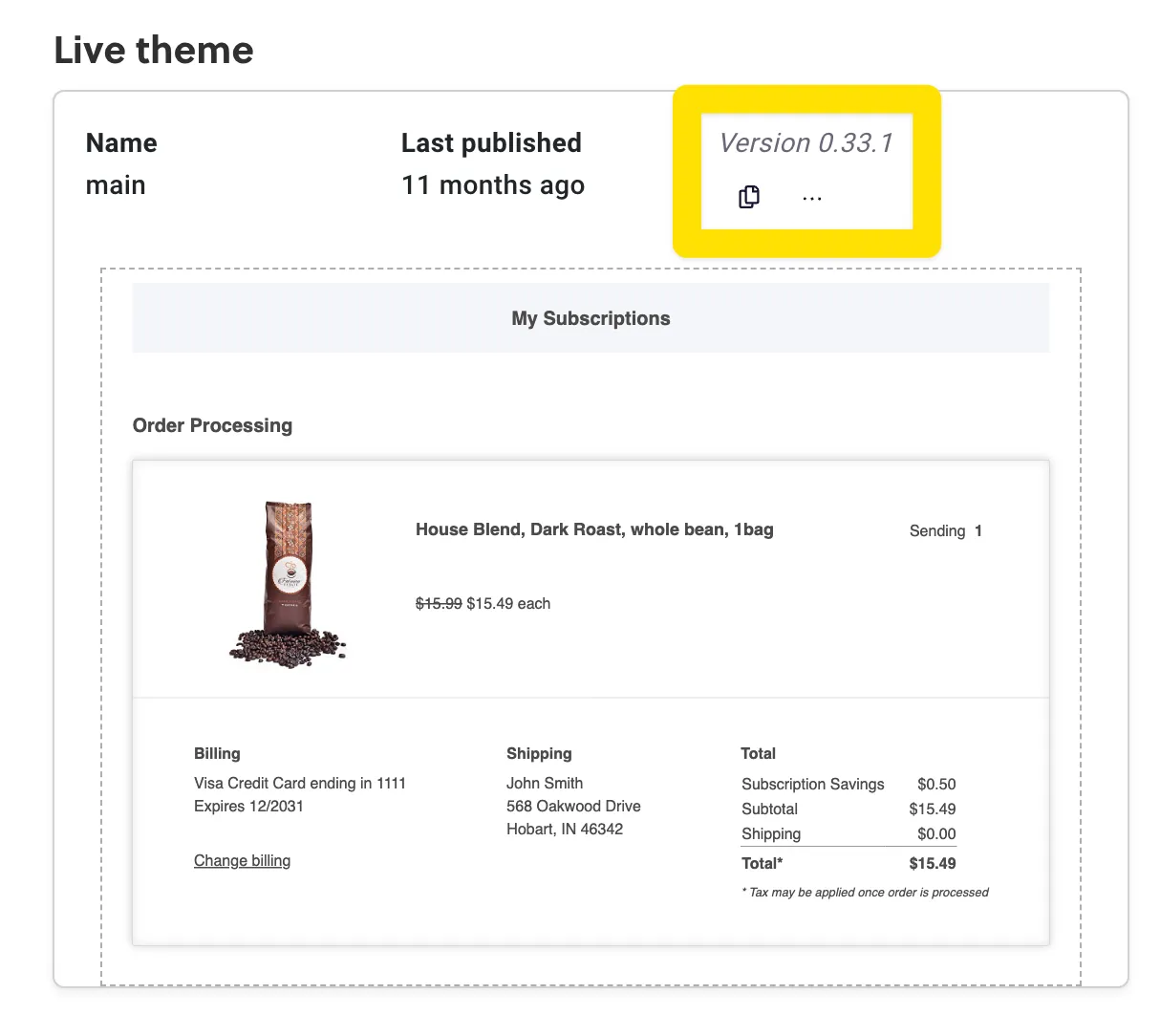
Before the September 2024 release of v25, all Subscription Manager installations were on version 0, displayed in the Theme Designer as version 0.X.X. You can check which version you’re on by going to Ordergroove > Subscription > Subscription Manager.
Accessing the Advanced Editor
We’ll be using the advanced editor to modify the Subscription Manager. You can access it through your Ordergroove Admin:
- Log in to Ordergroove.
- Go to Subscriptions on the top toolbar, and select Subscription Manager.
- Toggle Advanced on the top left.
Some aspects of this article require technical expertise with coding languages. This is self-serve and outside of the normal support policy.
Adding the Scrollbar
Open /views/inactive-subscriptions.liquid.
Locate lines 2–7:
And replace them with this:
At the end of the file, add a closing </div> tag above the closing </section> tag:
Go to the Styles section and click + ADD STYLE to add a file called wrapper.less.
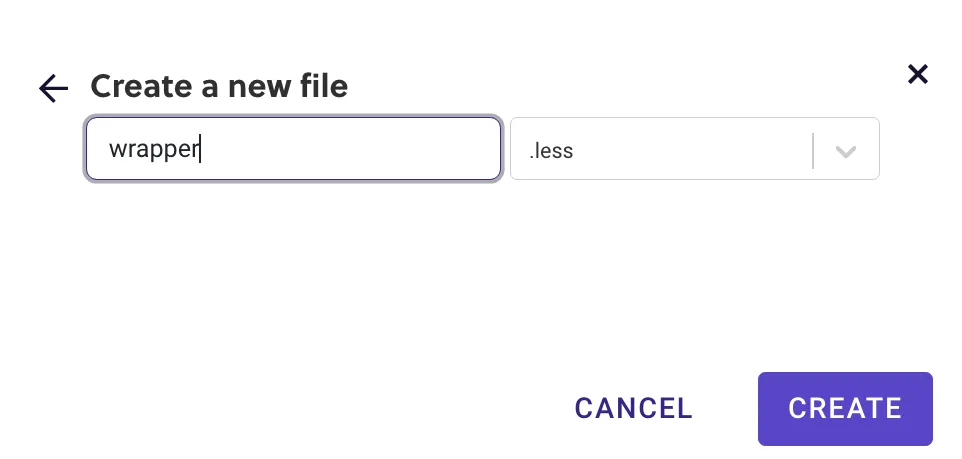
Inside the new file, add the following code:
The height may need to be increased or decreased to achieve the desired effect.
Still in the Styles section, open main.less and add the following:
The result should look something like this: