Skip to navigation

Subscription Manager File Descriptions

A reference guide to every file in the Subscription Manager template and what it controls
View as Markdown

The Subscription Manager is composed of a large number of individual files. In this guide we’ll go through all of the files available and what they modify.


Requirements

This article is intended for developers on Subscription Manager 2.0; shown as v25 templates and beyond. You should already have a thorough understanding of the fundamentals of HTML, CSS, and Javascript.

How to Tell What Version You’re On

Before the September 2024 release of v25, all Subscription Manager installations were on version 0, displayed in the Theme Designer as version 0.X.X. You can check which version you’re on by going to Ordergroove > Subscription > Subscription Manager.
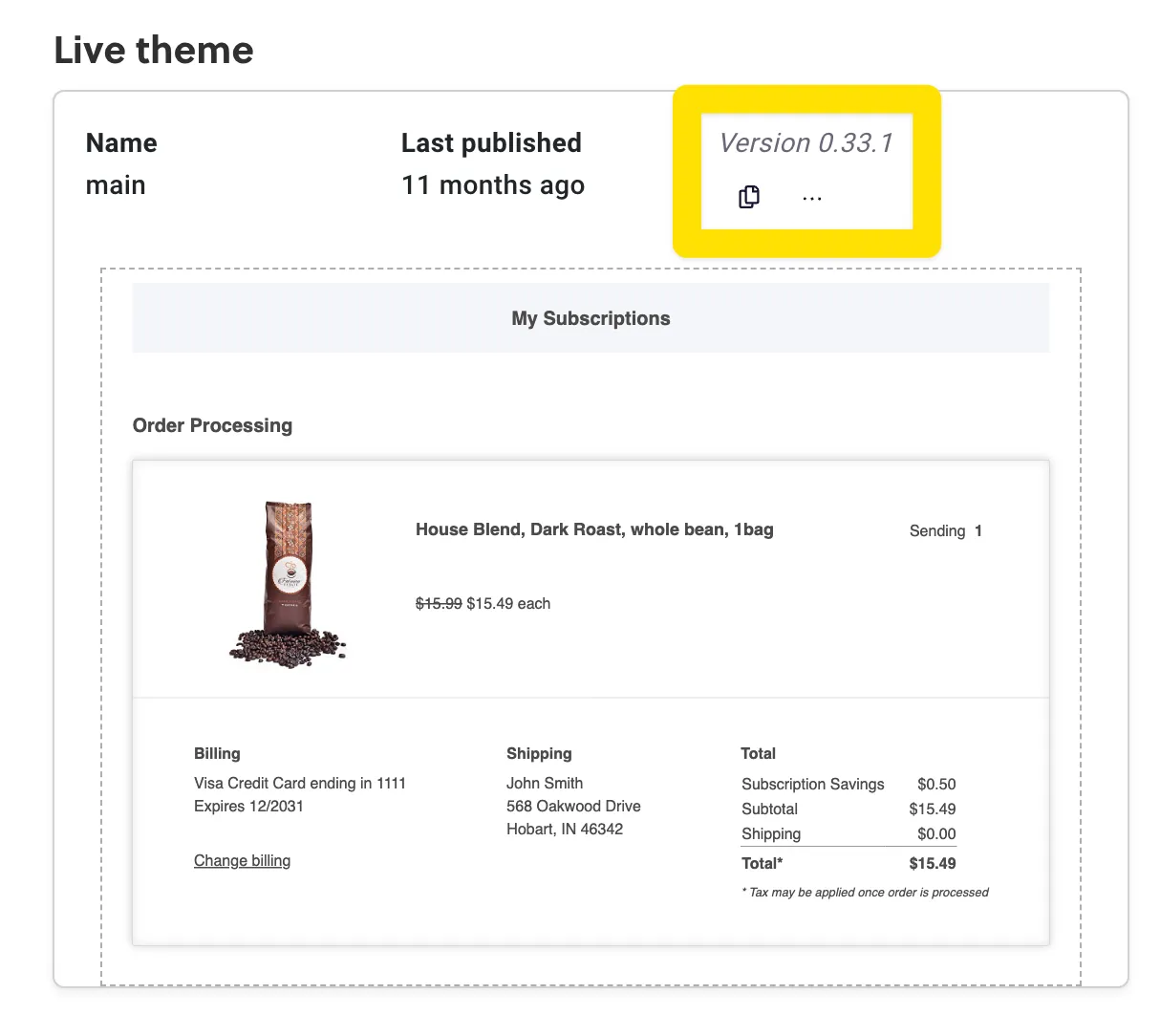
The live theme card in Subscription Manager, with the theme version, 0.33.1, highlighted

Advanced Editor Layout

The Subscription Manager has 5 folders in the advanced editor. This guide will go through each folder and how its contents fit into the overall Subscription Manager experience.

Locales

As you browse the views files later on, you’ll notice that the Subscription Manager does not have text content written directly in the templates. Instead, there will be Nunjucks templating code retrieving text from the locales files.

This will look like the following: {{ 'locale_key' | t }}

That code looks for the key locale_key in the locale file corresponding to the current language being used. For example, if locale_key would say “Hello!” in English, you would find “Hello!” as the value for that key in the locale files starting with en, the code for English. In the locale file starting with fr on the other hand, you would see “Bonjour!” as the value for locale_key.

When a user loads the page in a supported language, all of the content on the Subscription Manager will be filled with the appropriate content in that language. Out of the box, English, French, and Spanish are all available. If a matching language isn’t found, the SM will use the first of the available languages.

You can add as many languages as you want, but be sure that translations are added for all locale keys in the template to avoid blank spaces. Translations that are only used for accessibility (e.g. hidden labels) are prefixed with a11y.

Views

The views folder holds files with extension .liquid with Nunjucks-syntax templating code. Our custom implementation of Nunjucks is built to maximize readability and ease of development without compromising performance on your store.

The views folder is organized into subfolders representing different sections of the SM and their functionality. The following diagram shows some of the basic sections, which correspond to files and folders.
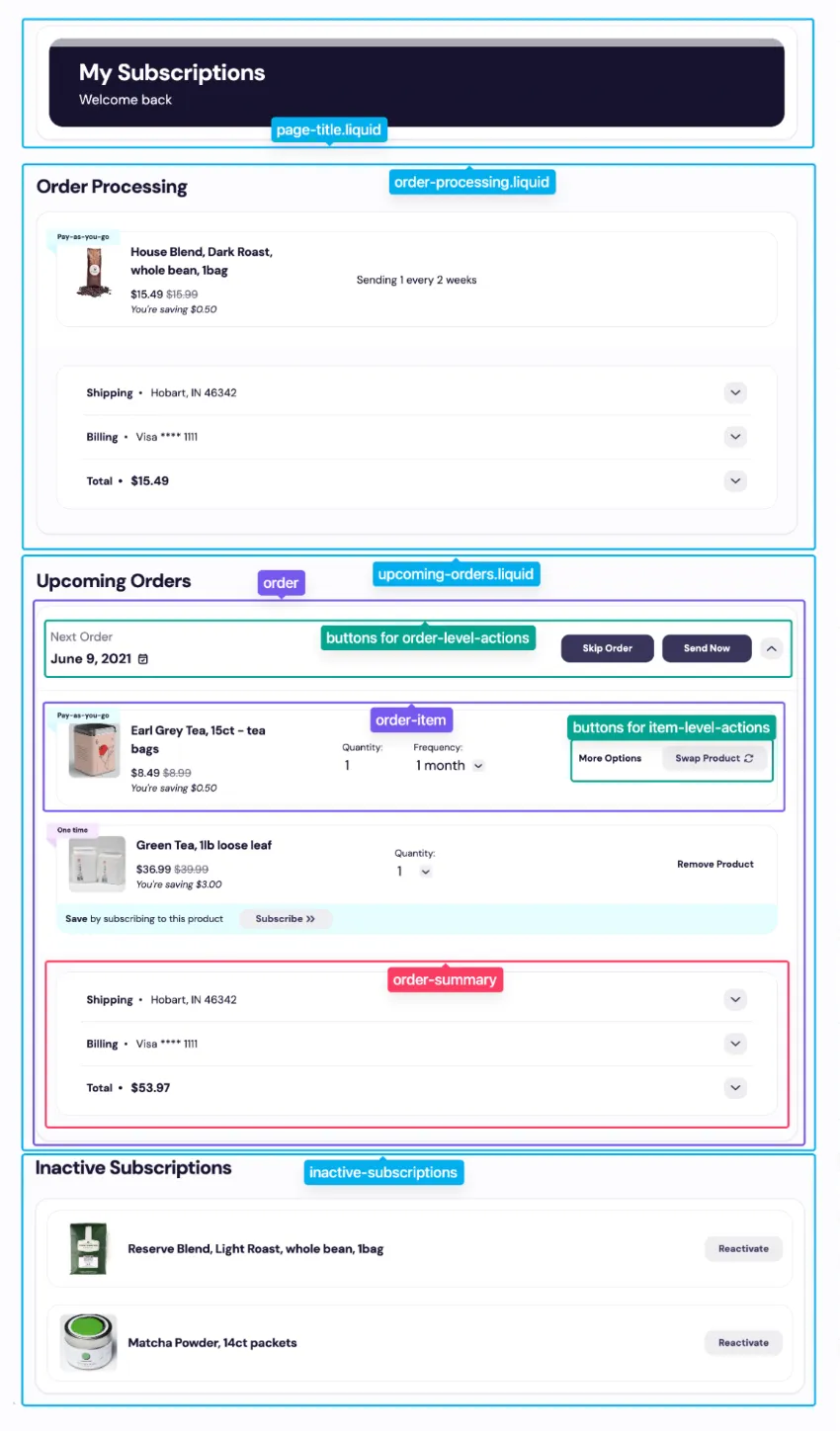
Diagram of the Subscription Manager with each section outlined and labeled with the views file or folder that renders it. From the top: page-title.liquid labels the My Subscriptions title, order-processing.liquid the Order Processing section, and upcoming-orders.liquid the Upcoming Orders section. Inside an upcoming order, labeled order, the order header with the Skip Order and Send Now buttons is marked buttons for order-level-actions, an item is outlined as order-item, its More Options and Swap Product buttons are marked buttons for item-level-actions, and the shipping, billing and total rows are outlined as order-summary. The Inactive Subscriptions section at the bottom is labeled inactive-subscriptions.

Here are some basic tips for navigating the views folder:

  1. Check the above diagram to figure out where the section or feature you’re looking for is located on the base template. Check that folder and the files in that folder.
  2. In some folders, main.liquid is the entry point for that folder — it’s the file referenced by include in another folder, and all the other files in the folder branch out from that file.
    • item-level-actions and order-level-actions are the exception to this rule — these features generally have buttons in the order-item and order folders, respectively, which include the corresponding file.
  3. Most actions in the SM open some sort of dialog for the user to confirm and make selections before the API request is sent. Sometimes the button for the action and the dialog are in the same liquid file, and sometimes they aren’t, depending on other design considerations. If an action file has dialog suffixed, it only contains the dialog and not the action button that opens the dialog. If it does not have dialog, it should contain both the button and the action.

Here are some specific tips for developing in v25:

  • The Subscription Manager files have global scoping, so you need to make sure that variables are defined before you use them, and not null if you’re trying to use a property of an object. At the beginning of every file in v25, a comment specifies any variables that are required to be not null, and any that are required to be set (but their value could be equal to null). If you change where a file is included, make sure all the variables it needs are already defined and non-null as necessary.
  • The base template uses attributes and custom elements to add special interactivity and functionality. If you remove or edit any attributes, it may break functionality of your SM.
  • Classes are only used for styling. You can remove or edit whatever classes you would like in conjunction with the .less files in the styles folder.
  • Some elements in the template have data-testid defined. These are just for Ordergroove’s use ensuring the base template is robust, and you can remove them in your version of your template if desired.

inactive-subscriptions

This section displays the customer’s inactive subscriptions. Three files make up this section.
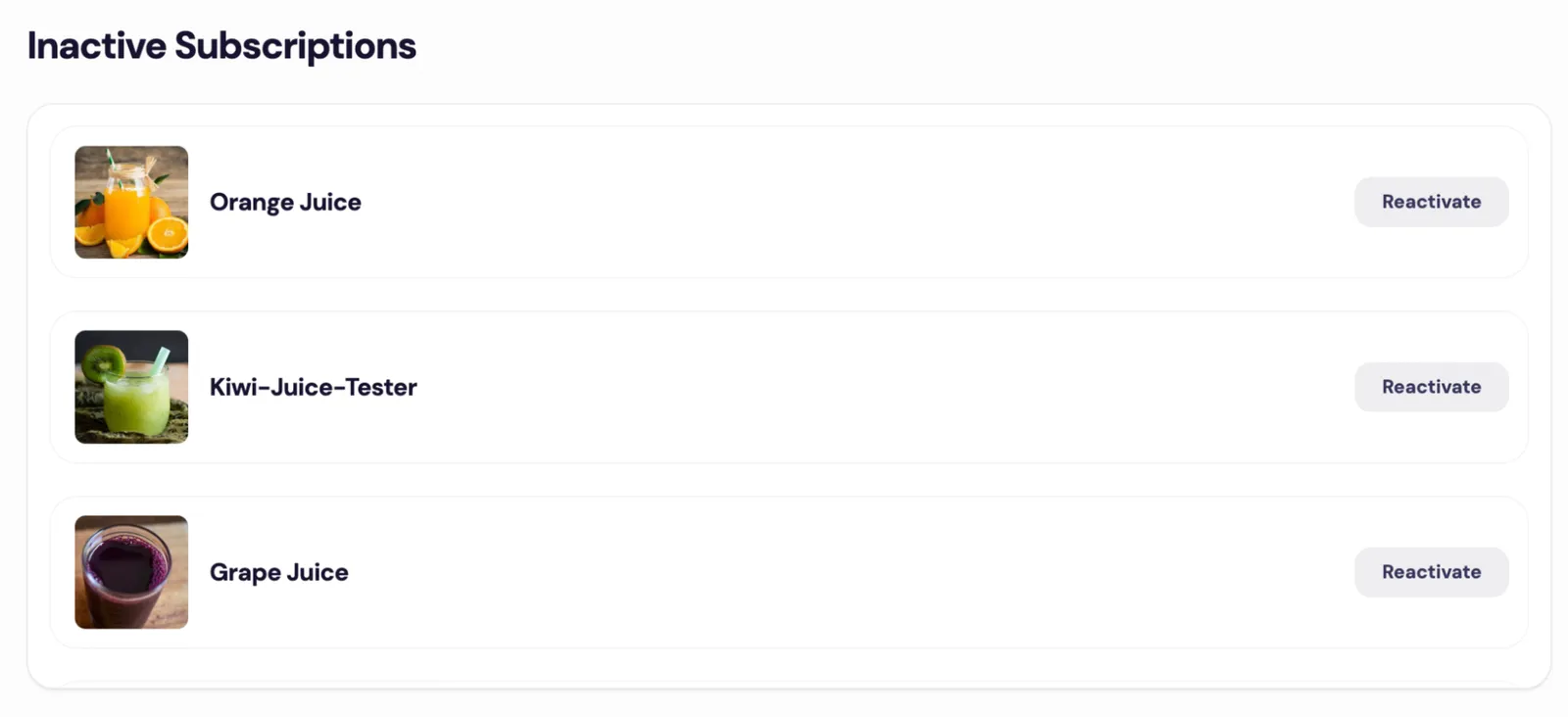
The Subscription Manager's Inactive Subscriptions section, which the inactive-subscriptions files render, listing three inactive juice subscriptions, each with a Reactivate button.

main.liquid

The code in this file is for the main inactive subscription section.
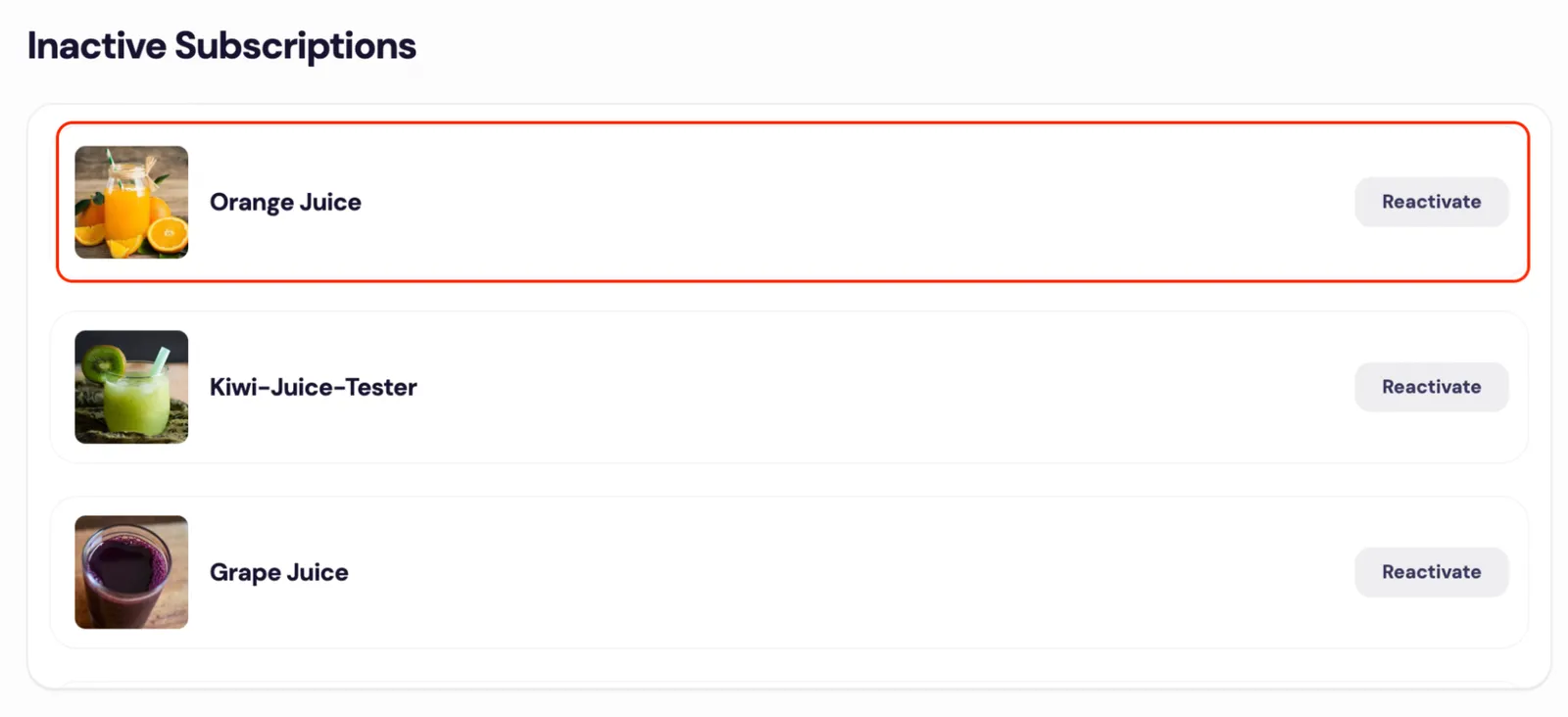
The Subscription Manager's Inactive Subscriptions section, which inactive-subscriptions/main.liquid renders, with the first inactive subscription, Orange Juice, and its Reactivate button outlined in red.

no-subscriptions.liquid

The code in this file controls what is displayed to a customer when they have no subscriptions.

reactivate-subscriptions.liquid

The code in this file controls the reactivate subscription button that is displayed within main.liquid.

The Subscription Manager's Reactivate button, which inactive-subscriptions/reactivate-subscriptions.liquid renders, on the inactive subscription row for Orange Juice, with the button outlined in red.

item-level-actions

cancel-reasons.liquid

The code in this file displays the subscription cancel reasons.
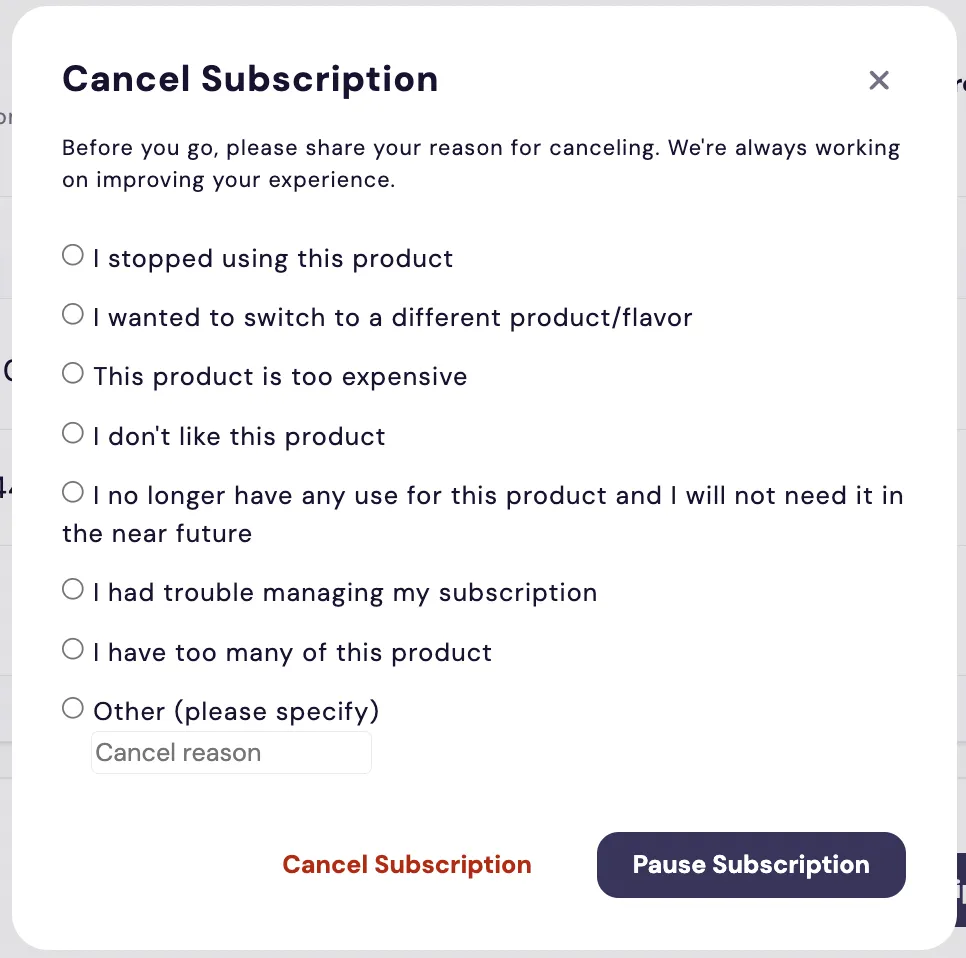
The Subscription Manager's Cancel Subscription dialog, showing the reasons that item-level-actions/cancel-reasons.liquid displays. Under the prompt 'Before you go, please share your reason for canceling' are eight radio options, from I stopped using this product to Other (please specify), which has a text field. Cancel Subscription and Pause Subscription buttons sit at the bottom.

cancel-subscription-dialog.liquid

The code in this file controls the first pop-up dialog box of the subscription cancel flow.
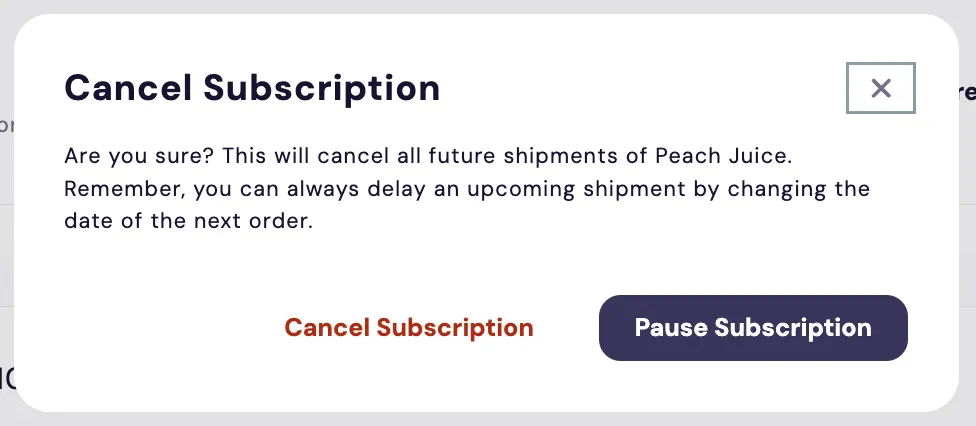
The first dialog of the Subscription Manager's cancel flow, which item-level-actions/cancel-subscription-dialog.liquid renders, titled Cancel Subscription, with the message 'Are you sure? This will cancel all future shipments of Peach Juice. Remember, you can always delay an upcoming shipment by changing the date of the next order.' A close button sits at the top right, and Cancel Subscription and Pause Subscription buttons at the bottom.

pause-subscription-dialog.liquid

The code in this file controls the Pause Subscription dialog box.
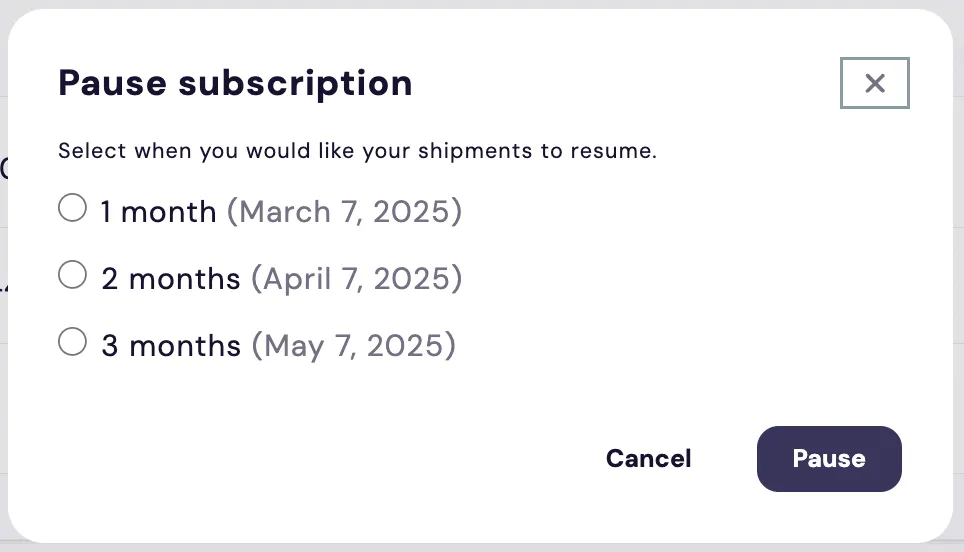
The Subscription Manager's Pause subscription dialog, which item-level-actions/pause-subscription-dialog.liquid renders, with the prompt 'Select when you would like your shipments to resume.', three radio options, 1 month (March 7, 2025), 2 months (April 7, 2025) and 3 months (May 7, 2025), plus Cancel and Pause buttons.

pause-subscription-options.liquid

The code in this file controls the date options displayed in the red box below.
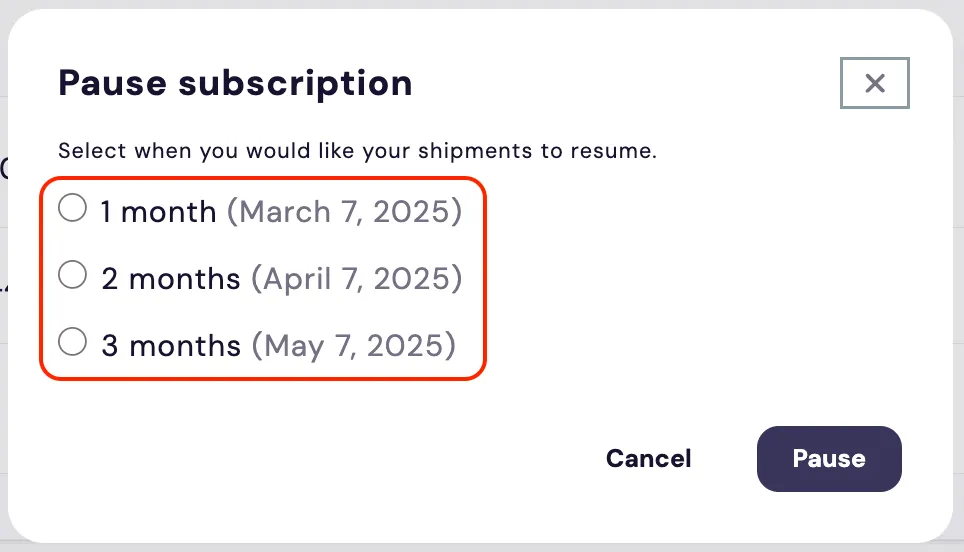
The Subscription Manager's Pause subscription dialog, with the date options that item-level-actions/pause-subscription-options.liquid renders outlined in red: 1 month (March 7, 2025), 2 months (April 7, 2025) and 3 months (May 7, 2025). Cancel and Pause buttons sit below the options.

remove-item.liquid

The code in this file controls the dialog box for removing a one-time item from an order.
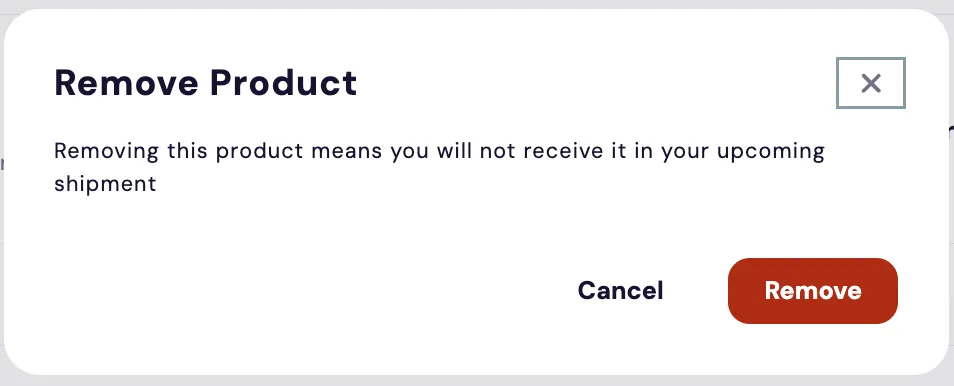
The Subscription Manager's Remove Product dialog, which item-level-actions/remove-item.liquid renders, with the message 'Removing this product means you will not receive it in your upcoming shipment', a close button at the top right, and Cancel and Remove buttons.

skip-item-dialog.liquid

The code in this file controls the dialog box for skipping an item from an upcoming order.
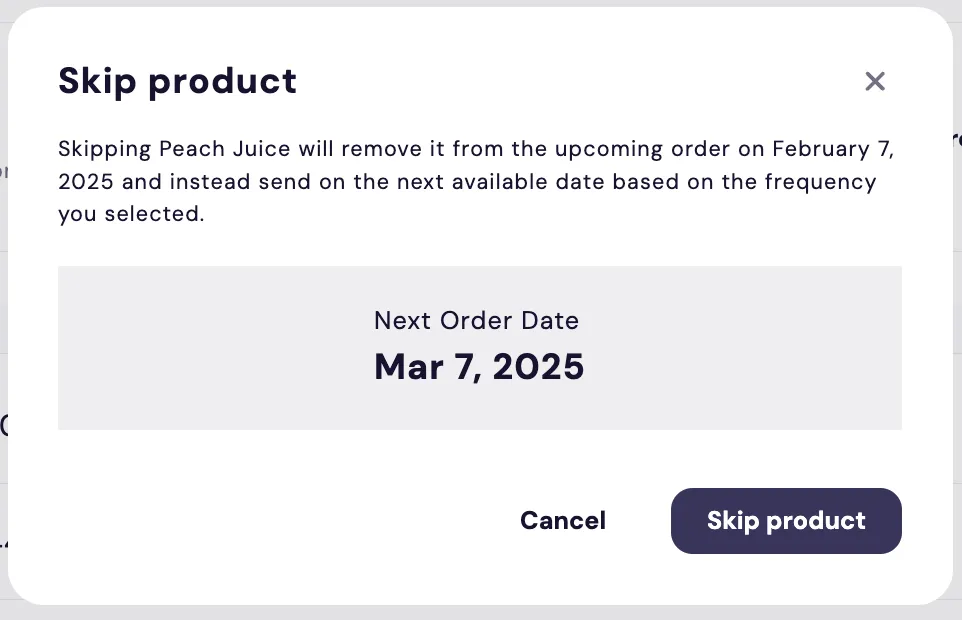
The Subscription Manager's Skip product dialog, which item-level-actions/skip-item-dialog.liquid renders, with the message 'Skipping Peach Juice will remove it from the upcoming order on February 7, 2025 and instead send on the next available date based on the frequency you selected.' A panel labeled Next Order Date shows Mar 7, 2025, above Cancel and Skip product buttons.

sku-swap-product-change-dialog.liquid

The code in this file controls the dialog box for the SKU swap. This only appears in the SM if SKU swap is enabled for the product in an order.
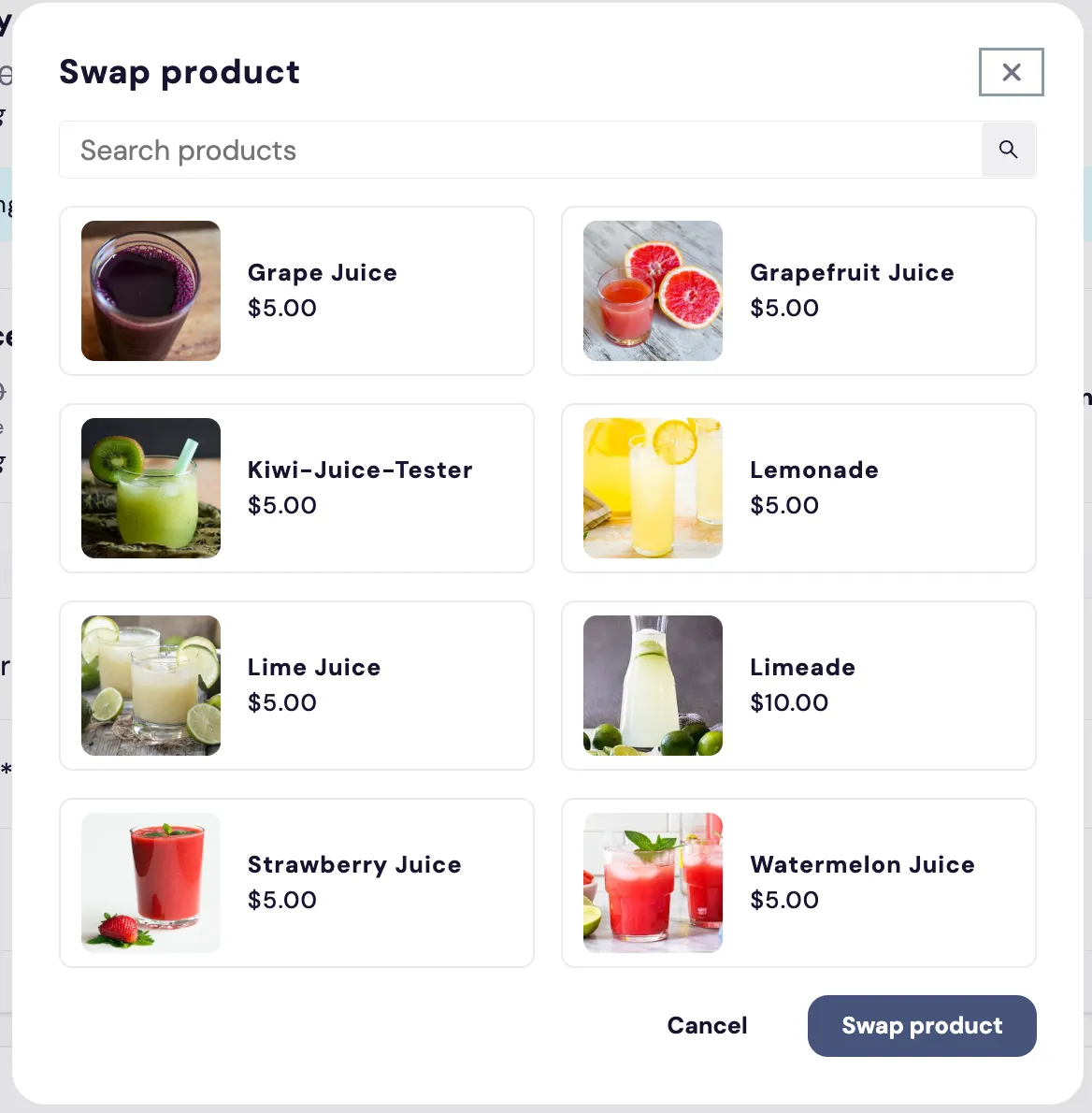
The Subscription Manager's Swap product dialog, which item-level-actions/sku-swap-product-change-dialog.liquid renders, with a Search products field at the top, a two-column grid of eight sample juice products, each showing a photo, name and price ($5.00 each, except Limeade at $10.00), and Cancel and Swap product buttons at the bottom.

order-item

This represents the section for the individual items within an order.
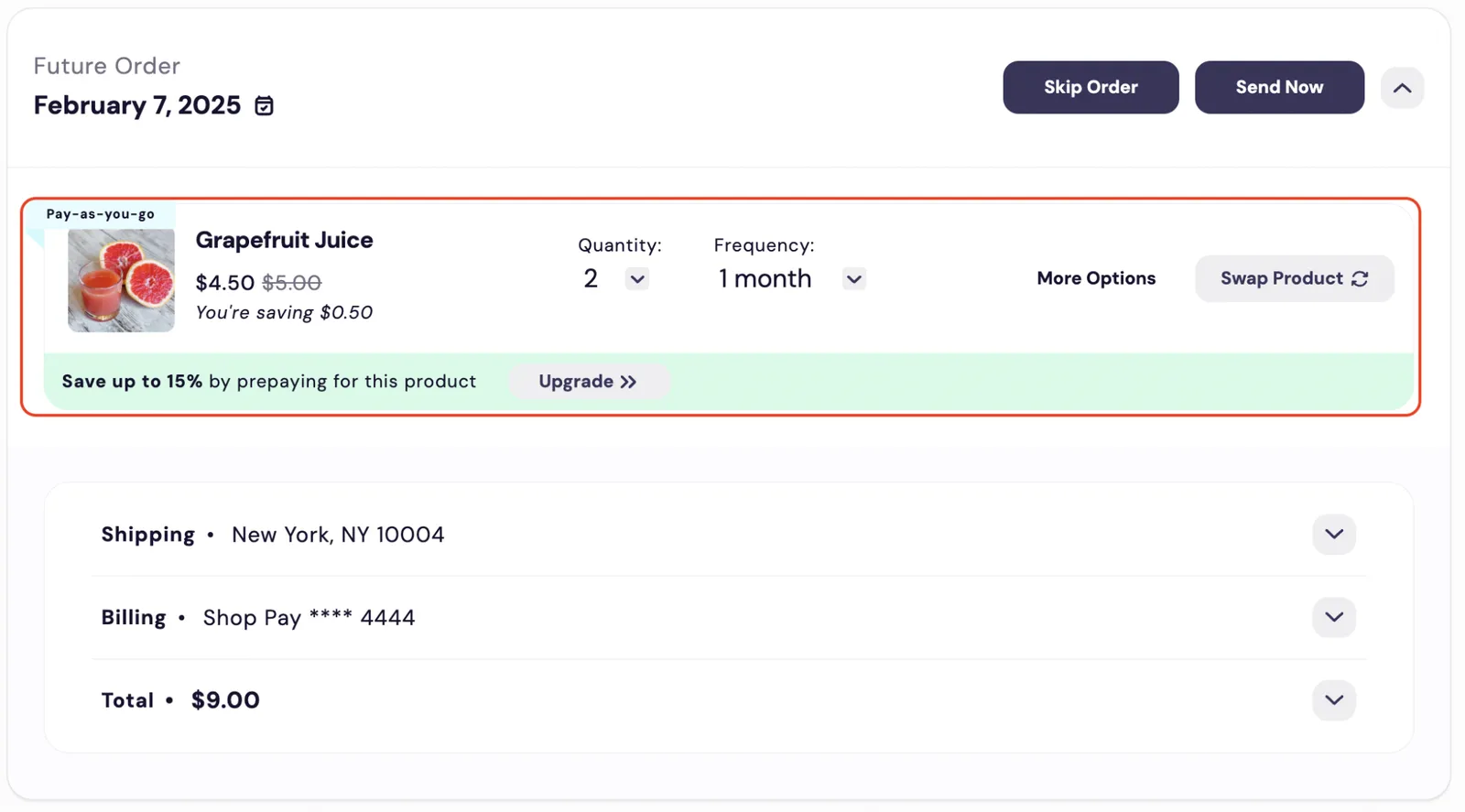
An upcoming order in the Subscription Manager, a Future Order dated February 7, 2025, with the order-item section outlined in red. The item, Grapefruit Juice, shows a Pay-as-you-go badge, its price ($4.50, with $5.00 struck through), Quantity and Frequency dropdowns, More Options and Swap Product buttons, and a prepay banner with an Upgrade button. The order header above has Skip Order and Send Now buttons; Shipping, Billing and Total rows sit below.

bundle-item-contents.liquid

The code in this file controls the light blue “Bundles contents” box that shows for bundled subscriptions.
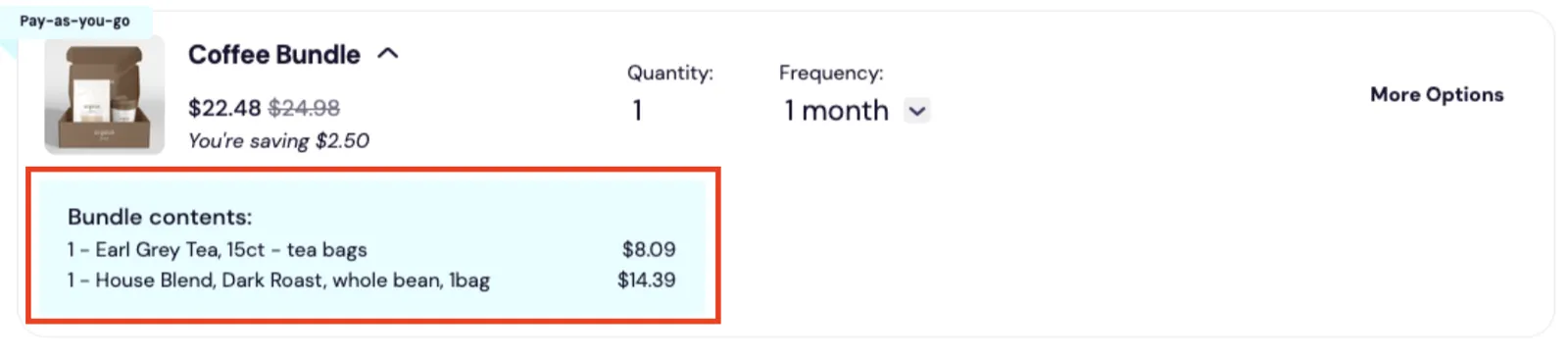
The Subscription Manager's Coffee Bundle order item, with the light blue Bundle contents box that order-item/bundle-item-contents.liquid renders outlined in red. The box lists 1 Earl Grey Tea, 15ct tea bags, at $8.09 and 1 House Blend, Dark Roast, whole bean, at $14.39. The item above it shows a Pay-as-you-go badge, Quantity 1, Frequency 1 month, and a More Options button.

frequency-select.liquid

The code in this file controls the frequency dropdown of the order item.
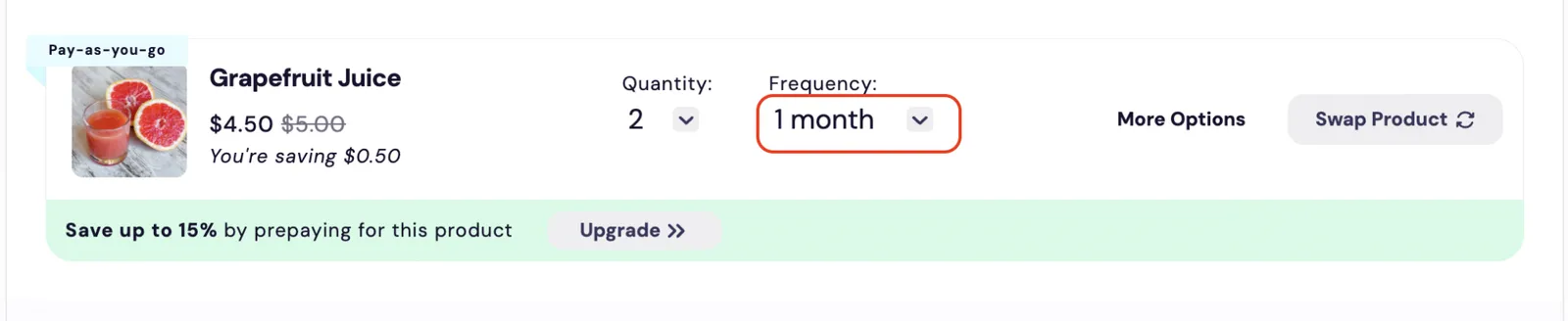
The Subscription Manager's Frequency dropdown, which order-item/frequency-select.liquid renders, outlined in red on the Grapefruit Juice order item. The dropdown is set to 1 month; the item's Quantity dropdown, More Options and Swap Product buttons, and prepay banner appear around it.

main.liquid

The code in this file controls the order item section.
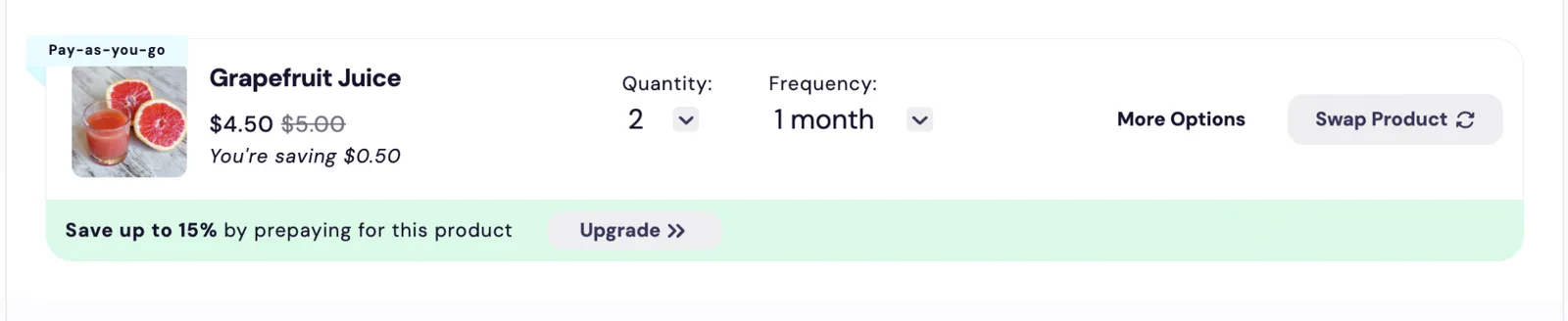
The Subscription Manager's order item section, which order-item/main.liquid renders, for Grapefruit Juice: a Pay-as-you-go badge, product photo, price ($4.50, with $5.00 struck through), Quantity set to 2, Frequency set to 1 month, More Options and Swap Product buttons, and a prepay banner, 'Save up to 15% by prepaying for this product', with an Upgrade button.

more-options-dropdown.liquid

The code in this file controls the More Options button on the main order item section.
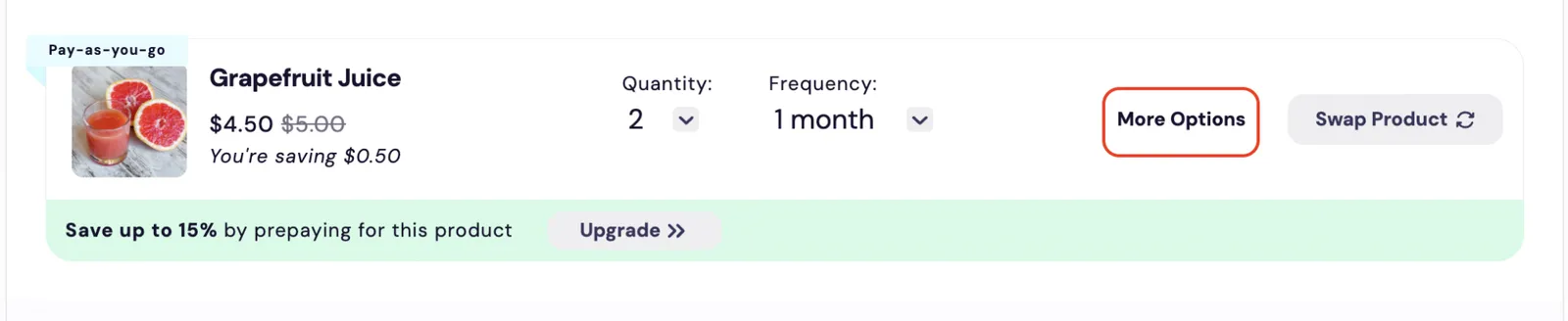
The Subscription Manager's More Options button, which order-item/more-options-dropdown.liquid renders, outlined in red on the Grapefruit Juice order item, between the Frequency dropdown and the Swap Product button.

order-controls.liquid

The code in this file controls the section that has the quantity and frequency dropdowns.
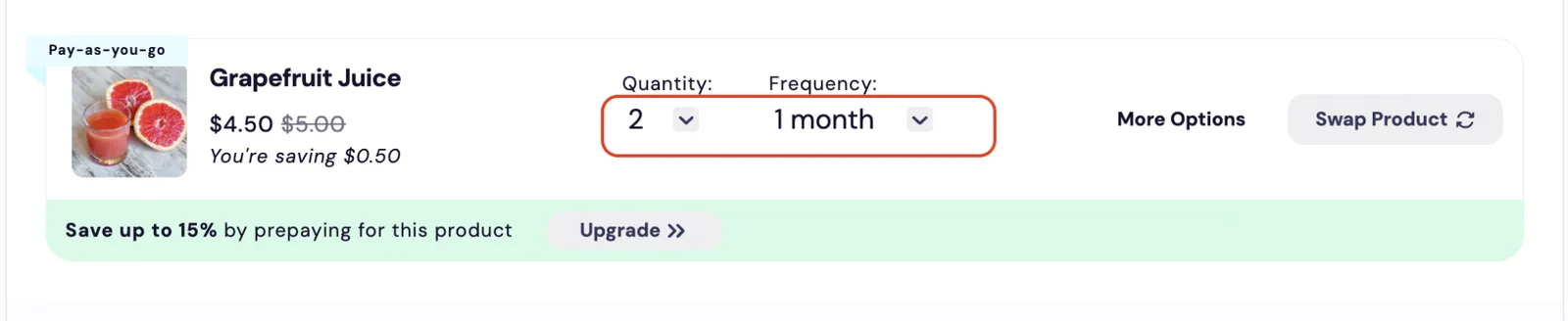
The Subscription Manager's Quantity and Frequency dropdowns, which order-item/order-controls.liquid renders, outlined together in red on the Grapefruit Juice order item, with Quantity set to 2 and Frequency set to 1 month.

order-item-badge.liquid

The code in this file controls the badge displayed above the order item image.
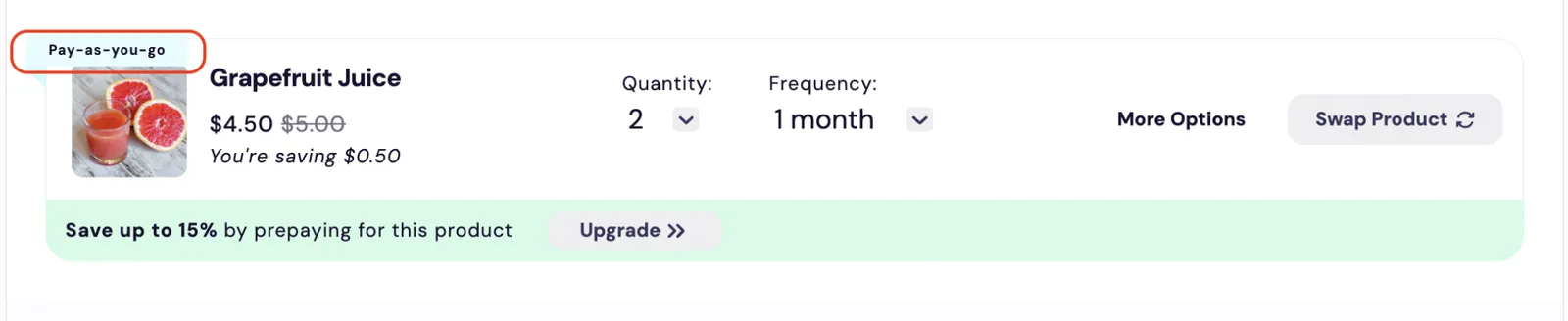
The Subscription Manager's Pay-as-you-go badge, which order-item/order-item-badge.liquid renders, outlined in red at the top left of the Grapefruit Juice order item, above the product photo.

order-item-buttons.liquid

The code in this file controls the buttons for SKU swap, skip product, pause, and cancel subscription.
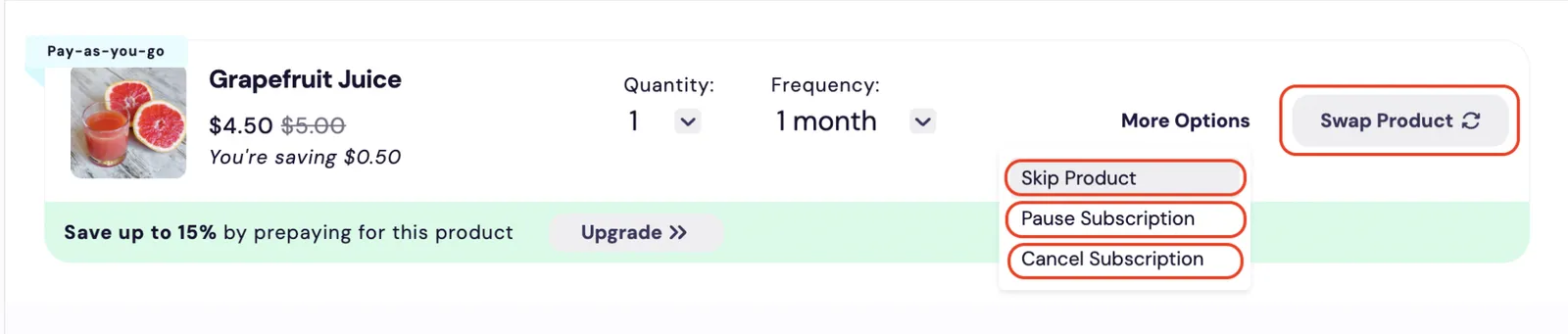
The Subscription Manager's order item buttons, which order-item/order-item-buttons.liquid renders, outlined in red on the Grapefruit Juice order item: the Swap Product button and, in the open More Options menu, Skip Product, Pause Subscription and Cancel Subscription.

prepaid-controls.liquid

The code in this file controls the prepaid information displayed on the order item.

The Subscription Manager's prepaid information, which order-item/prepaid-controls.liquid renders, outlined in red on a Watermelon Juice order item with a Prepaid badge. It reads Already received: 1 and Remaining: 3, then Sending 1 every 1 month for 4 deliveries, above an unchecked Automatically renew on 05/13/2025 checkbox.

price-display.liquid

The code in this file controls the order item price.
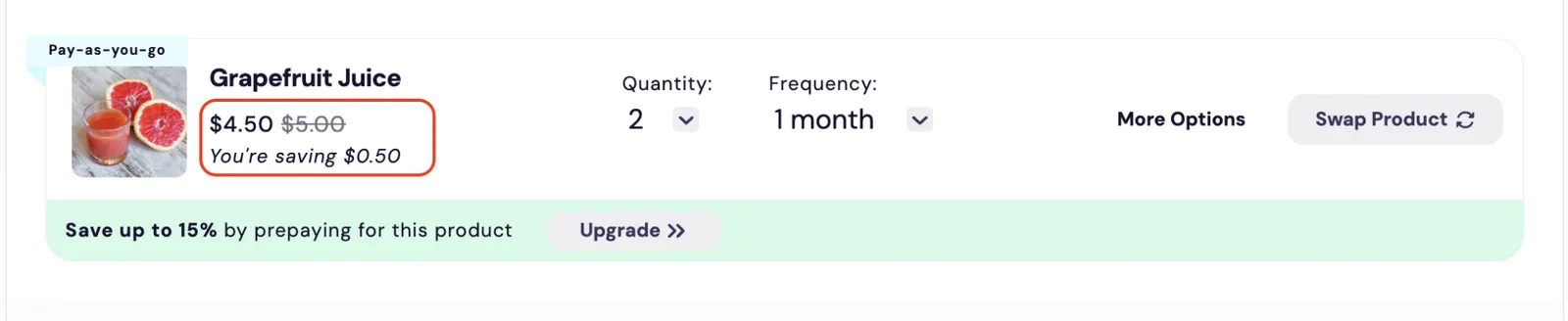
The Subscription Manager's order item price, which order-item/price-display.liquid renders, outlined in red on the Grapefruit Juice order item: $4.50, with $5.00 struck through, and the line You're saving $0.50.

quantity-select.liquid

The code in this file controls the quantity dropdown on the order item.
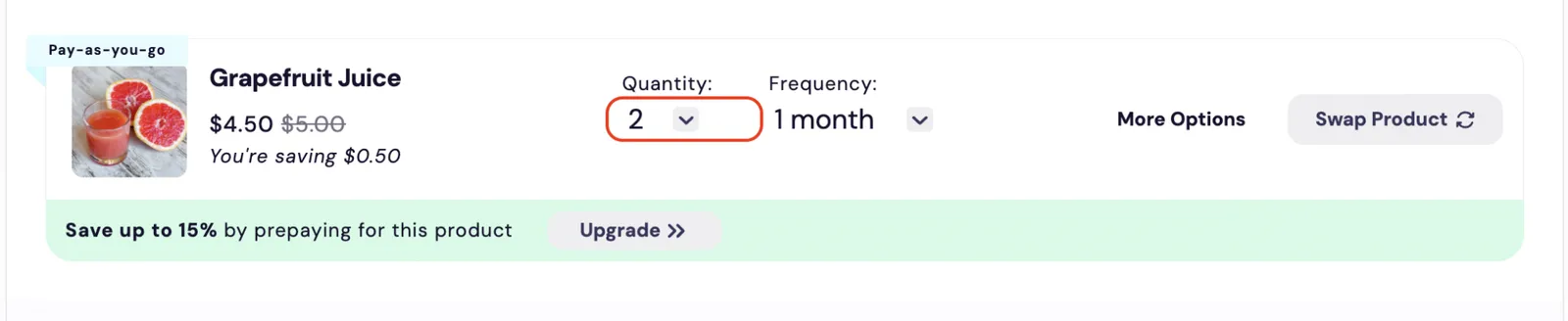
The Subscription Manager's Quantity dropdown, which order-item/quantity-select.liquid renders, outlined in red on the Grapefruit Juice order item and set to 2, beside the Frequency dropdown.

upgrade-one-time-to-subscription.liquid

The code in this file controls the upgrade to subscription option for one-time items that is displayed on the order item.

The Subscription Manager's upgrade to subscription banner, which order-item/upgrade-one-time-to-subscription.liquid renders, outlined in red along the bottom of a One time Strawberry Juice order item. It reads Save 30% off by subscribing to this product, with a Subscribe button.

upgrade-subscription-to-prepaid.liquid

The code in this file controls the upgrade to prepaid option for subscription items.
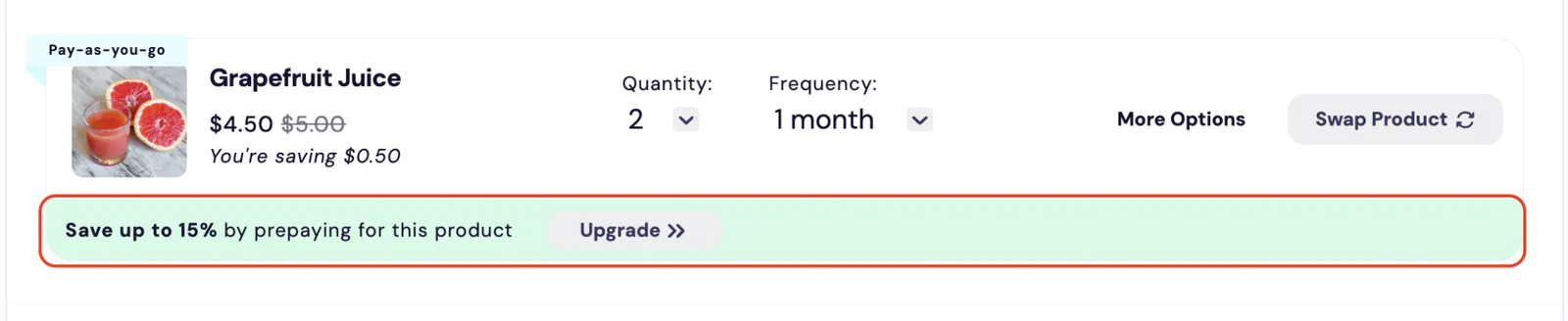
The Subscription Manager's upgrade to prepaid banner, which order-item/upgrade-subscription-to-prepaid.liquid renders, outlined in red along the bottom of the Grapefruit Juice order item. It reads Save up to 15% by prepaying for this product, with an Upgrade button.

order-level-actions

This section contains the order-level actions. These actions affect all order items in an order.

The Subscription Manager's order-level actions, which the order-level-actions files render, outlined in red in the header of a Future Order dated February 7, 2025: the order date with a calendar icon, the Skip Order button, and the Send Now button.

change-order-date.liquid

The code in this file controls the Change Order Date button in the order header.

The Subscription Manager's Change Order Date button, which order-level-actions/change-order-date.liquid renders, outlined in red in the order header. It shows the order date, February 7, 2025, with a calendar icon, under the Future Order label.

send-order-now.liquid

The code in this file controls the Send Now button in the order header.

The Subscription Manager's Send Now button, which order-level-actions/send-order-now.liquid renders, outlined in red in the header of a Future Order dated February 7, 2025, beside the Skip Order button.

skip-order.liquid

The code in this file controls the Skip Order button in the order header.

The Subscription Manager's Skip Order button, which order-level-actions/skip-order.liquid renders, outlined in red in the header of a Future Order dated February 7, 2025. The Send Now button and a collapse arrow sit to its right.

order-summary

This section contains the order shipping address, billing address, and the order price summary.
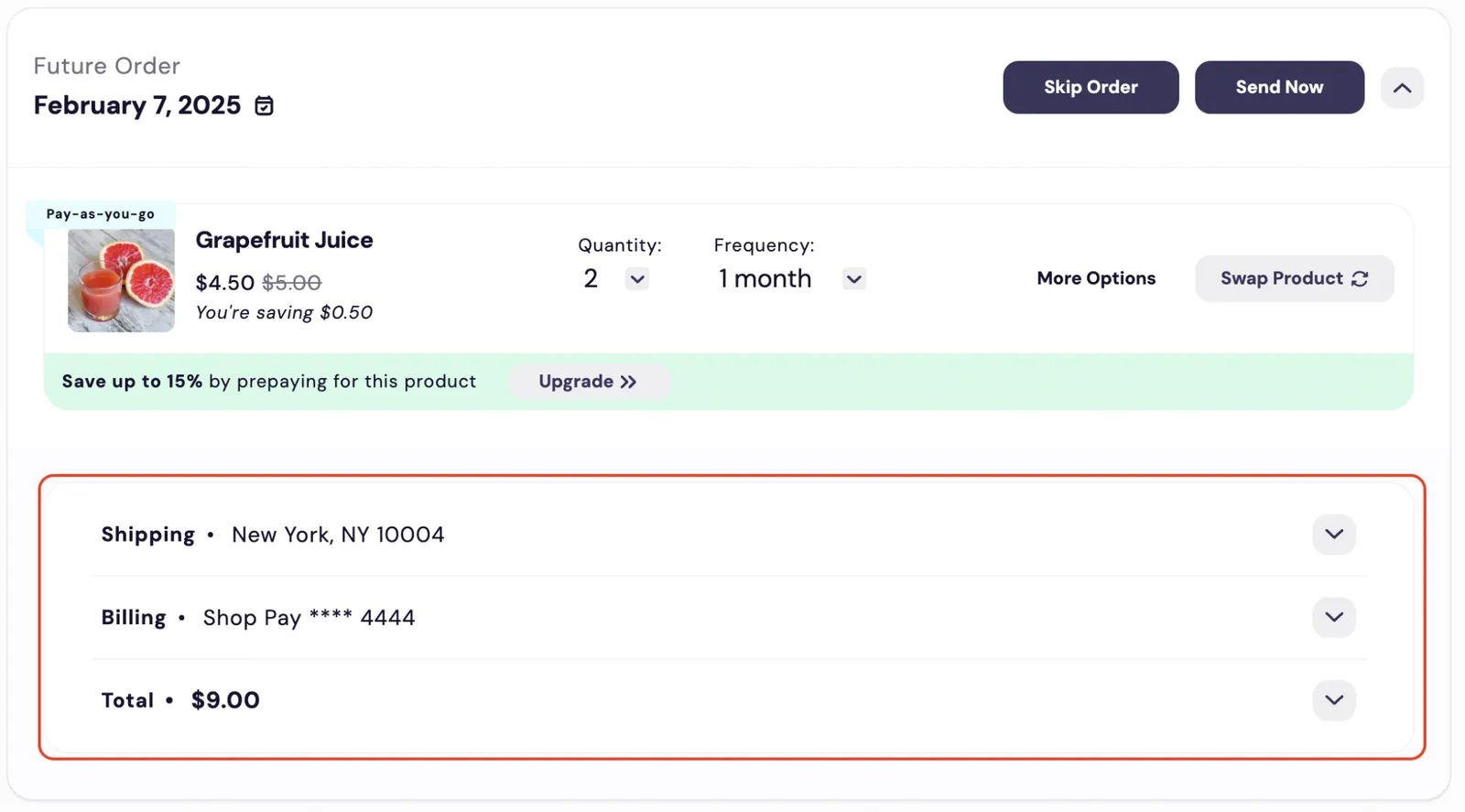
An upcoming order in the Subscription Manager, a Future Order dated February 7, 2025, with the order-summary section outlined in red below the order header and the Grapefruit Juice item. The section has three collapsed rows, each with an expand arrow: Shipping, showing a city and ZIP code; Billing, showing a Shop Pay card; and Total, $9.00.

change-billing-shopify.liquid

The code in this file controls the Billing section of the order summary for merchants on Shopify.
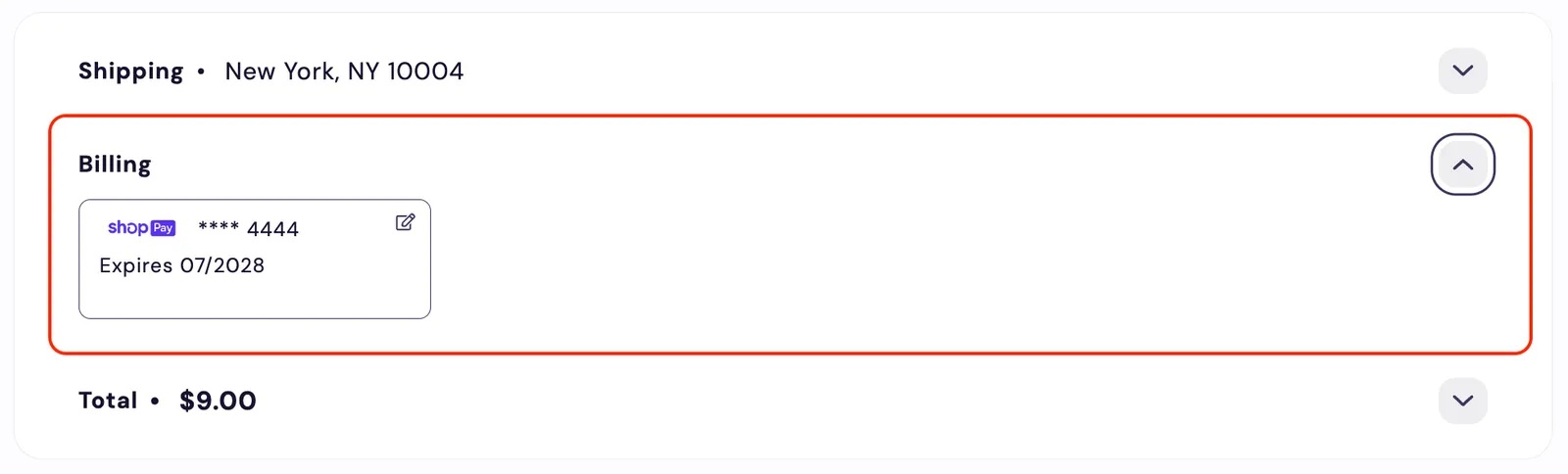
The Subscription Manager's Billing section, which order-summary/change-billing-shopify.liquid renders, expanded and outlined in red. It shows a Shop Pay card with a masked card number, an expiry date and an edit icon. The Shipping and Total rows are collapsed above and below it.

change-shipping-buttons.liquid

The code in this file controls the Add New Address button.

change-shipping-dialog.liquid

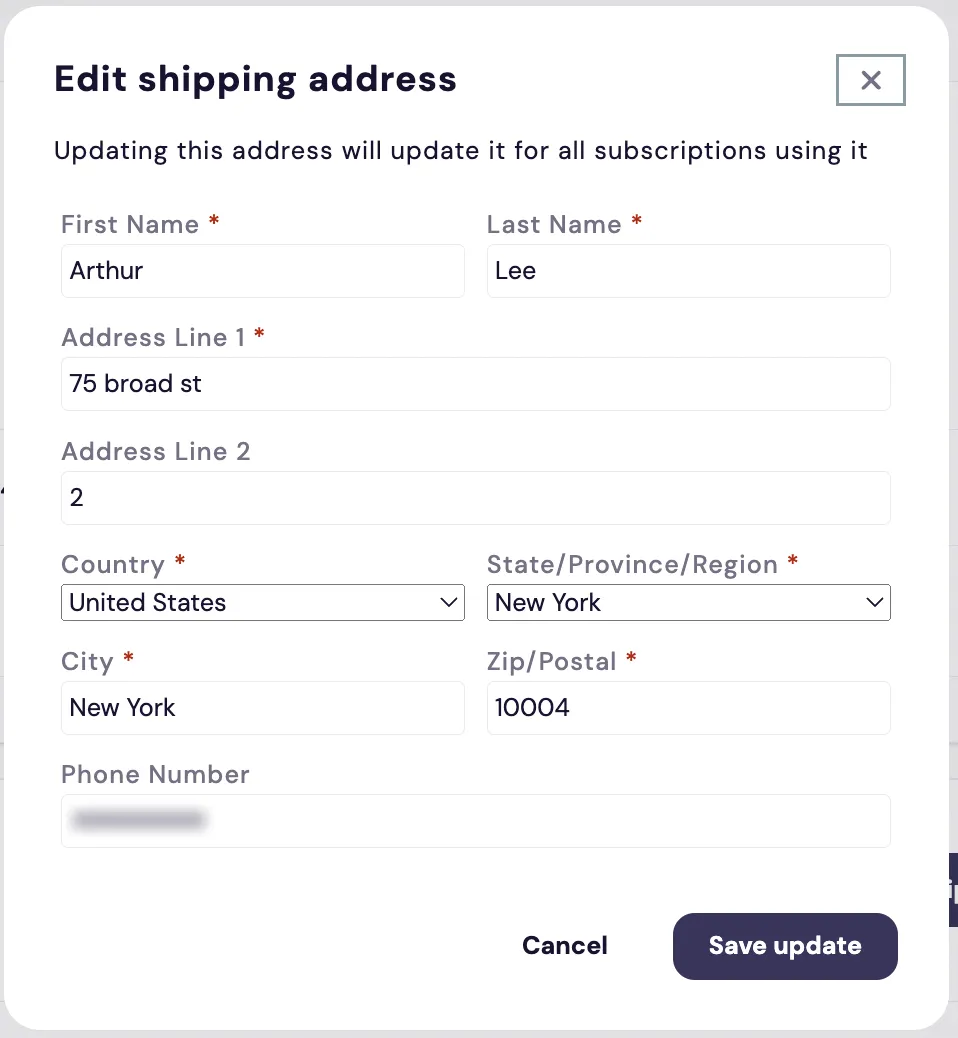
The code in this file controls both the Add and Edit Shipping dialog boxes.
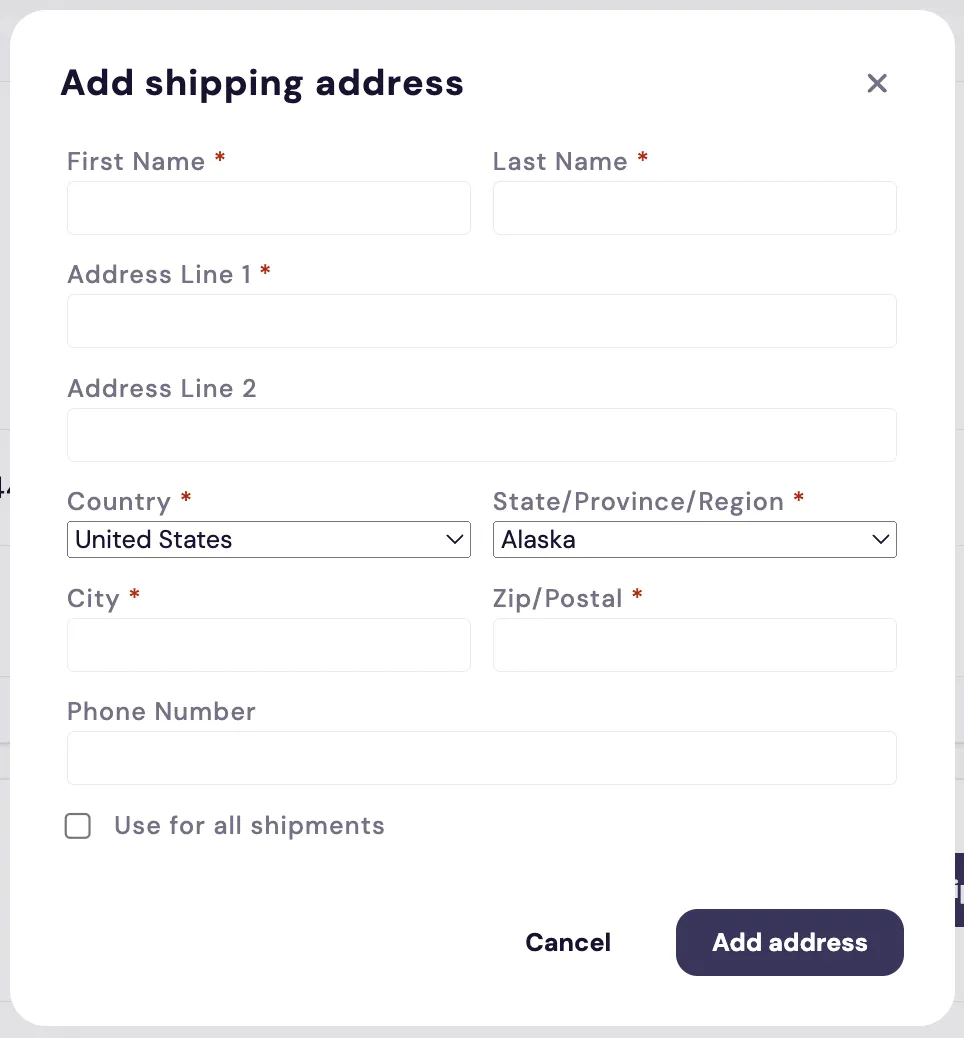
The Add state of the Subscription Manager's shipping address dialog, which order-summary/change-shipping-dialog.liquid renders. Titled Add shipping address, it shows an empty form with First Name, Last Name, Address Line 1, Address Line 2, Country, State/Province/Region, City, Zip/Postal and Phone Number fields, all marked required with an asterisk except Address Line 2 and Phone Number. A Use for all shipments checkbox sits above Cancel and Add address buttons. The Edit state of the same shipping address dialog, which order-summary/change-shipping-dialog.liquid also renders. Titled Edit shipping address, it adds the note 'Updating this address will update it for all subscriptions using it', has the same fields pre-filled with a test customer's name, address and phone number, and has no Use for all shipments checkbox. Its buttons are Cancel and Save update.

discount-code-form.liquid

The code in this file controls the form for applying discount codes. This section is only available for merchants on Shopify.
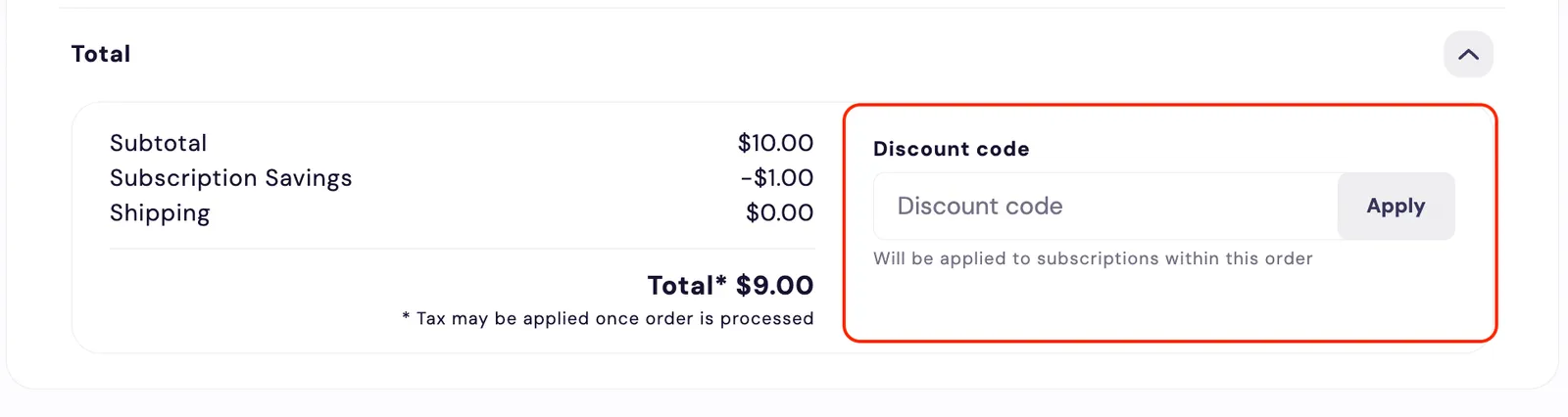
The Subscription Manager's discount code form, which order-summary/discount-code-form.liquid renders, outlined in red in the expanded Total section. It has a Discount code field, an Apply button and the hint 'Will be applied to subscriptions within this order'. The price breakdown sits to its left.

discount-codes.liquid

The code in this file controls the section that displays the discount codes that have been applied. This section is only available for merchants on Shopify.
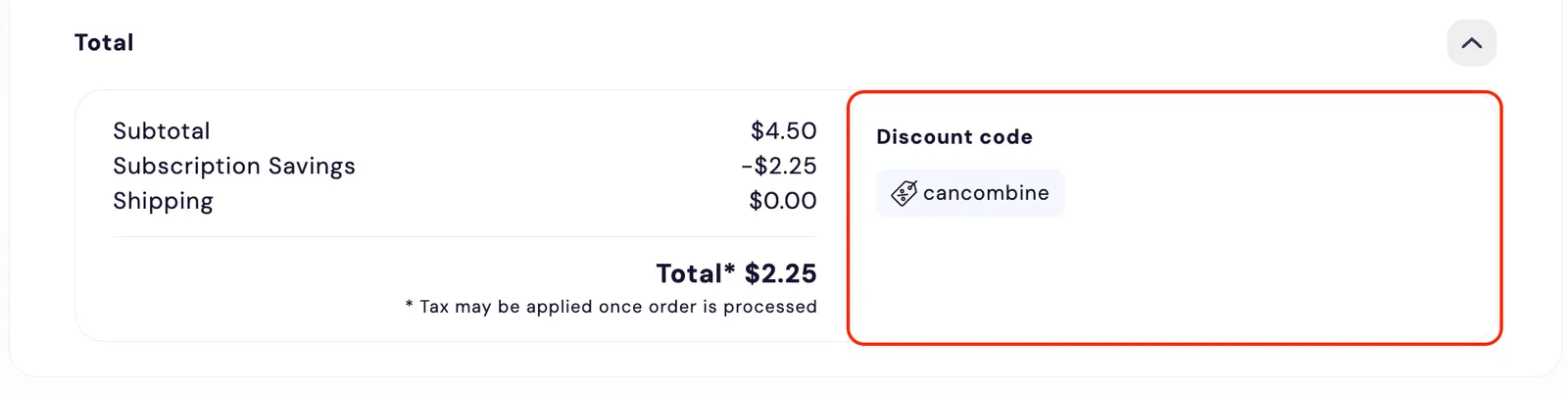
The Subscription Manager's applied discount codes, which order-summary/discount-codes.liquid renders, outlined in red in the expanded Total section. Under the Discount code heading, the applied code appears as a tag with a price-tag icon. The price breakdown sits to its left.

main.liquid

The code in this file controls the order summary layout.
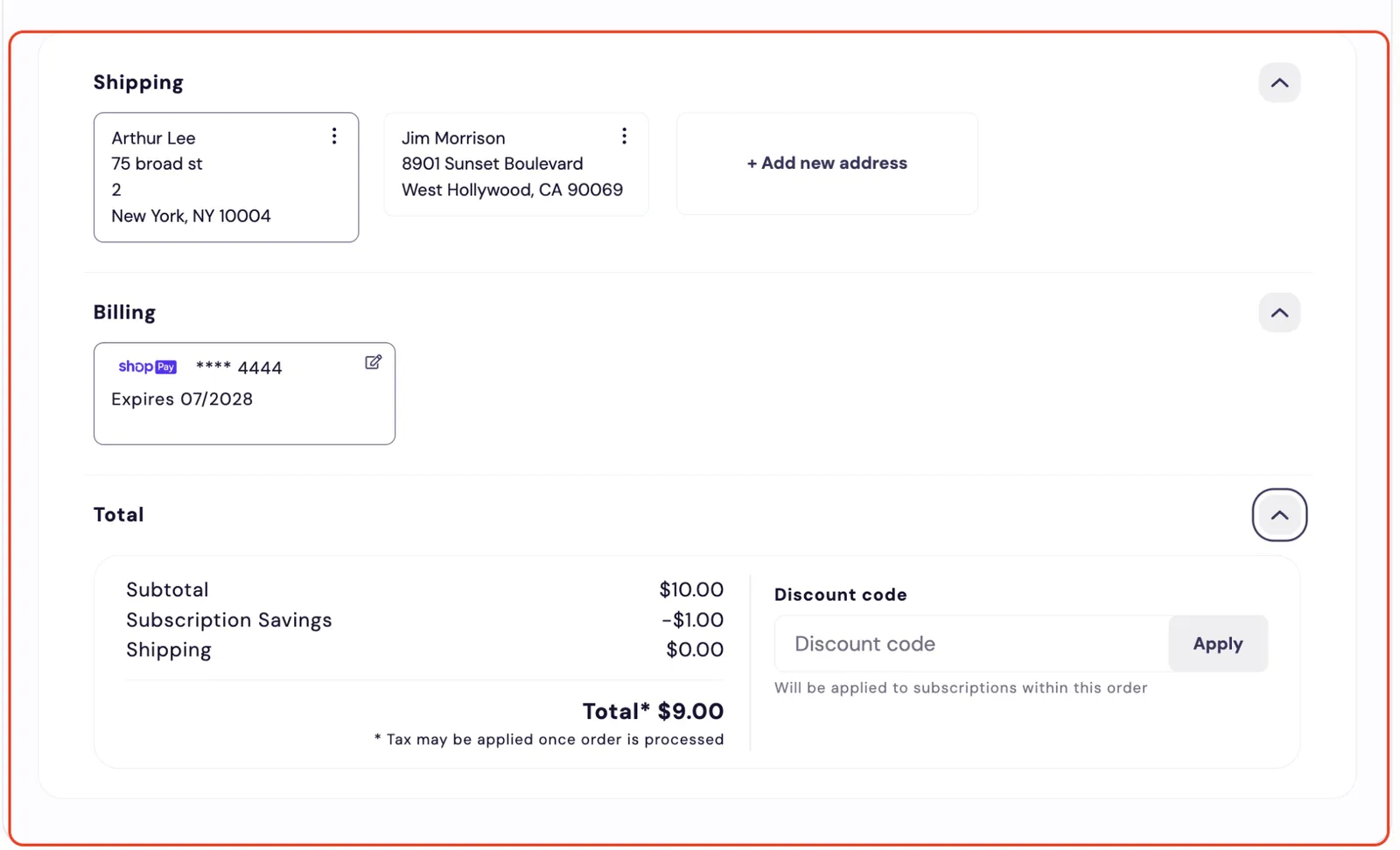
The Subscription Manager's order summary, which order-summary/main.liquid renders, outlined in red with Shipping, Billing and Total all expanded. Shipping shows two address cards, each with a three-dot menu button, and an Add new address card. Billing shows a Shop Pay card with an edit icon. Total shows the price breakdown beside the Discount code form and its Apply button.

payment-details.liquid

The code in this file controls the payment details for the order.
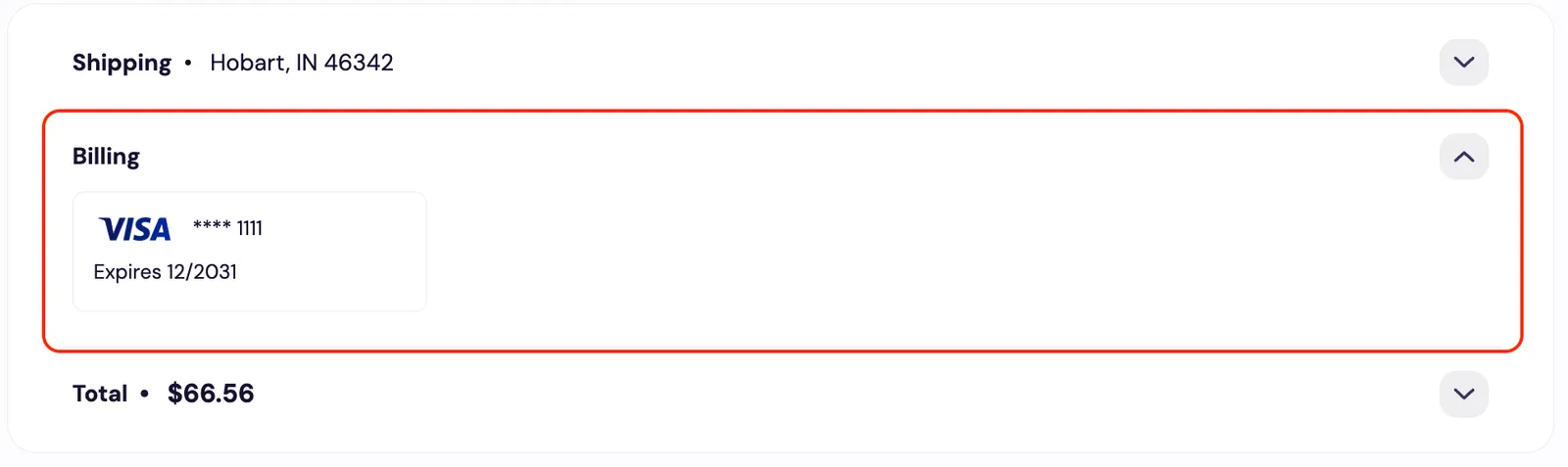
The Subscription Manager's payment details, which order-summary/payment-details.liquid renders, in the expanded Billing section outlined in red: a card tile with a Visa logo, a masked card number and an expiry date. The Shipping and Total rows are collapsed above and below it.

price-details.liquid

The code in this file controls the price details section for the order.
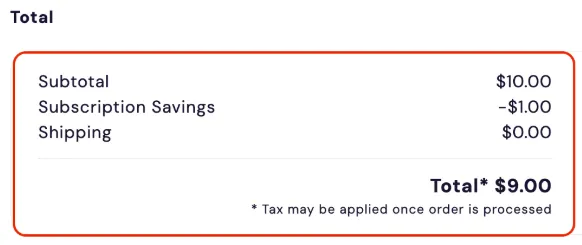
The Subscription Manager's price details, which order-summary/price-details.liquid renders, outlined in red under the Total heading: Subtotal $10.00, Subscription Savings minus $1.00, Shipping $0.00 and Total $9.00, with the footnote 'Tax may be applied once order is processed'.

shipping-address-card.liquid

The code in this file controls the shipping address card display.

The Subscription Manager's shipping address card, which order-summary/shipping-address-card.liquid renders, outlined in red in the Shipping section. The card shows a test customer's name and address with a three-dot menu button. A second address card and an Add new address card sit beside it.

shipping-details.liquid

The code in this file controls the shipping details section.
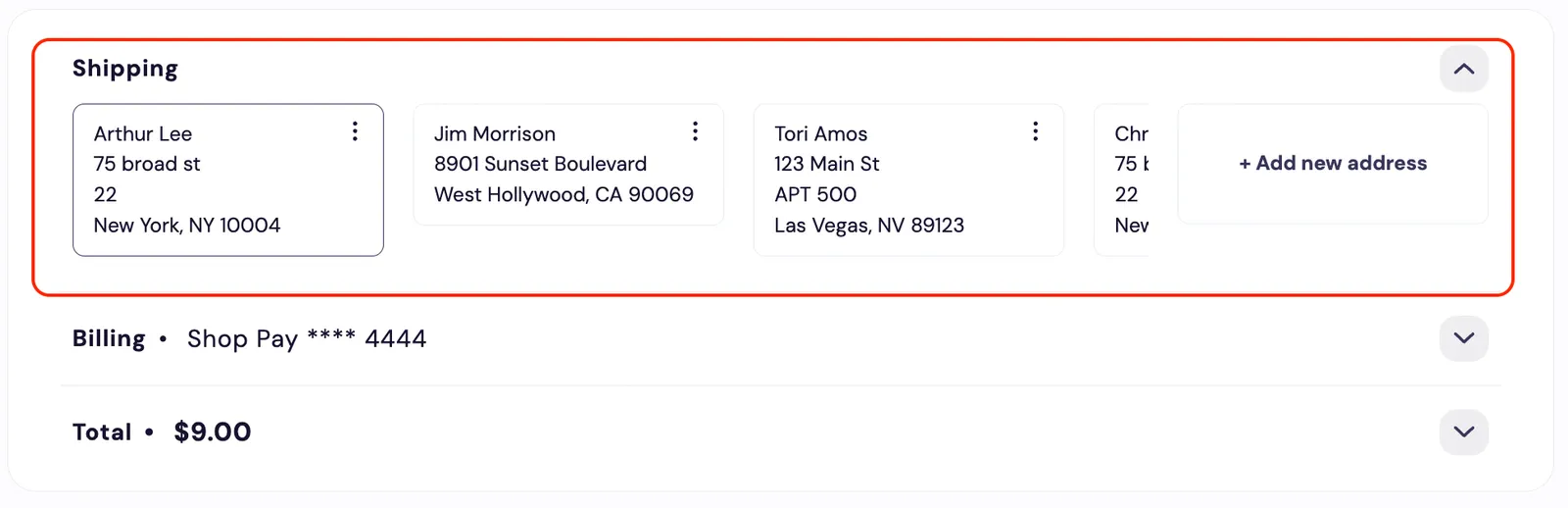
The Subscription Manager's Shipping section, which order-summary/shipping-details.liquid renders, expanded and outlined in red above collapsed Billing (Shop Pay) and Total ($9.00) rows. It shows a row of saved address cards, the first with a darker border and the fourth cut off, and a + Add new address card.

order

This section’s files control the main body of the order and the header.
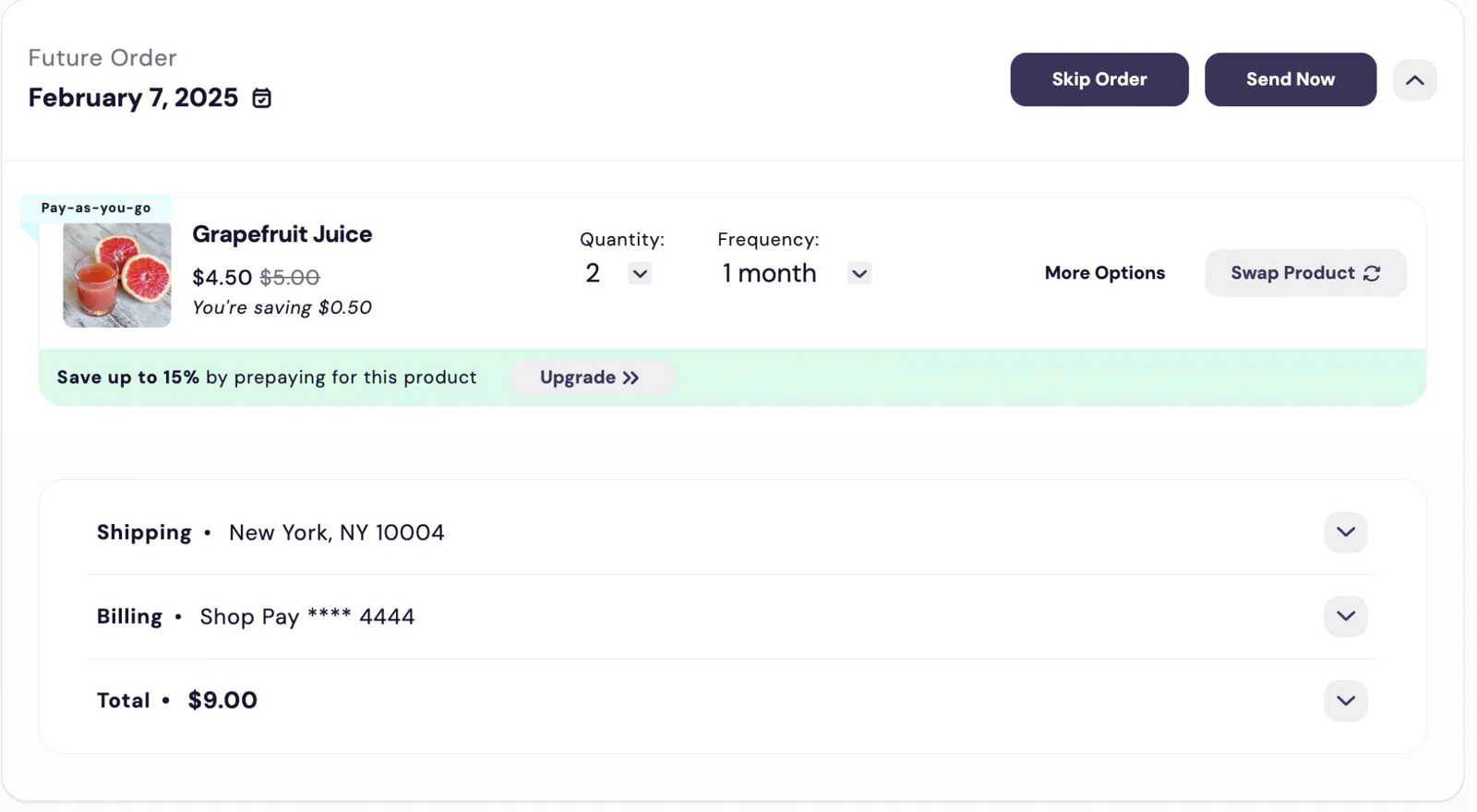
An upcoming order in the Subscription Manager, which the files in the order folder render: a header with Future Order, February 7, 2025, and Skip Order and Send Now buttons; the Grapefruit Juice order item with a prepay banner and Upgrade button; and collapsed Shipping, Billing and Total rows.

main.liquid

The code in this file controls the main section of the order and references the order/order-header, order-item/main, and order-summary/main files.
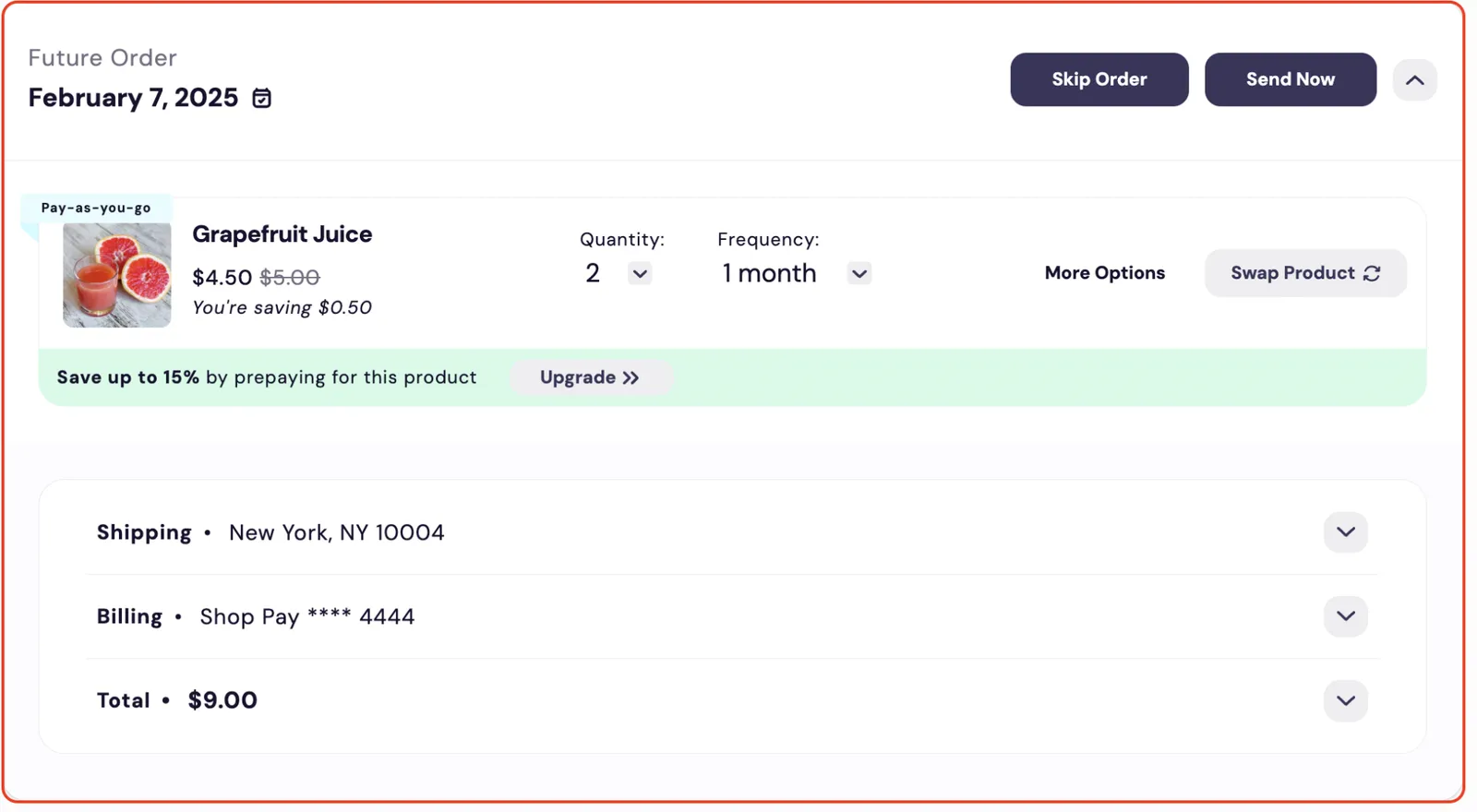
The Subscription Manager's whole upcoming order, which order/main.liquid renders, outlined in red. The outline wraps the order header (Future Order, February 7, 2025, with Skip Order and Send Now buttons), the Grapefruit Juice order item, and the Shipping, Billing and Total rows.

order-header.liquid

The code in this file controls the header section within the order.
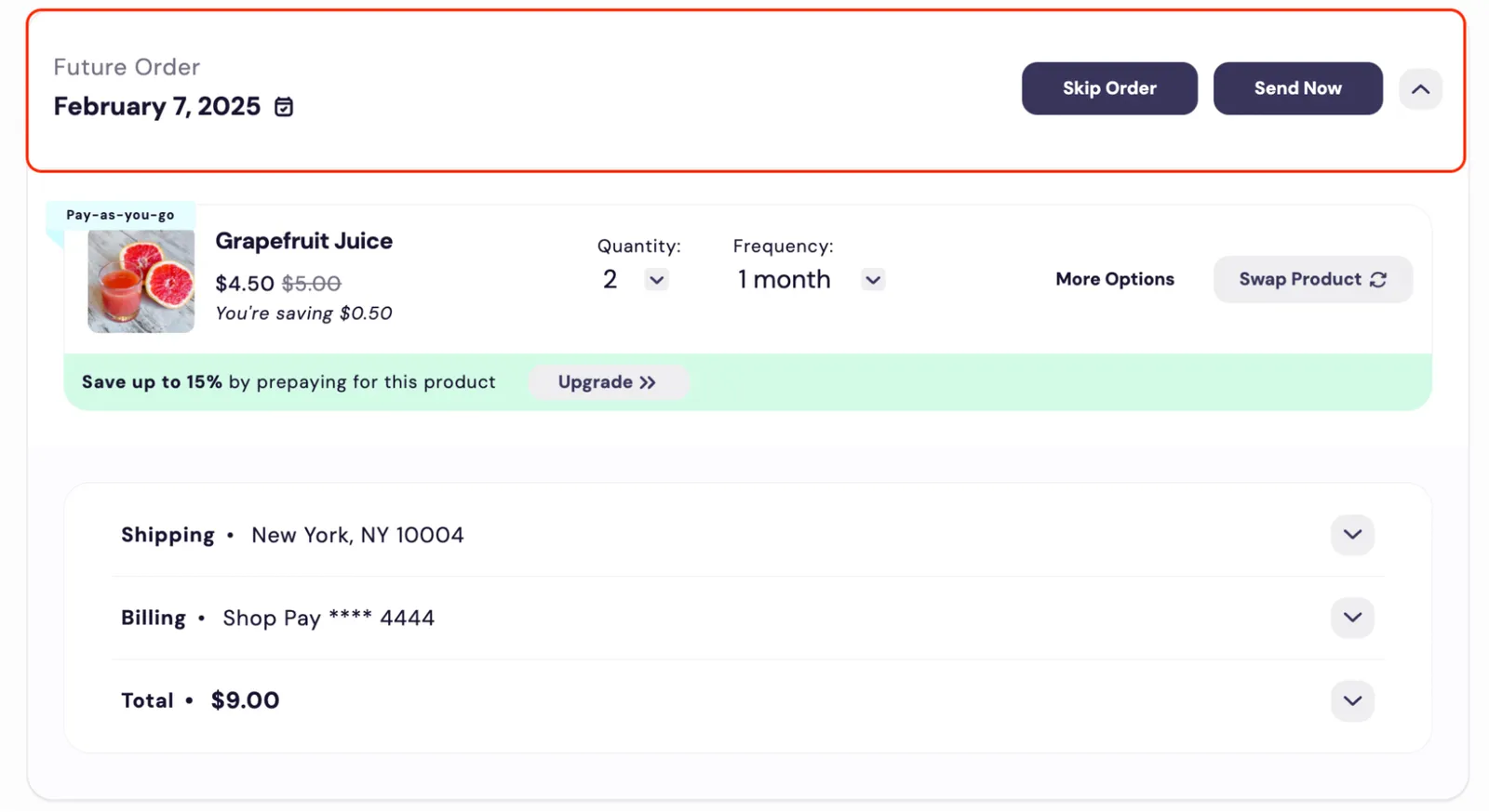
The Subscription Manager's order header, which order/order-header.liquid renders, outlined in red: Future Order, the date February 7, 2025 with a calendar icon, Skip Order and Send Now buttons, and an up chevron. The Grapefruit Juice order item and summary rows appear below it.

iu-elements

This section contains the files for the datepicker, SM icons, and notifications.

datepicker-popover.liquid

The code in this file controls the calendar datepicker.
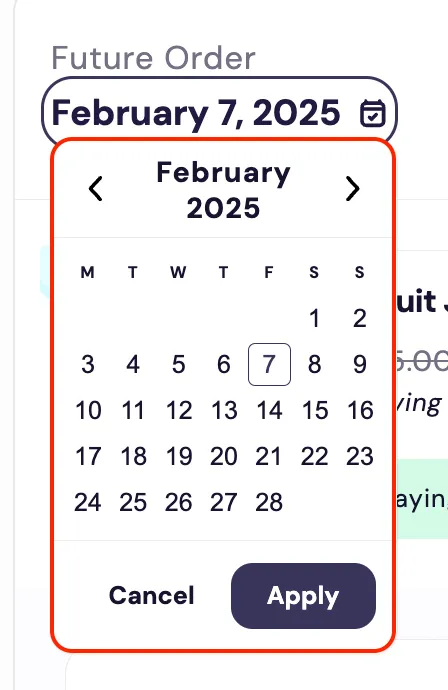
The Subscription Manager's calendar datepicker, which iu-elements/datepicker-popover.liquid renders, outlined in red and open below the order date, February 7, 2025. It shows a February 2025 month grid with previous and next arrows, February 7 outlined, and Cancel and Apply buttons.

icons.liquid

The code in this file controls the various icons used throughout the Subscription Manager. Some of the icons are highlighted below.
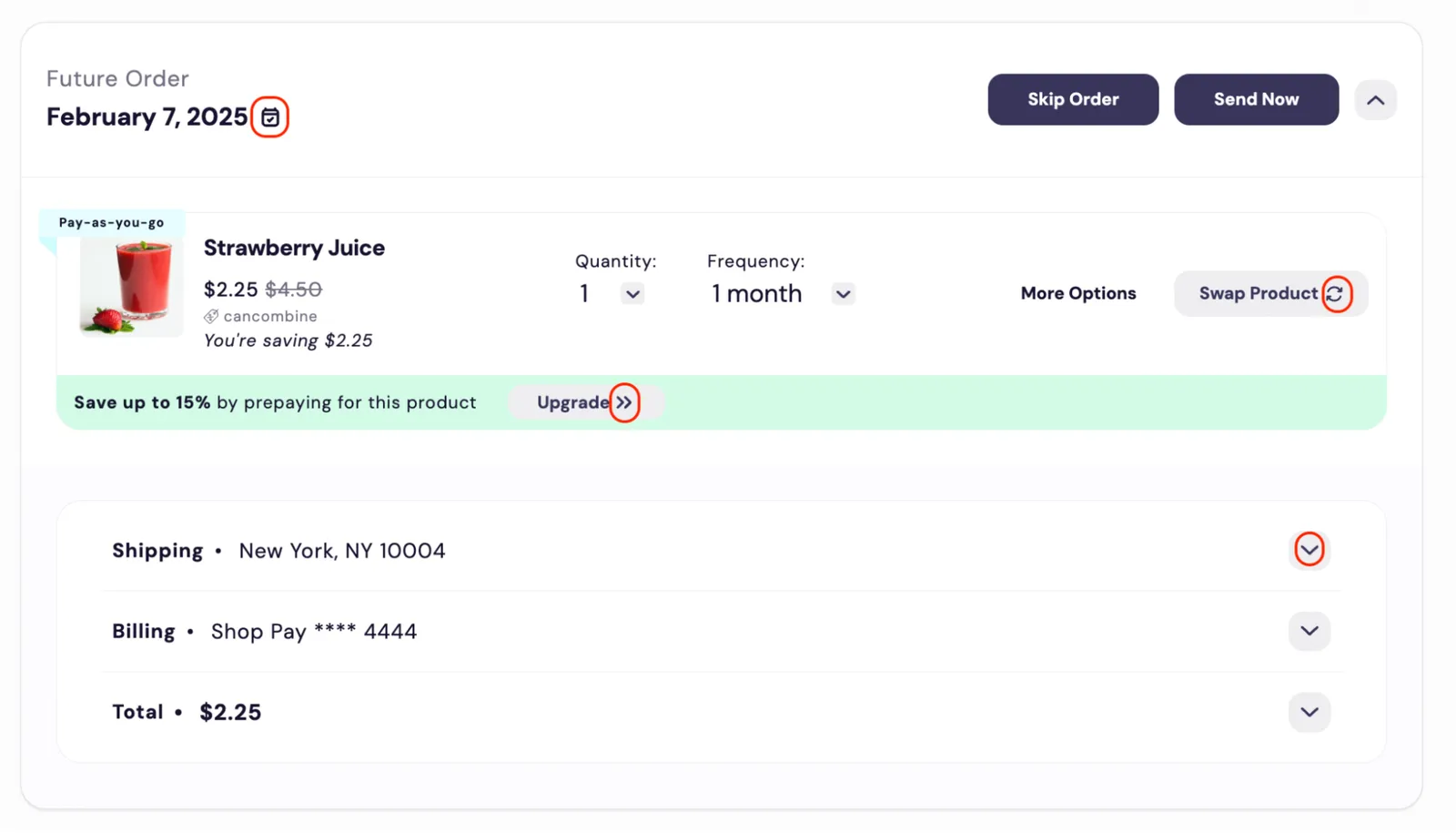
The Subscription Manager's order for Strawberry Juice, with four icons that iu-elements/icons.liquid controls circled in red: the calendar icon beside the order date, the circular arrows icon on the Swap Product button, the double chevron on the prepay banner's Upgrade button, and the down chevron on the Shipping row.

notifications.liquid

The code in this file controls the notifications for successes and errors.


Root-Level Views Files

dialog-header.liquid

The code in this file controls the header of dialog boxes.
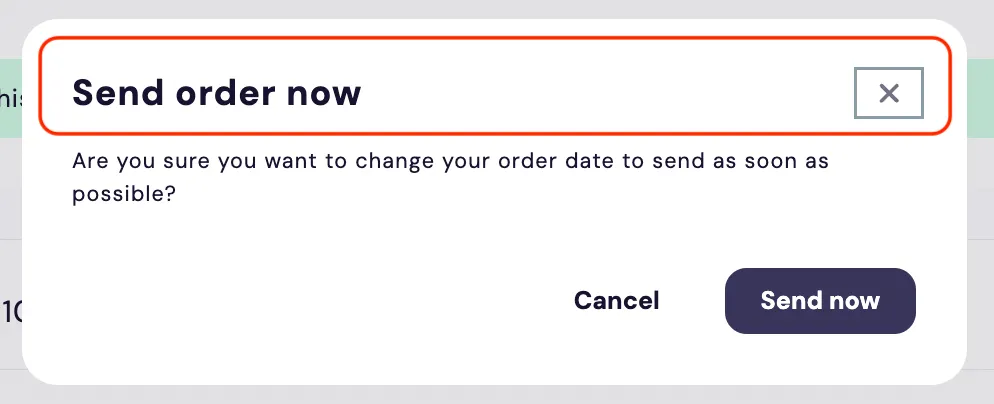
The header of the Subscription Manager's Send order now dialog, which dialog-header.liquid renders, outlined in red; it holds the title and a close button. Below, the dialog asks 'Are you sure you want to change your order date to send as soon as possible?', with Cancel and Send now buttons.

main.liquid

The code in this file controls the Subscription Manager layout. It references the following files: order-processing, upcoming-orders, inactive-subscriptions/main, inactive-subscriptions/no-subscriptions, iu-elements/notifications.
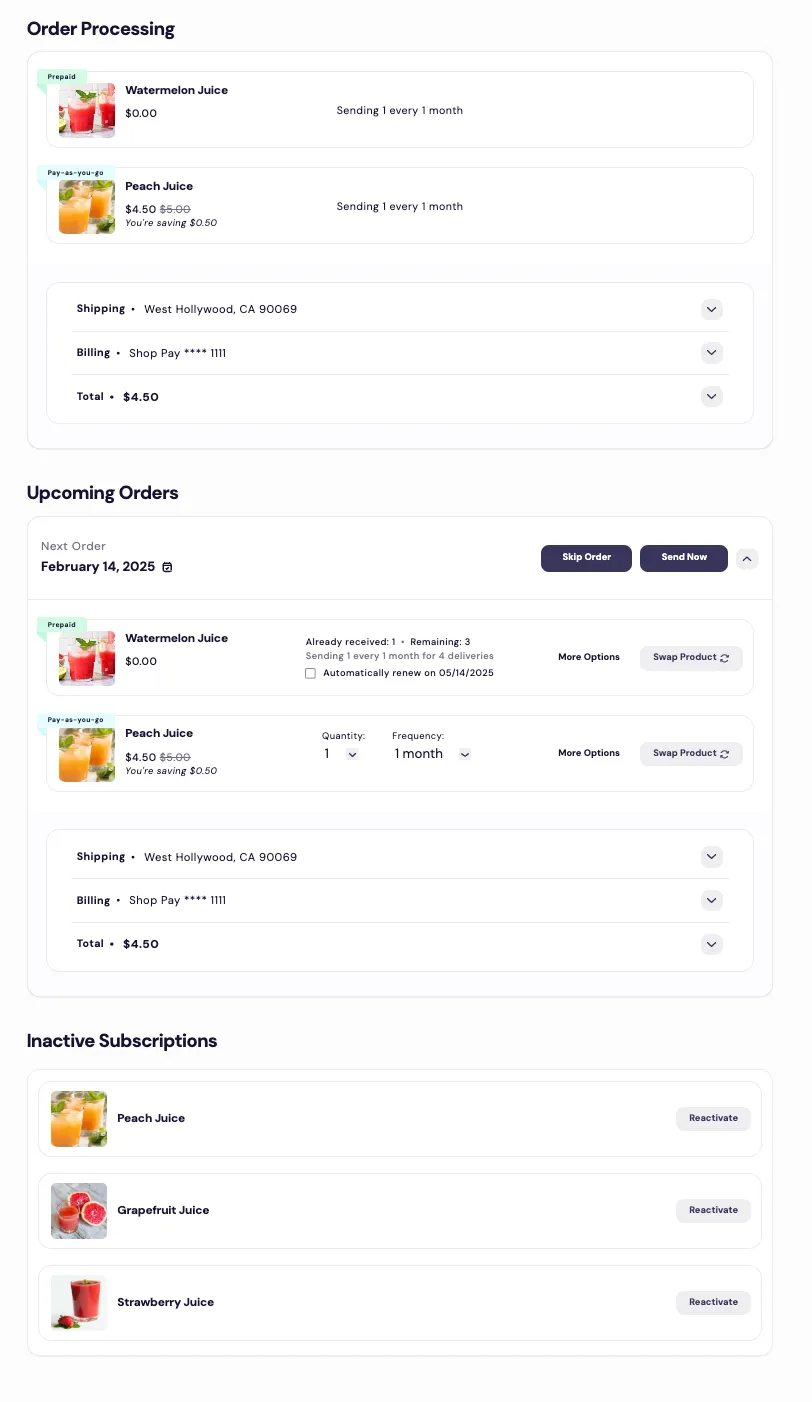
The full Subscription Manager page, which the root-level main.liquid lays out, in three stacked sections. Order Processing shows an order with Watermelon Juice and Peach Juice. Upcoming Orders shows the next order, February 14, 2025, with Skip Order and Send Now buttons. Inactive Subscriptions lists three juices, each with a Reactivate button.

maintenance-mode.liquid

The code in this file controls the Maintenance Mode section on the Subscription Settings page.
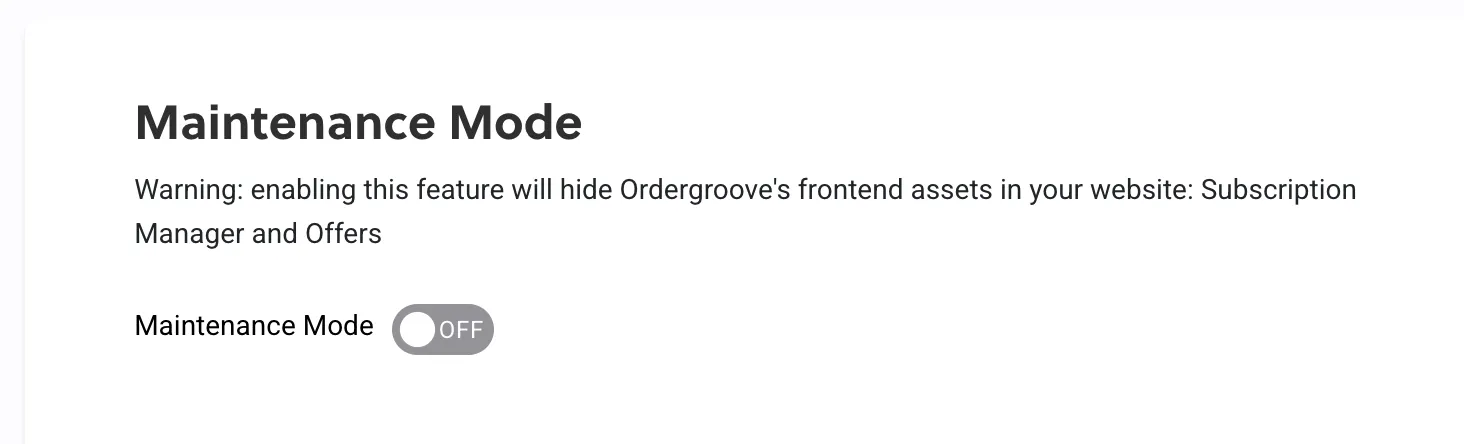
The Maintenance Mode section of the Subscription Settings page, which maintenance-mode.liquid controls. A warning says enabling the feature will hide Ordergroove's frontend assets in your website, Subscription Manager and Offers. A Maintenance Mode toggle below it is switched to OFF.

order-processing.liquid

The code in this file controls the order-processing section.
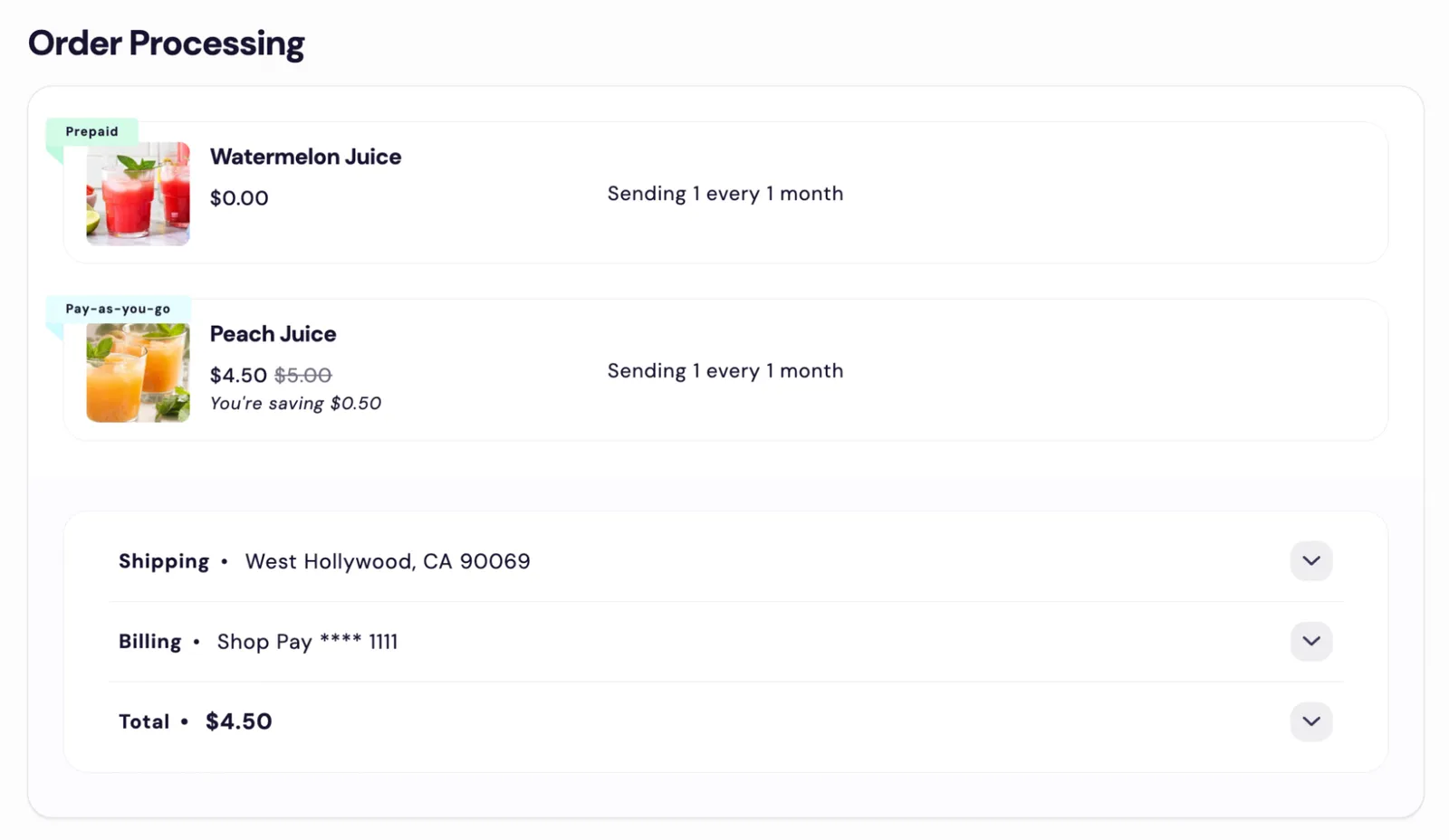
The Subscription Manager's Order Processing section, which order-processing.liquid renders: an order with two items, Watermelon Juice with a Prepaid badge ($0.00) and Peach Juice with a Pay-as-you-go badge ($4.50), each showing 'Sending 1 every 1 month'. Collapsed Shipping, Billing and Total ($4.50) rows sit below.

page-title.liquid

The code in this file controls the title section of the Subscription Manager.

The Subscription Manager's title section, which page-title.liquid renders: a dark banner with the heading 'My Subscriptions' and the line 'Welcome back' beneath it.

upcoming-order.liquid

The code in this file controls the section for unsent orders. It references order/main.


Styles

The styles folder contains all of the .less files with CSS styling for the Subscription Manager. The folder structure mirrors the views folder to make it easy to find the styles you want to edit when making customizations to a particular liquid file.

The only additional folder compared to views is the components folder. This folder contains styling for the custom elements defined in script.js and styling for some HTML elements used across the SM, such as buttons.

The other folders contain section- and feature-specific styles that correspond to folders and liquid files in views. Styles that only relate to one liquid file are in a corresponding .less file with the exact same name and folder path as the liquid file. If some styles span multiple liquid files in the same folder, they share a more generically-named file in the corresponding styles folder.

Outside the folders, several files modify styling across the entire Subscription Manager:

  • design-tokens.less — holds Less variables used across the theme to set colors, sizes, radii, and more. If you want to make simple color changes, the basic editor or design-tokens.less should be your starting point to see if a variable covers your customization.
  • default-theme.less — holds styling for elements that create the “theming” of the SM across components and sections. For example, you would find info box styling in this file.
  • main.less — the entrypoint of the Less files into the Subscription Manager. It must import all Less files used for styling. If you add a Less file, you also need to add it here.
  • page-title.less — contains styling for the title block of the Subscription Manager.
  • page.less — contains styling not limited to the SM, but targeting other elements on the page the SM is loaded on. In general, you probably don’t want to edit this file.
  • reset.less — reduces browser inconsistencies.
  • utility.less — holds basic utility classes used across the SM to quickly apply font size and other styling.
  • variables.less — used by the basic editor to override values in design-tokens.less to make quick, code-free changes to the SM theme. This file is automatically generated by Ordergroove when you make changes with the basic editor.

Scripts

The scripts folder solely holds script.js. The beginning of the file, under the “Subscription Manager loading” header, contains key functions for the SM to load. Do not edit these.

The “Custom Elements” section introduces key components used throughout the SM to encapsulate interaction-heavy functionality. The end of the section defines them as custom HTML elements. In general, you are unlikely to need to modify this section.

The final section is “Utilities,” which contains utility functions used elsewhere in the scripts file and in the SM. This is where you should add any custom JavaScript functions.

You can reference JavaScript functions in liquid files using the js filter. For example, a custom function callNewApi could be added as an onClick method for a button with the code @click="{{ 'callNewApi' | js }}".