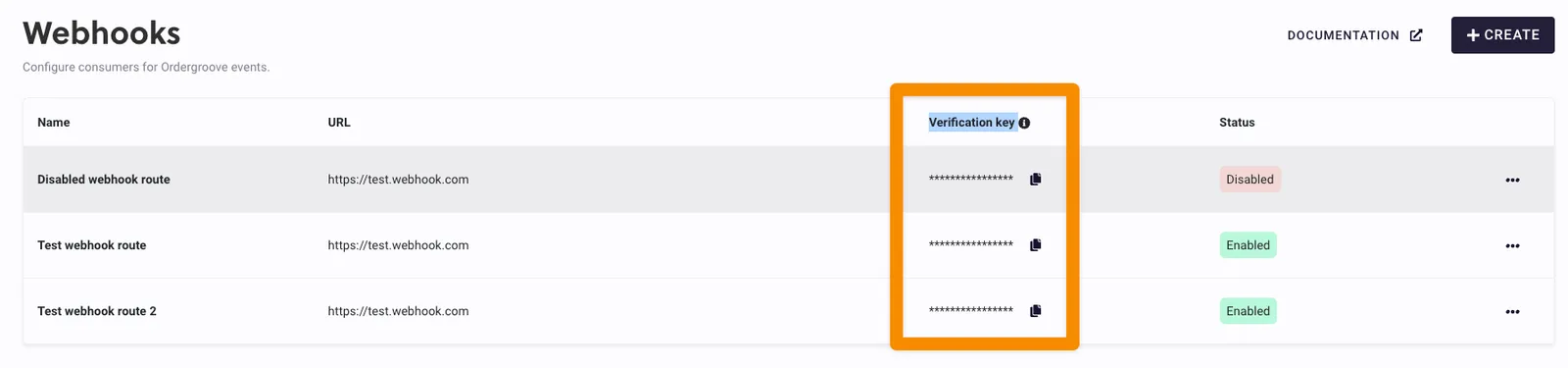
Webhook Authentication
Rotating signing key of a webhook route
Verification keys are used to sign webhook requests, allowing the recipient to verify that the requests are genuinely issued by Ordergroove. In the event the verification key of a given route needs to be changed — because it got compromised or is due for routine security updates — it is possible to start a key rotation process so that webhook requests start being signed with a new key.
Key Rotation Process
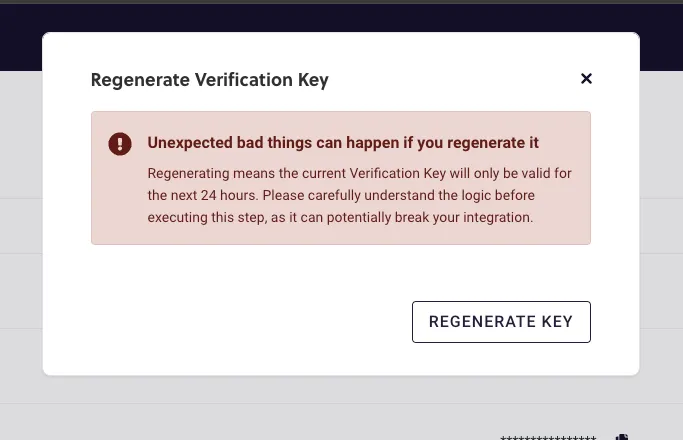
When the key rotation process is initiated for a webhook route, a transitional period of 24 hours begins. During this period, the Ordergroove-Signature header in webhook requests will include signatures for both the new and the old verification keys.
The format for these headers will be:
This dual-signature approach ensures a smooth transition, allowing the recipient to verify the webhook requests using either the old or the new key.
Transition Completion
After the 24-hour transition period, the Ordergroove-Signature header will revert to its standard format, containing only the new key signature:
At this point, the old verification key becomes obsolete for request verification. It is imperative that all webhook recipients update their systems to use the new verification key within this 24-hour window to maintain uninterrupted verification of webhook requests.
To initiate a verification key rotation process for a given webhook, follow these steps:
- Log in to Ordergroove.
- Go to Developers > Webhooks.
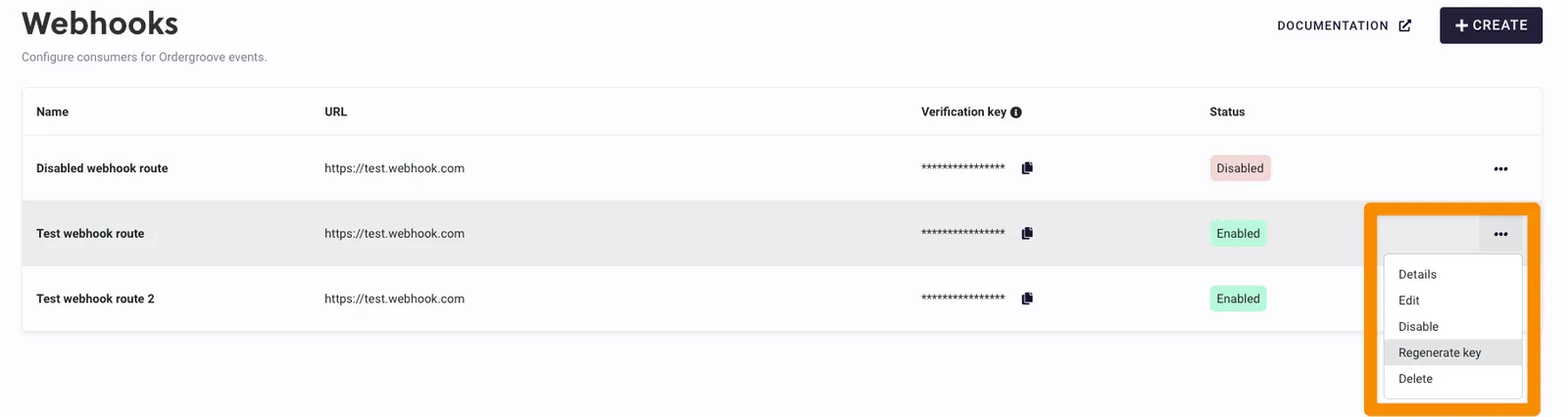
- Locate the webhook you want to rotate, click the 3 dots, and select Regenerate key.
- Confirm the operation by clicking Regenerate key.
- After the operation completes successfully, the new key is available for copying from the Verification Key column and adopting in the recipient servers.